> ## Documentation Index
> Fetch the complete documentation index at: https://docs.duitpos.com/llms.txt
> Use this file to discover all available pages before exploring further.
# Categories
> Organise your products into categories for the POS and online menu, with location and order mode overrides.
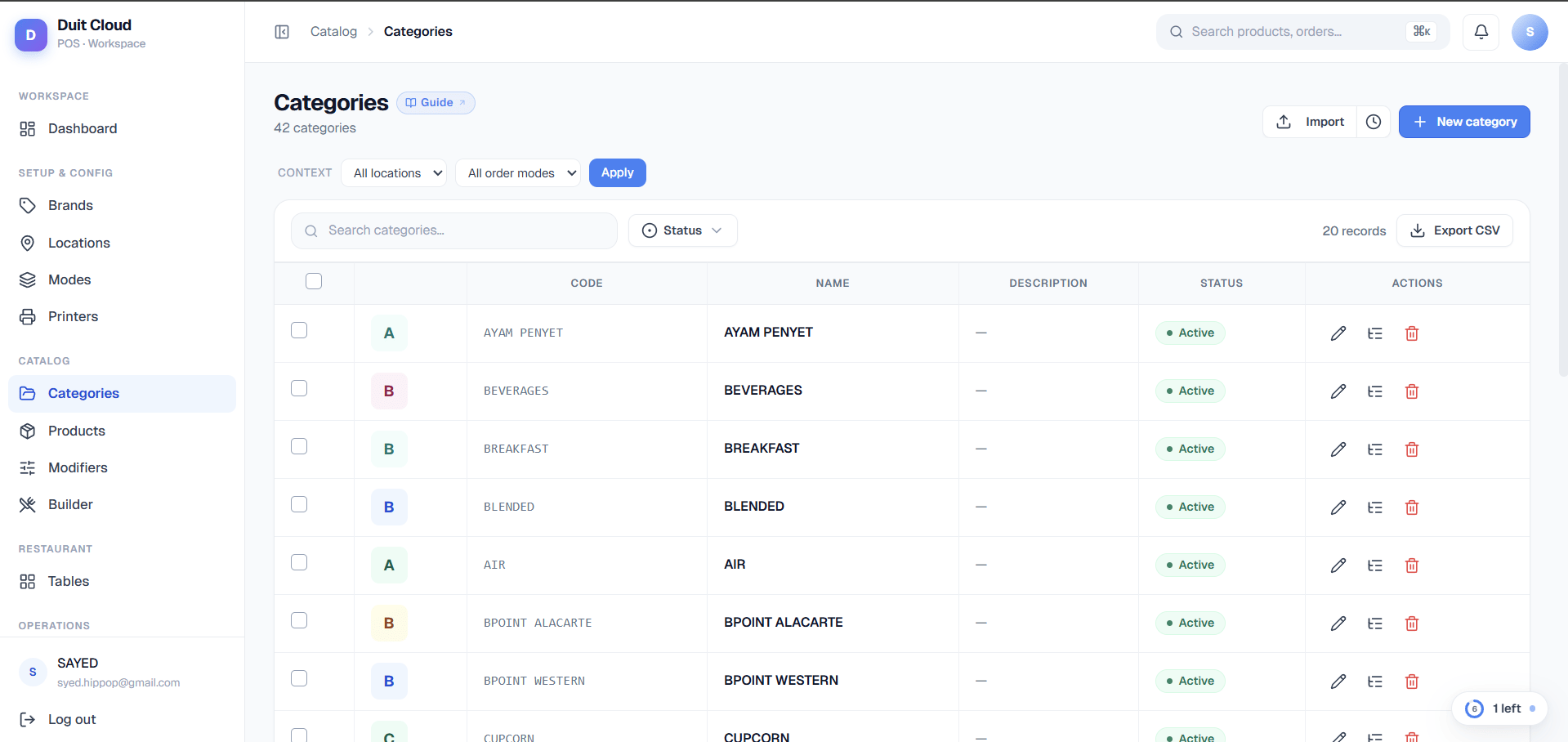
**Categories** group products on the POS screen and the online ordering menu. Each category appears as a tab or section; customers browse by category, and your kitchen routing rules can filter by category to direct prints to specific printers. Unlike a single static list, DuitPOS lets you customise categories for specific locations or order modes—for example, hiding certain sections from delivery orders or renaming a category for a specific location.
 ## Category Fields
| Field | Required | Description |
| --------------- | -------- | ------------------------------------------------------------------------------------------------------------------------------------------------------------------------------------- |
| **Code** | Yes | Internal unique identifier, e.g. `BRG` or `COLD_DRINKS`. Used in imports and APIs |
| **Name** | Yes | The label displayed on the POS category tabs and the online menu, e.g. `Burgers` or `Cold Drinks` |
| **Description** | No | Optional notes for staff or internal use |
| **Colour** | No | An optional highlight colour for the category button on the POS screen. Helps staff find categories faster |
| **Image** | No | A photo shown on the online ordering page to represent the category |
| **Active** | No | Toggle off to hide this category (and all products within it) from the POS and online menu globally. To hide only in specific locations or order modes, use Context Overrides instead |
| **Sort Order** | Auto | Drag to reorder — controls the position of this category tab on the POS and online menu |
Set the **Sort Order** so your most popular categories appear first. On a POS touchscreen, staff will tap the first category by default, so place your highest-volume section (e.g. Main Menu or Beverages) at the top of the list.
## Context Selector & Overrides
The **Context Selector** bar at the top lets you preview and edit category behaviour for a specific **Location** and **Order Mode** combination. This is useful when your menu differs by channel—for example, a delivery order mode might not offer dine-in-only items, or a specific location might have a local item not sold elsewhere.
### How to Use the Context Selector
1. **Pick a Location** (optional) — select from your locations, or leave blank to apply to all locations.
2. **Pick an Order Mode** (optional) — select Pickup, Dine In, Delivery, or Reservation, or leave blank to apply to all order modes.
3. **Click Refresh** — the table reloads and displays a new **Context** column showing any overrides for the selected combination.
4. **View Overrides** — each row now shows badges:
* A **green "Active in ctx"** or **red "Hidden in ctx"** badge (if the category's Active status is overridden in this context)
* A **blue name badge** (if the category's Name is overridden in this context)
5. **Clear the Context** — click **Refresh** with both Location and Order Mode blank to return to the global view (no context).
Overrides are **non-destructive**: they only affect the selected location and order mode combination. The global settings remain unchanged. If you hide a category in one location, it still appears in all others.
Overrides are resolved using the same priority rules as products: a **Location + Order Mode** override beats a Location-only or Order Mode-only override, which beats the global setting. See [Products: Pricing & Availability](/features/products) for the full priority explanation.
## Create a Category
Categories can be managed directly from the **Menu Builder** page or via the Categories shortcut in the left sidebar.
Fill in the **Code** (internal ID) and **Name** fields. Optionally add a Description, Colour, and Image.
Toggle **Active** to show or hide this category globally (on by default).
Click **Create**. The category appears immediately in the Menu Builder and on the POS.
## Bulk Edit in Context
When a context is active (Location and/or Order Mode selected), you can quickly apply the same override to multiple categories at once.
### How to Bulk Edit
Use the **Context Selector** at the top to pick a Location and/or Order Mode.
Check the boxes next to the categories you want to override.
The bulk-edit dialog opens.
Choose **Active**, **Inactive**, or **Inherit (remove override)**. Selecting "Inherit" removes any Active override for those categories in the chosen context, reverting to the global setting.
Enter a new name for the selected categories in this context only. Leave blank to keep the global name (or remove an existing name override).
Click **Save**. All selected categories are updated at once with the new overrides for the chosen Location + Order Mode.
**Bulk Edit in Context** is perfect for hiding entire menu sections from a specific channel. Example: select all "Dine-in only" categories, set Location = All, Order Mode = Delivery, then click "Edit in context" → set to Inactive. Now those categories won't appear on delivery orders, but remain visible in dine-in and pickup.
**Active (global) vs. Hidden (in context)**: Turning a category off globally deactivates it everywhere, even if overrides say to show it in a specific context. Overrides only strengthen; they cannot force a globally-inactive category to appear. If you deactivate a category globally and then see no Context Overrides option for it, that's why.
## Reorder Categories
Drag rows by the sort handle (the six-dot icon) to change the order on the POS. The first active category is selected by default when the POS loads. Reordering applies globally—if you need a different order for specific locations or order modes, you must use the Context Selector to create location/mode-specific name overrides that reflect the desired grouping, or split the categories into different products lists.
## Add Products to a Category
After creating a category, go to **Menu Builder → Products** and either:
* Click **New Product** while the category is selected in the Menu Builder.
* Edit an existing product and change its **Category** field.
## Bulk Import & Export
Use **Bulk Import** to add or update multiple categories at once from a CSV file. Use **Export CSV** to download all current categories (including override values if a context is active) for backup or editing offline.
## Frequently Asked Questions
Both the category and the individual products must be set to **Active** globally. If the category is active but a product is not, that product will be hidden. If the category itself is inactive, all products within it are hidden regardless of their own Active status. Additionally, check whether a Context Override is hiding the category for the currently logged-in location or order mode.
Yes. Use the **Context Selector** to pick the Order Mode, then select the categories you want to hide and click **Edit in context** → set **Active** to **Inactive**. That category will now be hidden for that Order Mode only, while remaining visible in other channels.
**Deactivating globally** turns the category off everywhere. **Hiding in a context** (via Context Overrides) affects only that specific Location + Order Mode combination. Use global deactivation for categories you no longer offer; use context overrides for channel-specific menus (e.g., no dine-in items on delivery).
Each product belongs to one category at a time. If you need to show the same item in multiple sections, create a separate product entry for each category. You can use the same name and price for both.
Yes. The category order set in the Menu Builder applies to both the POS screen and the customer-facing online ordering page, subject to any Context Overrides in effect.
Yes. Routing rules can match by category — for example, you can send all products in the `Hot Food` category to the kitchen printer and all products in the `Beverages` category to the bar printer. See [Printers](/features/printers) for details.
## Related
Add items within your categories; override prices and availability by location and order mode
Manage category and product overrides across multiple locations and order modes at once
Manage your full menu in one place with drag-and-drop organization
Route kitchen prints by category to different printers
## Category Fields
| Field | Required | Description |
| --------------- | -------- | ------------------------------------------------------------------------------------------------------------------------------------------------------------------------------------- |
| **Code** | Yes | Internal unique identifier, e.g. `BRG` or `COLD_DRINKS`. Used in imports and APIs |
| **Name** | Yes | The label displayed on the POS category tabs and the online menu, e.g. `Burgers` or `Cold Drinks` |
| **Description** | No | Optional notes for staff or internal use |
| **Colour** | No | An optional highlight colour for the category button on the POS screen. Helps staff find categories faster |
| **Image** | No | A photo shown on the online ordering page to represent the category |
| **Active** | No | Toggle off to hide this category (and all products within it) from the POS and online menu globally. To hide only in specific locations or order modes, use Context Overrides instead |
| **Sort Order** | Auto | Drag to reorder — controls the position of this category tab on the POS and online menu |
Set the **Sort Order** so your most popular categories appear first. On a POS touchscreen, staff will tap the first category by default, so place your highest-volume section (e.g. Main Menu or Beverages) at the top of the list.
## Context Selector & Overrides
The **Context Selector** bar at the top lets you preview and edit category behaviour for a specific **Location** and **Order Mode** combination. This is useful when your menu differs by channel—for example, a delivery order mode might not offer dine-in-only items, or a specific location might have a local item not sold elsewhere.
### How to Use the Context Selector
1. **Pick a Location** (optional) — select from your locations, or leave blank to apply to all locations.
2. **Pick an Order Mode** (optional) — select Pickup, Dine In, Delivery, or Reservation, or leave blank to apply to all order modes.
3. **Click Refresh** — the table reloads and displays a new **Context** column showing any overrides for the selected combination.
4. **View Overrides** — each row now shows badges:
* A **green "Active in ctx"** or **red "Hidden in ctx"** badge (if the category's Active status is overridden in this context)
* A **blue name badge** (if the category's Name is overridden in this context)
5. **Clear the Context** — click **Refresh** with both Location and Order Mode blank to return to the global view (no context).
Overrides are **non-destructive**: they only affect the selected location and order mode combination. The global settings remain unchanged. If you hide a category in one location, it still appears in all others.
Overrides are resolved using the same priority rules as products: a **Location + Order Mode** override beats a Location-only or Order Mode-only override, which beats the global setting. See [Products: Pricing & Availability](/features/products) for the full priority explanation.
## Create a Category
Categories can be managed directly from the **Menu Builder** page or via the Categories shortcut in the left sidebar.
Fill in the **Code** (internal ID) and **Name** fields. Optionally add a Description, Colour, and Image.
Toggle **Active** to show or hide this category globally (on by default).
Click **Create**. The category appears immediately in the Menu Builder and on the POS.
## Bulk Edit in Context
When a context is active (Location and/or Order Mode selected), you can quickly apply the same override to multiple categories at once.
### How to Bulk Edit
Use the **Context Selector** at the top to pick a Location and/or Order Mode.
Check the boxes next to the categories you want to override.
The bulk-edit dialog opens.
Choose **Active**, **Inactive**, or **Inherit (remove override)**. Selecting "Inherit" removes any Active override for those categories in the chosen context, reverting to the global setting.
Enter a new name for the selected categories in this context only. Leave blank to keep the global name (or remove an existing name override).
Click **Save**. All selected categories are updated at once with the new overrides for the chosen Location + Order Mode.
**Bulk Edit in Context** is perfect for hiding entire menu sections from a specific channel. Example: select all "Dine-in only" categories, set Location = All, Order Mode = Delivery, then click "Edit in context" → set to Inactive. Now those categories won't appear on delivery orders, but remain visible in dine-in and pickup.
**Active (global) vs. Hidden (in context)**: Turning a category off globally deactivates it everywhere, even if overrides say to show it in a specific context. Overrides only strengthen; they cannot force a globally-inactive category to appear. If you deactivate a category globally and then see no Context Overrides option for it, that's why.
## Reorder Categories
Drag rows by the sort handle (the six-dot icon) to change the order on the POS. The first active category is selected by default when the POS loads. Reordering applies globally—if you need a different order for specific locations or order modes, you must use the Context Selector to create location/mode-specific name overrides that reflect the desired grouping, or split the categories into different products lists.
## Add Products to a Category
After creating a category, go to **Menu Builder → Products** and either:
* Click **New Product** while the category is selected in the Menu Builder.
* Edit an existing product and change its **Category** field.
## Bulk Import & Export
Use **Bulk Import** to add or update multiple categories at once from a CSV file. Use **Export CSV** to download all current categories (including override values if a context is active) for backup or editing offline.
## Frequently Asked Questions
Both the category and the individual products must be set to **Active** globally. If the category is active but a product is not, that product will be hidden. If the category itself is inactive, all products within it are hidden regardless of their own Active status. Additionally, check whether a Context Override is hiding the category for the currently logged-in location or order mode.
Yes. Use the **Context Selector** to pick the Order Mode, then select the categories you want to hide and click **Edit in context** → set **Active** to **Inactive**. That category will now be hidden for that Order Mode only, while remaining visible in other channels.
**Deactivating globally** turns the category off everywhere. **Hiding in a context** (via Context Overrides) affects only that specific Location + Order Mode combination. Use global deactivation for categories you no longer offer; use context overrides for channel-specific menus (e.g., no dine-in items on delivery).
Each product belongs to one category at a time. If you need to show the same item in multiple sections, create a separate product entry for each category. You can use the same name and price for both.
Yes. The category order set in the Menu Builder applies to both the POS screen and the customer-facing online ordering page, subject to any Context Overrides in effect.
Yes. Routing rules can match by category — for example, you can send all products in the `Hot Food` category to the kitchen printer and all products in the `Beverages` category to the bar printer. See [Printers](/features/printers) for details.
## Related
Add items within your categories; override prices and availability by location and order mode
Manage category and product overrides across multiple locations and order modes at once
Manage your full menu in one place with drag-and-drop organization
Route kitchen prints by category to different printers