> ## Documentation Index
> Fetch the complete documentation index at: https://docs.duitpos.com/llms.txt
> Use this file to discover all available pages before exploring further.
# E-Invoices
> The day-to-day E-Invoices screen — how a completed sale becomes a claimable, submittable, LHDN-tracked e-invoice.
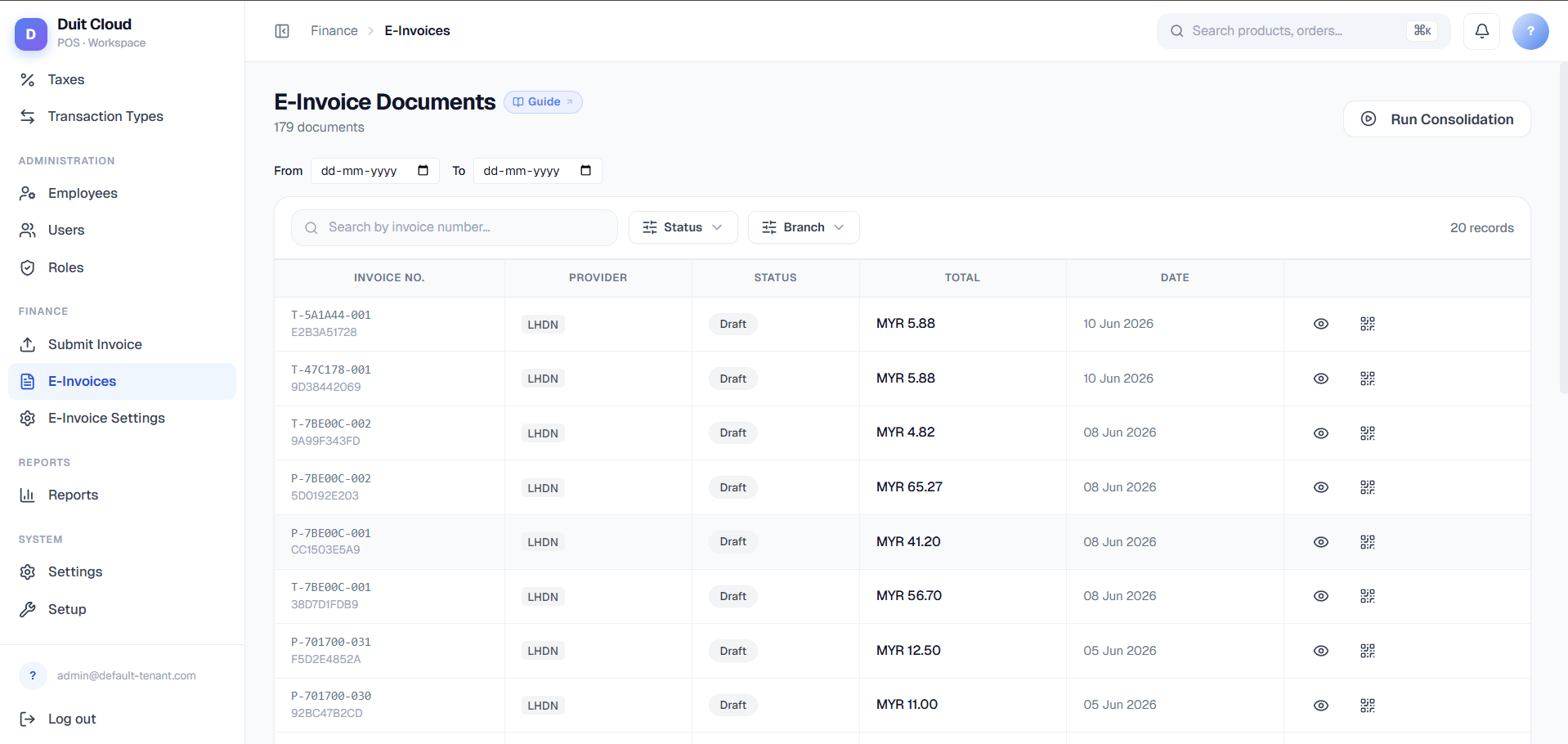
The **E-Invoices** page lists every e-invoice document generated across **all** of your locations — one screen to see what's been claimed, what's waiting on you to submit, and what LHDN has accepted or rejected. This page assumes your locations are already set up for e-invoicing (TIN, BRN, MSIC code, consolidation period); if you haven't done that yet, start on [Locations → E-Invoice Tab](/features/locations) first. Everything below is about what happens **after** setup, day to day.
 ## How a Sale Becomes an E-Invoice
Every e-invoice moves through the same lifecycle, whether it started at the POS or was typed in by hand on [Submit Invoice](/features/submit-invoice). Understanding this flow before you look at any field on this page is the fastest way to stop being confused by a status you weren't expecting.
The moment a POS ticket is closed and paid, DuitPOS silently creates a **Draft** e-invoice behind the scenes and generates a QR code — a "claim link" — that gets printed on the customer's receipt. You don't have to do anything for this to happen. That QR code is valid for **24 hours**.
If the customer scans the receipt QR, they land on a public page where they fill in their own name, ID, and (optionally) TIN so the invoice can be issued properly to them — as a person or as a business. If they never scan it, the draft just sits there unclaimed; see [Consolidation Period](/features/locations) for what eventually happens to unclaimed drafts.
Submission happens one of two ways: automatically, when the monthly-ish consolidation job bundles up unclaimed drafts (configured per location — see [Locations](/features/locations)), or manually, right here on this page, by opening a document and clicking **Submit to LHDN** (or bulk-submitting a whole location's drafts from that location's Invoices tab).
Once submitted, a background job polls LHDN roughly every 3 minutes until the document reaches a final state. It flips automatically to **Valid** (accepted) or **Invalid**/**Rejected** — you never need to manually refresh anything to see the outcome.
If a submitted invoice turns out to be wrong, open it and click **Cancel Invoice** — you'll be asked to type a reason first. LHDN only allows cancellation within roughly 72 hours of the original submission; after that window closes, LHDN itself will refuse it and the fix has to go through a formal credit note process instead.
Documents still in **Draft**, **Cancelled**, **Invalid**, or **Rejected** status can be permanently purged. Anything that reached **Submitted** or **Valid** can never be deleted — only cancelled — because LHDN already has a record of it.
## Invoice Statuses
| Status | What it means |
| ------------- | -------------------------------------------------------------------------------------------------------------------------------------- |
| **Draft** | Generated automatically when the ticket closed. Not yet claimed by the customer, not yet submitted to LHDN. |
| **Pending** | The customer claimed it (filled in their buyer details) but it hasn't been submitted to LHDN yet. |
| **Submitted** | Sent to LHDN and waiting for a response — this is a transient state; the poller checks back every few minutes. |
| **Valid** | LHDN accepted and validated the invoice. This is the end state for a normal, successful invoice. |
| **Invalid** | LHDN rejected the invoice. Open the document detail to see the exact error message and reason. |
| **Rejected** | Same idea as Invalid — LHDN refused to accept the submission; check the error detail for why. |
| **Cancelled** | Cancelled after submission, using the formal cancellation flow and a typed reason (only possible within the LHDN cancellation window). |
**Receipt QR Base URL matters more than it looks.** This is the public web address DuitPOS glues the tenant domain and invoice ID onto when it builds the claim-link QR printed on every receipt. If it's set wrong — a typo, an old domain, `http` instead of `https` — every printed QR code silently points to a broken link, and customers won't be able to claim their e-invoice at all until you fix it and the next batch of receipts print correctly. There's no error shown anywhere in the app when this happens; the only symptom is customers telling you the link doesn't work.
## The E-Invoice Documents Screen
### Receipt QR Base URL
| Field | Description |
| ----------------------- | ------------------------------------------------------------------------------------------------------------------------------------------------------------------------------------------------------------- |
| **Receipt QR Base URL** | The base address used to build the claim-link QR printed on receipts, e.g. `https://app.duitpos.com`. Your tenant domain and the invoice's local ID are appended automatically — don't include them yourself. |
### Run Consolidation
A **Run Consolidation** button appears at the top of the page, but only if LHDN consolidation is turned on for your tenant. Clicking it triggers the monthly bundling job immediately instead of waiting for its automatic schedule — useful for testing your setup, or for clearing a backlog of unclaimed drafts before month-end without waiting for the scheduled run.
### Filters
| Filter | What it does |
| -------------------------- | ----------------------------------------------------------------------------------- |
| **Date range** (From / To) | Narrows the list to invoices created within a specific window. |
| **Status** | Filters by any of the seven statuses above. |
| **Branch/Location** | Only shown if your account has more than one location — filters to a single branch. |
| **Search** | Matches against the invoice number. |
### Table columns
| Column | Shows |
| --------------- | ------------------------------------------------------------------------------------------------------------------------------------------------------------- |
| **Invoice No.** | The invoice number, with a **Cons.** badge for consolidated invoices or a **B2C** badge for claimed personal invoices, plus the internal local ID underneath. |
| **Provider** | The e-invoicing provider handling this document (`lhdn` for Malaysia). |
| **Status** | The status badge — see the table above. |
| **Total** | The invoice's grand total, in its currency. |
| **Date** | When the document was created. |
### Row actions
| Action | What it does |
| ------------------------- | ---------------------------------------------------------------------------------------------------------------------------------------------- |
| **View details** | Opens the detail modal — amounts breakdown, buyer info (if claimed), error info (if Invalid/Rejected), and Submit/Cancel actions. |
| **View QR** | Opens the claim QR — the same one printed on the receipt — plus a link to view it on the MyInvois portal. |
| **View source documents** | Consolidated invoices only. Shows every individual receipt that was bundled into this one consolidated invoice, with its own status and total. |
| **View on MyInvois** | Opens the document directly on LHDN's government MyInvois portal in a new tab, for official verification. |
## How Customers Claim Their E-Invoice
This part of the flow is customer-facing and needs no login — but it's worth understanding here because it's the main way individual invoices leave **Draft** status without you doing anything.
The QR printed on the receipt links straight to a public claim page for that specific invoice.
The form asks for **Nationality** (a Malaysian/Foreigner toggle that changes which ID types are offered), **Identification Type**, **Identification No.**, **TIN** (optional — leave blank if they don't have one), **Full Name**, **Mobile Number**, **Email Address**, **Address Line 1**, **City**, **Postcode**, and **State**.
A "Request Submitted!" confirmation explains that validation typically takes a few minutes and that they can view the finished e-invoice on the MyInvois portal once LHDN accepts it.
The claim link **expires after 24 hours**. If a customer misses the window, the draft doesn't disappear — it either rolls into the next automatic consolidation batch, or your staff can manually issue a proper invoice for that customer using [Submit Invoice](/features/submit-invoice) instead.
## Frequently Asked Questions
Nothing breaks — the e-invoice just stays in **Draft** status, unclaimed. Depending on your location's consolidation setting, it will eventually be bundled into a consolidated invoice automatically, or your staff can manually submit it (or create a fresh invoice for that customer) via [Submit Invoice](/features/submit-invoice).
Yes, but only within LHDN's cancellation window — roughly 72 hours after the original submission. Open the document detail, click **Cancel Invoice**, and type a reason. After the window closes, LHDN no longer allows cancellation and the correction has to go through a formal credit note instead.
Open the document's detail view — the exact error message and code from LHDN is shown there. Common causes are a missing or malformed TIN, an incorrect MSIC code on the location, or a tax amount that doesn't reconcile with the line items. Fix the underlying data and resubmit.
Both are pre-submission states. **Draft** means nobody has claimed it yet — it's exactly what the POS generated. **Pending** means the customer scanned the QR and filled in their buyer details, but it hasn't been sent to LHDN yet. Either one can be submitted manually or picked up by consolidation.
Only if it's in Draft, Cancelled, Invalid, or Rejected status — this is called "purging" and is done from the location's own Invoices tab, not this global list. Submitted or Valid invoices can never be deleted, only cancelled, because LHDN already has an official record of them.
## Related
Manually create an e-invoice for a walk-in or B2B customer
Configure TIN, BRN, MSIC, and consolidation period per location
Platform-level credentials and signing certificate (root admin)
Configure the tax rates that appear on invoice line items
## How a Sale Becomes an E-Invoice
Every e-invoice moves through the same lifecycle, whether it started at the POS or was typed in by hand on [Submit Invoice](/features/submit-invoice). Understanding this flow before you look at any field on this page is the fastest way to stop being confused by a status you weren't expecting.
The moment a POS ticket is closed and paid, DuitPOS silently creates a **Draft** e-invoice behind the scenes and generates a QR code — a "claim link" — that gets printed on the customer's receipt. You don't have to do anything for this to happen. That QR code is valid for **24 hours**.
If the customer scans the receipt QR, they land on a public page where they fill in their own name, ID, and (optionally) TIN so the invoice can be issued properly to them — as a person or as a business. If they never scan it, the draft just sits there unclaimed; see [Consolidation Period](/features/locations) for what eventually happens to unclaimed drafts.
Submission happens one of two ways: automatically, when the monthly-ish consolidation job bundles up unclaimed drafts (configured per location — see [Locations](/features/locations)), or manually, right here on this page, by opening a document and clicking **Submit to LHDN** (or bulk-submitting a whole location's drafts from that location's Invoices tab).
Once submitted, a background job polls LHDN roughly every 3 minutes until the document reaches a final state. It flips automatically to **Valid** (accepted) or **Invalid**/**Rejected** — you never need to manually refresh anything to see the outcome.
If a submitted invoice turns out to be wrong, open it and click **Cancel Invoice** — you'll be asked to type a reason first. LHDN only allows cancellation within roughly 72 hours of the original submission; after that window closes, LHDN itself will refuse it and the fix has to go through a formal credit note process instead.
Documents still in **Draft**, **Cancelled**, **Invalid**, or **Rejected** status can be permanently purged. Anything that reached **Submitted** or **Valid** can never be deleted — only cancelled — because LHDN already has a record of it.
## Invoice Statuses
| Status | What it means |
| ------------- | -------------------------------------------------------------------------------------------------------------------------------------- |
| **Draft** | Generated automatically when the ticket closed. Not yet claimed by the customer, not yet submitted to LHDN. |
| **Pending** | The customer claimed it (filled in their buyer details) but it hasn't been submitted to LHDN yet. |
| **Submitted** | Sent to LHDN and waiting for a response — this is a transient state; the poller checks back every few minutes. |
| **Valid** | LHDN accepted and validated the invoice. This is the end state for a normal, successful invoice. |
| **Invalid** | LHDN rejected the invoice. Open the document detail to see the exact error message and reason. |
| **Rejected** | Same idea as Invalid — LHDN refused to accept the submission; check the error detail for why. |
| **Cancelled** | Cancelled after submission, using the formal cancellation flow and a typed reason (only possible within the LHDN cancellation window). |
**Receipt QR Base URL matters more than it looks.** This is the public web address DuitPOS glues the tenant domain and invoice ID onto when it builds the claim-link QR printed on every receipt. If it's set wrong — a typo, an old domain, `http` instead of `https` — every printed QR code silently points to a broken link, and customers won't be able to claim their e-invoice at all until you fix it and the next batch of receipts print correctly. There's no error shown anywhere in the app when this happens; the only symptom is customers telling you the link doesn't work.
## The E-Invoice Documents Screen
### Receipt QR Base URL
| Field | Description |
| ----------------------- | ------------------------------------------------------------------------------------------------------------------------------------------------------------------------------------------------------------- |
| **Receipt QR Base URL** | The base address used to build the claim-link QR printed on receipts, e.g. `https://app.duitpos.com`. Your tenant domain and the invoice's local ID are appended automatically — don't include them yourself. |
### Run Consolidation
A **Run Consolidation** button appears at the top of the page, but only if LHDN consolidation is turned on for your tenant. Clicking it triggers the monthly bundling job immediately instead of waiting for its automatic schedule — useful for testing your setup, or for clearing a backlog of unclaimed drafts before month-end without waiting for the scheduled run.
### Filters
| Filter | What it does |
| -------------------------- | ----------------------------------------------------------------------------------- |
| **Date range** (From / To) | Narrows the list to invoices created within a specific window. |
| **Status** | Filters by any of the seven statuses above. |
| **Branch/Location** | Only shown if your account has more than one location — filters to a single branch. |
| **Search** | Matches against the invoice number. |
### Table columns
| Column | Shows |
| --------------- | ------------------------------------------------------------------------------------------------------------------------------------------------------------- |
| **Invoice No.** | The invoice number, with a **Cons.** badge for consolidated invoices or a **B2C** badge for claimed personal invoices, plus the internal local ID underneath. |
| **Provider** | The e-invoicing provider handling this document (`lhdn` for Malaysia). |
| **Status** | The status badge — see the table above. |
| **Total** | The invoice's grand total, in its currency. |
| **Date** | When the document was created. |
### Row actions
| Action | What it does |
| ------------------------- | ---------------------------------------------------------------------------------------------------------------------------------------------- |
| **View details** | Opens the detail modal — amounts breakdown, buyer info (if claimed), error info (if Invalid/Rejected), and Submit/Cancel actions. |
| **View QR** | Opens the claim QR — the same one printed on the receipt — plus a link to view it on the MyInvois portal. |
| **View source documents** | Consolidated invoices only. Shows every individual receipt that was bundled into this one consolidated invoice, with its own status and total. |
| **View on MyInvois** | Opens the document directly on LHDN's government MyInvois portal in a new tab, for official verification. |
## How Customers Claim Their E-Invoice
This part of the flow is customer-facing and needs no login — but it's worth understanding here because it's the main way individual invoices leave **Draft** status without you doing anything.
The QR printed on the receipt links straight to a public claim page for that specific invoice.
The form asks for **Nationality** (a Malaysian/Foreigner toggle that changes which ID types are offered), **Identification Type**, **Identification No.**, **TIN** (optional — leave blank if they don't have one), **Full Name**, **Mobile Number**, **Email Address**, **Address Line 1**, **City**, **Postcode**, and **State**.
A "Request Submitted!" confirmation explains that validation typically takes a few minutes and that they can view the finished e-invoice on the MyInvois portal once LHDN accepts it.
The claim link **expires after 24 hours**. If a customer misses the window, the draft doesn't disappear — it either rolls into the next automatic consolidation batch, or your staff can manually issue a proper invoice for that customer using [Submit Invoice](/features/submit-invoice) instead.
## Frequently Asked Questions
Nothing breaks — the e-invoice just stays in **Draft** status, unclaimed. Depending on your location's consolidation setting, it will eventually be bundled into a consolidated invoice automatically, or your staff can manually submit it (or create a fresh invoice for that customer) via [Submit Invoice](/features/submit-invoice).
Yes, but only within LHDN's cancellation window — roughly 72 hours after the original submission. Open the document detail, click **Cancel Invoice**, and type a reason. After the window closes, LHDN no longer allows cancellation and the correction has to go through a formal credit note instead.
Open the document's detail view — the exact error message and code from LHDN is shown there. Common causes are a missing or malformed TIN, an incorrect MSIC code on the location, or a tax amount that doesn't reconcile with the line items. Fix the underlying data and resubmit.
Both are pre-submission states. **Draft** means nobody has claimed it yet — it's exactly what the POS generated. **Pending** means the customer scanned the QR and filled in their buyer details, but it hasn't been sent to LHDN yet. Either one can be submitted manually or picked up by consolidation.
Only if it's in Draft, Cancelled, Invalid, or Rejected status — this is called "purging" and is done from the location's own Invoices tab, not this global list. Submitted or Valid invoices can never be deleted, only cancelled, because LHDN already has an official record of them.
## Related
Manually create an e-invoice for a walk-in or B2B customer
Configure TIN, BRN, MSIC, and consolidation period per location
Platform-level credentials and signing certificate (root admin)
Configure the tax rates that appear on invoice line items