> ## Documentation Index
> Fetch the complete documentation index at: https://docs.duitpos.com/llms.txt
> Use this file to discover all available pages before exploring further.
# Employees
> Manage staff records separate from system login accounts.
## Employees vs Users: Key Distinction
**Employees** and **Users** are two separate systems often confused. Here's the difference:
* **Employees** are **POS terminal login accounts**: Staff log in using a PIN (4–6 digits) at the point of sale. Each employee is tied to a location. Use for frontline staff (cashiers, supervisors, waiters, kitchen staff).
* **Users** are **admin dashboard login accounts**: Staff log in with email + password in a browser at `https://app.duitpos.com` to view reports, manage products, and control the account. Accessed from anywhere, not at the terminal.
* **Relationship**: An employee *can* be linked to a user account via the "User Account" field (allowing the same person to log in both at the POS terminal AND the dashboard). But they don't have to be linked — most POS staff need only an employee record.
* **Access rule**:
* A staff member working the POS needs an **Employee** profile (with PIN).
* A manager accessing the admin dashboard needs a **User** account.
* A staff member doing both needs **both** — an Employee linked to a User.
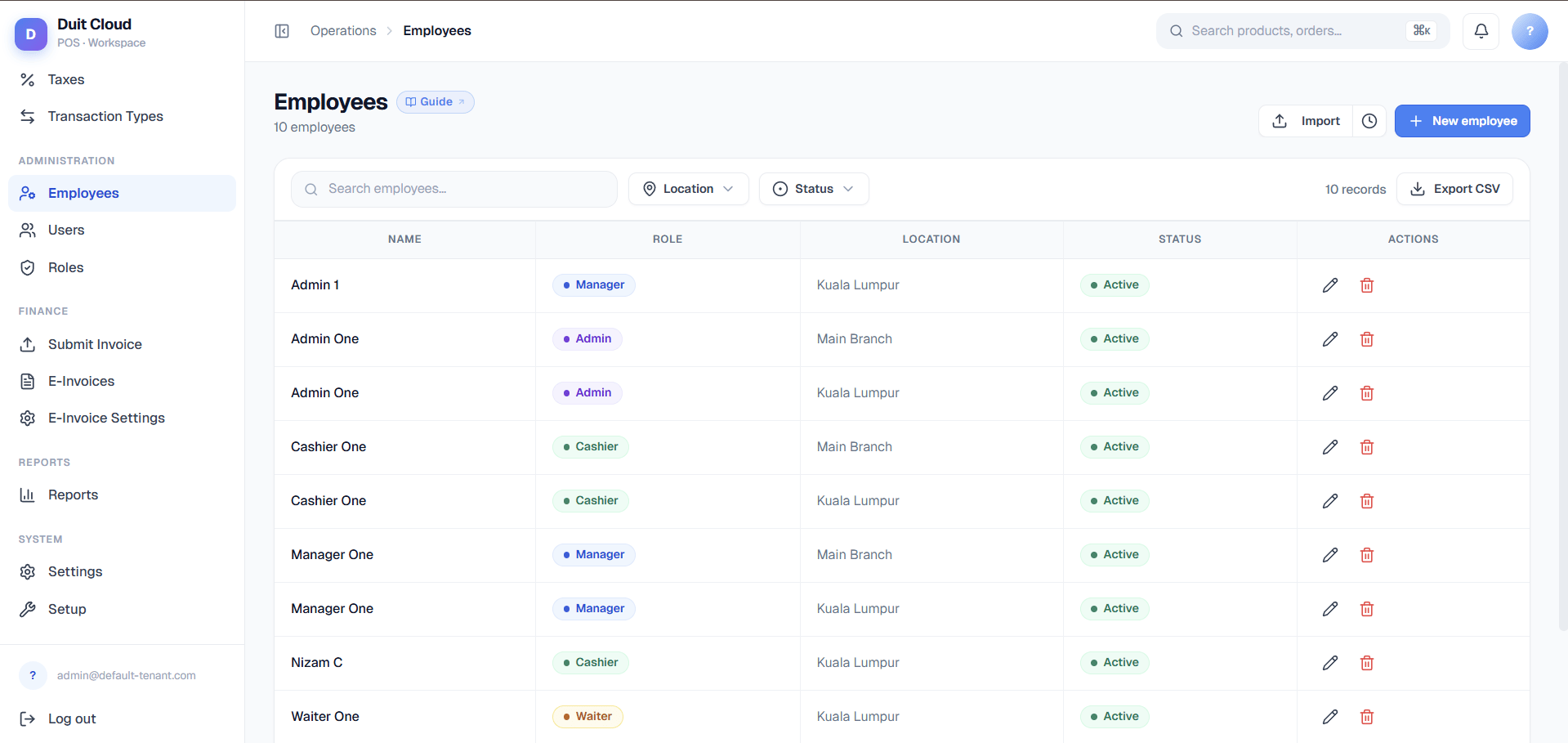 ## Employee Fields
| Field | Required | Description |
| ---------------- | -------- | -------------------------------------------------------------------------------------------------------------------------------------------------------------------------------------------------------------------------------------------------------- |
| **Full Name** | Yes | The employee's full name, shown on the POS login screen and in sales reports |
| **POS Role** | Yes | The terminal-level role that determines what this employee can do on the POS (e.g. Cashier, Supervisor, Waiter, Kitchen, Manager). *Note: This is separate from dashboard-level Permissions.* |
| **PIN** | Yes | A 4–6 digit number the employee uses to log in to the POS. Must be unique within the location. On create, enter the initial PIN; on edit, leave blank to keep the current PIN or enter a new one to reset. |
| **Avatar Color** | No | A highlight colour shown next to the employee's name on the POS login screen for quick identification. Helps staff recognize their own account at a glance. |
| **Location** | No | The primary location (branch) this employee works at. Used for location-based report filtering and sale attribution. |
| **User Account** | No | *(Optional link to dashboard admin)* Link this employee to a dashboard user account if they also need access to the admin panel (reports, settings, etc.). When linked, this person can log in both at the POS (PIN) and the dashboard (email+password). |
| **Active** | No | Toggle off to prevent this employee from logging in to the POS (e.g. on extended leave). Historical records are preserved. |
Use a PIN that is easy for the employee to remember but not obvious (avoid `1234` or `0000`). For higher-security environments, use 6-digit PINs and rotate them periodically.
## Create an Employee
Click **Employees** in the left sidebar under Staff.
Fill in the employee's name, role, and PIN. Optionally add a colour and location.
Click **Create**. The employee can immediately log in to the POS using their PIN.
## Link to a User Account (Enable Dashboard Access)
If this employee also needs admin dashboard access (to view reports, manage settings, etc.), open their employee record and use the **User Account** dropdown to link it to the corresponding **User** account (created in **Setup → Users & Roles**).
Once linked:
* The same person can log in at the POS using their PIN
* The same person can log in at the dashboard using their email + password
* Sales, shifts, and reports are attributed to them by name in both systems
* This person inherits the permissions assigned to their user role (e.g. "Manager" can view reports; "Cashier" cannot)
**They remain independent login systems** — a POS PIN is not a dashboard password, and vice versa.
## Deactivate
Toggle **Active** off to mark an employee as inactive (e.g. when they leave or are on extended leave). Their historical records — sales, shifts, and reports — are fully preserved.
Deactivating an employee immediately prevents them from logging in to the POS. If they are mid-shift, they will be logged out on their next PIN attempt. Make sure the shift is handed over before deactivating.
## Frequently Asked Questions
Go to **Staff → Employees**, click **Edit** on the employee's record, and enter a new PIN in the PIN field. Save the change. The new PIN takes effect immediately on the POS.
Check that the employee's record is set to **Active**. Also verify their PIN — ask them to re-enter it carefully (PINs are numeric only and must match exactly). If the POS still rejects the PIN, reset it in the employee record.
These are two separate systems:
* **POS Role** (e.g. Cashier, Supervisor, Kitchen) controls what an employee can do *at the POS terminal* — void items, apply discounts, open drawers, etc. This is a simple terminal-level classification built into the POS application.
* **Permissions** (from user roles like Manager, Admin, Accountant) control what a *user* can do in the *admin dashboard* — view reports, manage products, change settings, etc. Permissions only apply if the employee is linked to a user account.
An employee doesn't need a user account at all; they can work POS-only with just a POS role and PIN. If they are linked to a user account, they then inherit both their POS role *and* their dashboard permissions.
**Yes.** Create an employee record with a PIN (for POS login), then link it to a user account (for dashboard login). The same person can then log in at the POS using their PIN and access the admin dashboard at `https://app.duitpos.com` using their email + password. Use this for managers or supervisors who need both POS and reporting/settings access.
Yes. Go to **Staff → Employees**, select the employee, and click **Delete**. Deactivating (via the **Active** toggle) is recommended first, as it prevents login while preserving historical sales, shifts, and reports tied to that employee. Hard deletion removes the employee record entirely but does not erase historical transactions.
No. PINs must be unique within a location. The system will reject a PIN that is already in use when you try to save. If an employee leaves, deactivate them (rather than deleting) so their sales history is preserved under their name.
## Related
Manage **dashboard login accounts** (email + password). Link a user to an employee to grant dashboard access. See this page to understand the employee–user relationship better.
Control fine-grained dashboard access (what users can do in the admin panel). POS roles are separate — see the FAQ for clarification.
Assign employees to branches. Location affects POS behavior and report filtering.
View sales, shifts, and revenue attributed to each employee by name.
## Employee Fields
| Field | Required | Description |
| ---------------- | -------- | -------------------------------------------------------------------------------------------------------------------------------------------------------------------------------------------------------------------------------------------------------- |
| **Full Name** | Yes | The employee's full name, shown on the POS login screen and in sales reports |
| **POS Role** | Yes | The terminal-level role that determines what this employee can do on the POS (e.g. Cashier, Supervisor, Waiter, Kitchen, Manager). *Note: This is separate from dashboard-level Permissions.* |
| **PIN** | Yes | A 4–6 digit number the employee uses to log in to the POS. Must be unique within the location. On create, enter the initial PIN; on edit, leave blank to keep the current PIN or enter a new one to reset. |
| **Avatar Color** | No | A highlight colour shown next to the employee's name on the POS login screen for quick identification. Helps staff recognize their own account at a glance. |
| **Location** | No | The primary location (branch) this employee works at. Used for location-based report filtering and sale attribution. |
| **User Account** | No | *(Optional link to dashboard admin)* Link this employee to a dashboard user account if they also need access to the admin panel (reports, settings, etc.). When linked, this person can log in both at the POS (PIN) and the dashboard (email+password). |
| **Active** | No | Toggle off to prevent this employee from logging in to the POS (e.g. on extended leave). Historical records are preserved. |
Use a PIN that is easy for the employee to remember but not obvious (avoid `1234` or `0000`). For higher-security environments, use 6-digit PINs and rotate them periodically.
## Create an Employee
Click **Employees** in the left sidebar under Staff.
Fill in the employee's name, role, and PIN. Optionally add a colour and location.
Click **Create**. The employee can immediately log in to the POS using their PIN.
## Link to a User Account (Enable Dashboard Access)
If this employee also needs admin dashboard access (to view reports, manage settings, etc.), open their employee record and use the **User Account** dropdown to link it to the corresponding **User** account (created in **Setup → Users & Roles**).
Once linked:
* The same person can log in at the POS using their PIN
* The same person can log in at the dashboard using their email + password
* Sales, shifts, and reports are attributed to them by name in both systems
* This person inherits the permissions assigned to their user role (e.g. "Manager" can view reports; "Cashier" cannot)
**They remain independent login systems** — a POS PIN is not a dashboard password, and vice versa.
## Deactivate
Toggle **Active** off to mark an employee as inactive (e.g. when they leave or are on extended leave). Their historical records — sales, shifts, and reports — are fully preserved.
Deactivating an employee immediately prevents them from logging in to the POS. If they are mid-shift, they will be logged out on their next PIN attempt. Make sure the shift is handed over before deactivating.
## Frequently Asked Questions
Go to **Staff → Employees**, click **Edit** on the employee's record, and enter a new PIN in the PIN field. Save the change. The new PIN takes effect immediately on the POS.
Check that the employee's record is set to **Active**. Also verify their PIN — ask them to re-enter it carefully (PINs are numeric only and must match exactly). If the POS still rejects the PIN, reset it in the employee record.
These are two separate systems:
* **POS Role** (e.g. Cashier, Supervisor, Kitchen) controls what an employee can do *at the POS terminal* — void items, apply discounts, open drawers, etc. This is a simple terminal-level classification built into the POS application.
* **Permissions** (from user roles like Manager, Admin, Accountant) control what a *user* can do in the *admin dashboard* — view reports, manage products, change settings, etc. Permissions only apply if the employee is linked to a user account.
An employee doesn't need a user account at all; they can work POS-only with just a POS role and PIN. If they are linked to a user account, they then inherit both their POS role *and* their dashboard permissions.
**Yes.** Create an employee record with a PIN (for POS login), then link it to a user account (for dashboard login). The same person can then log in at the POS using their PIN and access the admin dashboard at `https://app.duitpos.com` using their email + password. Use this for managers or supervisors who need both POS and reporting/settings access.
Yes. Go to **Staff → Employees**, select the employee, and click **Delete**. Deactivating (via the **Active** toggle) is recommended first, as it prevents login while preserving historical sales, shifts, and reports tied to that employee. Hard deletion removes the employee record entirely but does not erase historical transactions.
No. PINs must be unique within a location. The system will reject a PIN that is already in use when you try to save. If an employee leaves, deactivate them (rather than deleting) so their sales history is preserved under their name.
## Related
Manage **dashboard login accounts** (email + password). Link a user to an employee to grant dashboard access. See this page to understand the employee–user relationship better.
Control fine-grained dashboard access (what users can do in the admin panel). POS roles are separate — see the FAQ for clarification.
Assign employees to branches. Location affects POS behavior and report filtering.
View sales, shifts, and revenue attributed to each employee by name.