> ## Documentation Index
> Fetch the complete documentation index at: https://docs.duitpos.com/llms.txt
> Use this file to discover all available pages before exploring further.
# Label Templates
> Create barcode and price label layouts and configure your printer for the correct label size.
# Label Templates
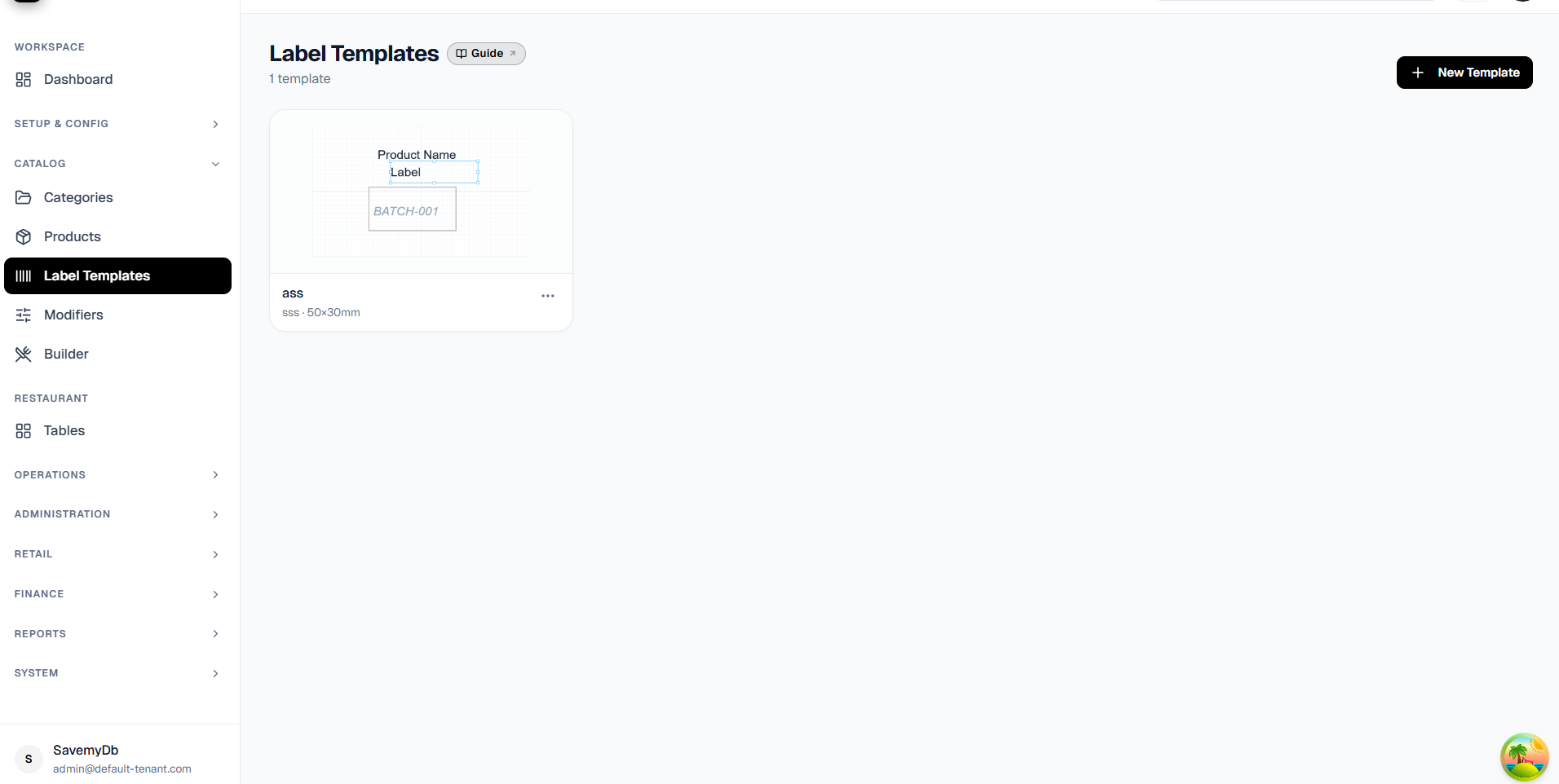
Label Templates allow you to design barcode and price labels in Duit Cloud and print them for selected products.
## View Label Templates
Go to:
**Catalog → Label Templates**
Here you can view existing templates or click **New Template** to create one.
 ## Create a Label Template
Go to:
**Catalog → Label Templates → New Template**
Enter the template **Name** and **Code**, then select the required label size.
Duit Cloud supports predefined label sizes as well as custom label sizes.
## Create a Label Template
Go to:
**Catalog → Label Templates → New Template**
Enter the template **Name** and **Code**, then select the required label size.
Duit Cloud supports predefined label sizes as well as custom label sizes.
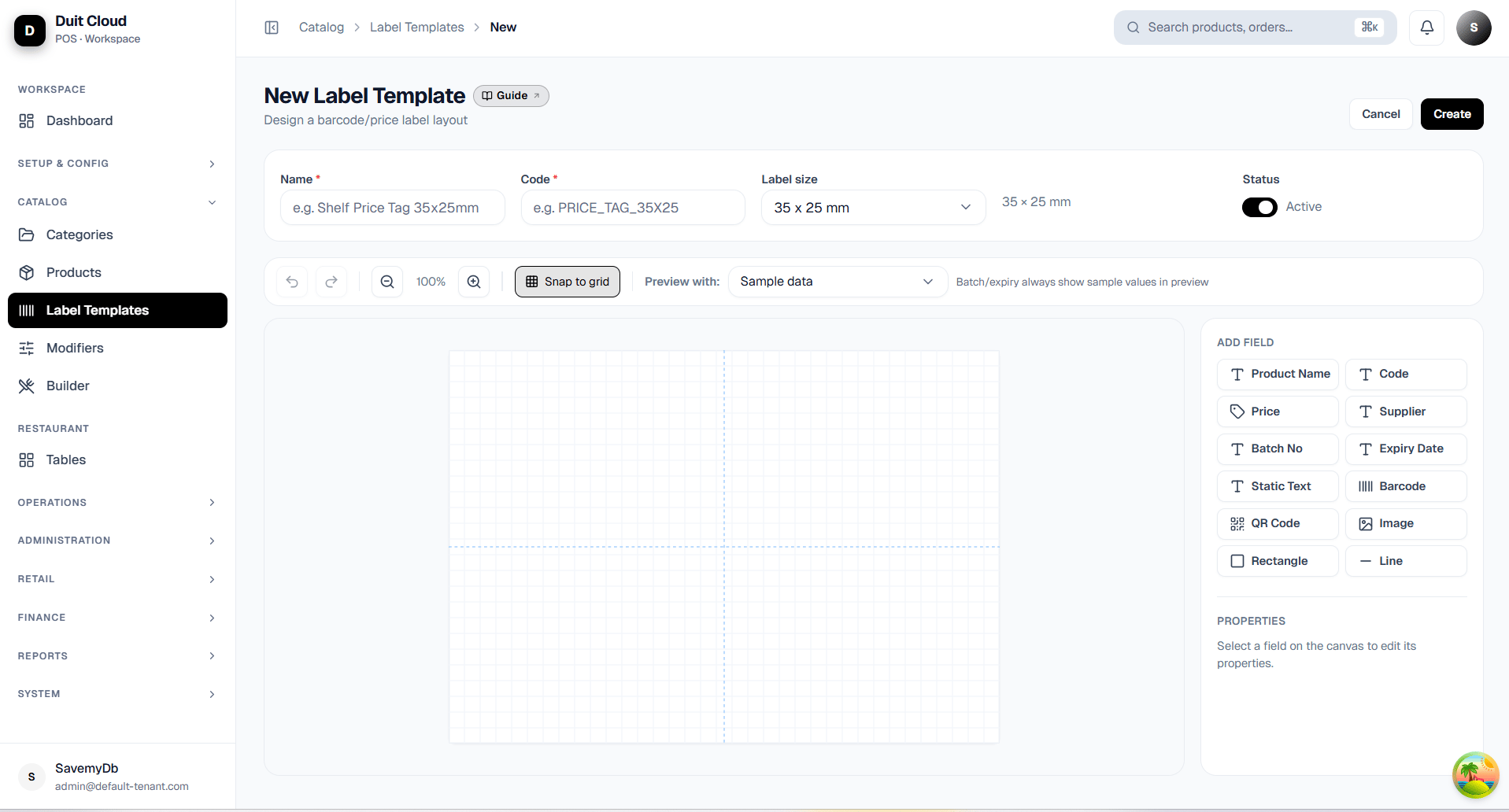 You can add fields such as:
* Product Name
* Code
* Price
* Supplier
* Batch Number
* Expiry Date
* Static Text
* Barcode
* QR Code
* Image
* Rectangle
* Line
Drag and position the required fields on the label canvas, then save the template.
## Important: Configure the Printer Paper Size
The paper size configured in the printer driver must match the label size designed in Duit Cloud.
For example, if your template is:
**50 × 30 mm**
configure the printer driver with:
**Width:** 50 mm\
**Height:** 30 mm
If you create a custom label size in Duit Cloud, create or select the corresponding custom paper size in the printer driver.
## Printer Orientation
The printer orientation must match the orientation used by the label design.
For example:
**Cloud Template:** 50 × 30 mm, Landscape\
**Printer Driver:** 50 × 30 mm, Landscape
If the printer driver is set to Portrait while the label is designed in Landscape, the label may print sideways, clipped, or incorrectly scaled.
Also use **100% / Actual Size** where available and avoid **Fit to Page** or **Shrink to Fit** if they change the label dimensions.
## Print Product Labels
Go to:
**Catalog → Products**
Select the required product or products.
The **Print Labels** action will appear.
You can add fields such as:
* Product Name
* Code
* Price
* Supplier
* Batch Number
* Expiry Date
* Static Text
* Barcode
* QR Code
* Image
* Rectangle
* Line
Drag and position the required fields on the label canvas, then save the template.
## Important: Configure the Printer Paper Size
The paper size configured in the printer driver must match the label size designed in Duit Cloud.
For example, if your template is:
**50 × 30 mm**
configure the printer driver with:
**Width:** 50 mm\
**Height:** 30 mm
If you create a custom label size in Duit Cloud, create or select the corresponding custom paper size in the printer driver.
## Printer Orientation
The printer orientation must match the orientation used by the label design.
For example:
**Cloud Template:** 50 × 30 mm, Landscape\
**Printer Driver:** 50 × 30 mm, Landscape
If the printer driver is set to Portrait while the label is designed in Landscape, the label may print sideways, clipped, or incorrectly scaled.
Also use **100% / Actual Size** where available and avoid **Fit to Page** or **Shrink to Fit** if they change the label dimensions.
## Print Product Labels
Go to:
**Catalog → Products**
Select the required product or products.
The **Print Labels** action will appear.
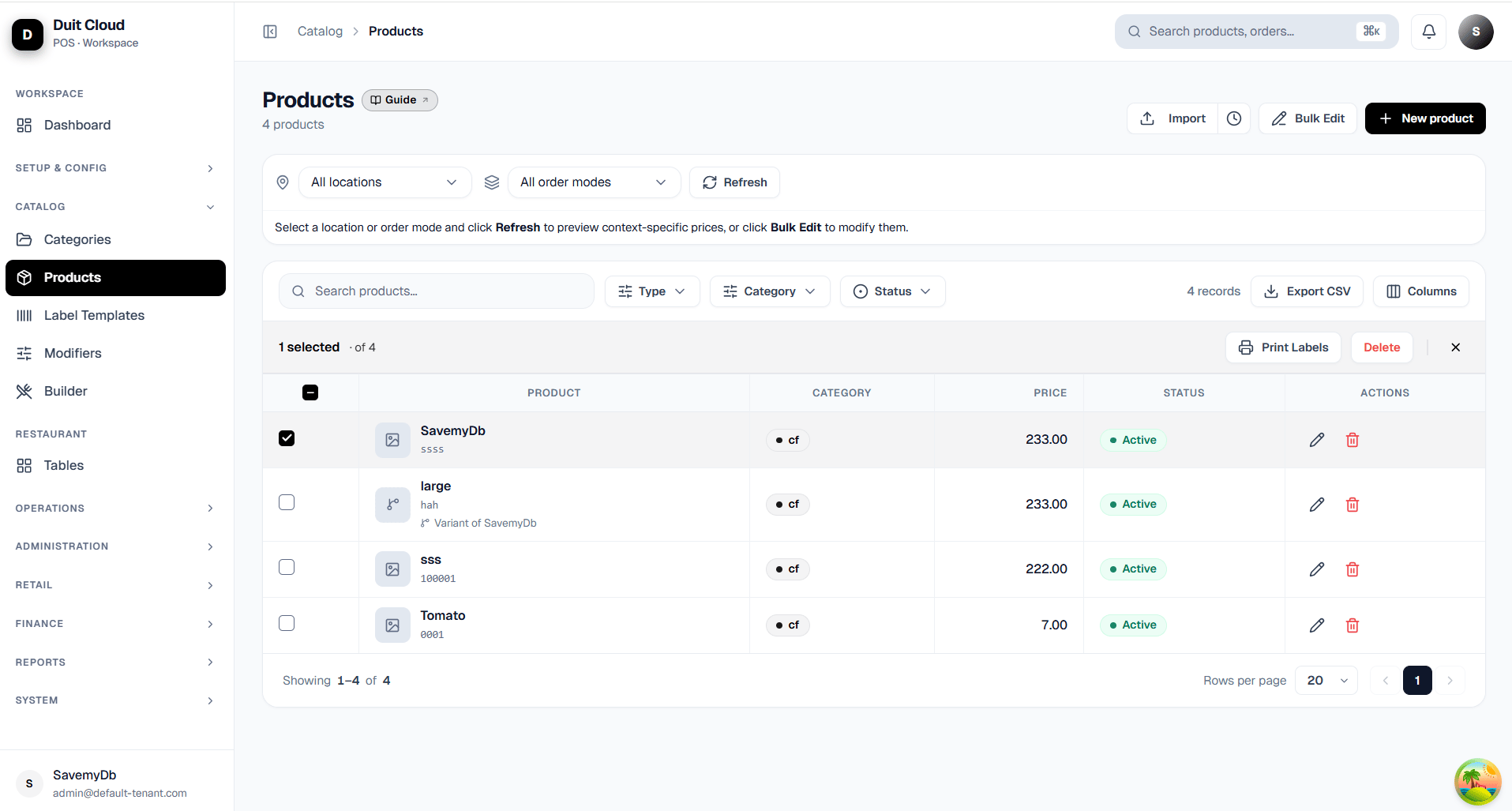 Click **Print Labels**.
## Configure the Print
The Print Labels window lets you choose:
* Print method
* Label template
* Location, when required
* Label quantity for each product
* Rotate 90° when required
Click **Print Labels**.
## Configure the Print
The Print Labels window lets you choose:
* Print method
* Label template
* Location, when required
* Label quantity for each product
* Rotate 90° when required
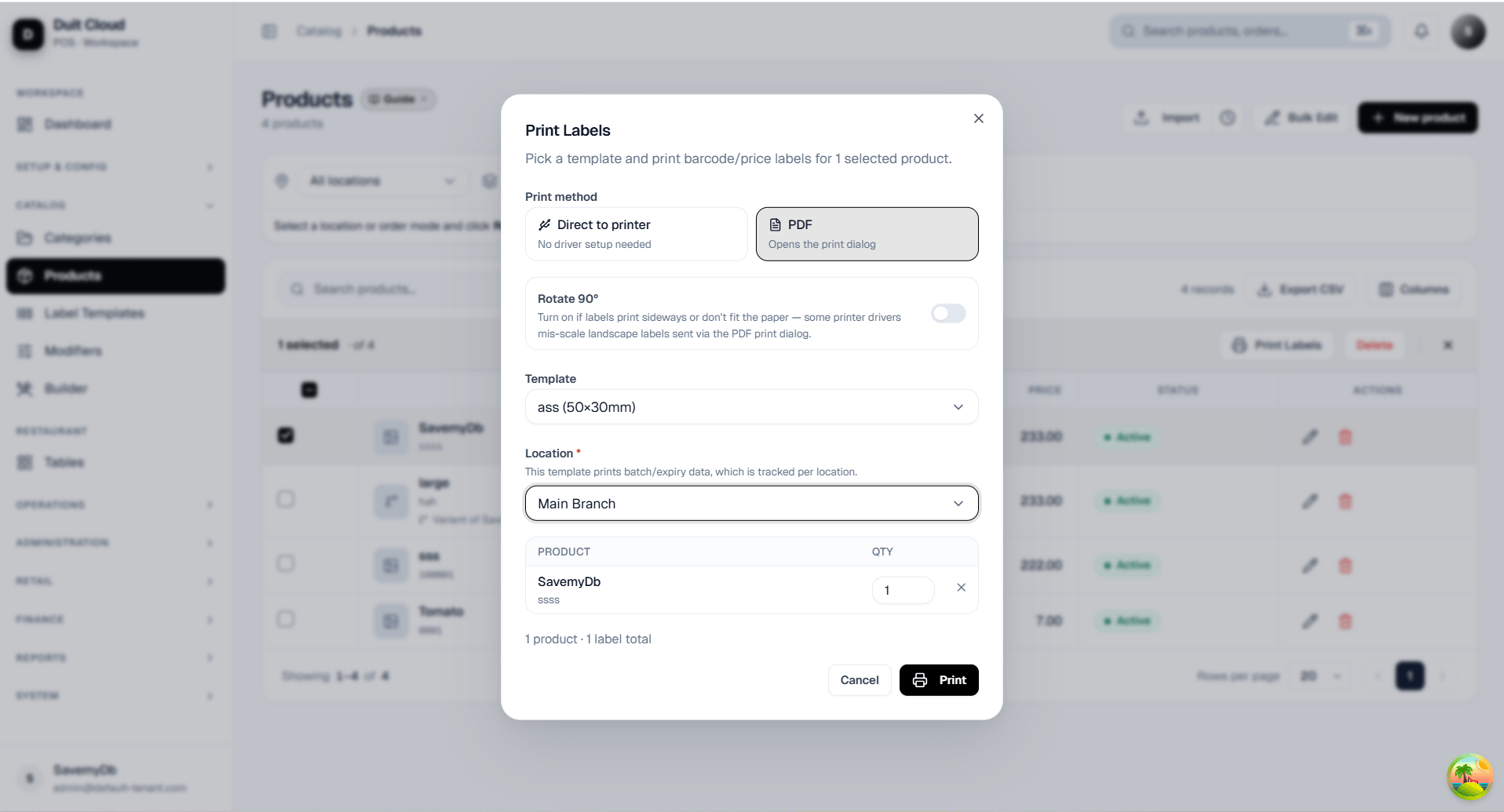 ### Direct to printer
Select **Direct to printer** when printing directly to the configured label printer.
Make sure the printer driver's paper size and orientation match the Duit Cloud template.
### PDF
Select **PDF** to generate the label through the PDF/browser printing flow.
Before printing, verify the paper size, orientation, and scaling in the system print dialog.
## Before Printing
Confirm that:
1. Physical label size matches the template.
2. Printer driver paper size matches the template.
3. Portrait/Landscape orientation matches the design.
4. Scale is set to **100% / Actual Size** where applicable.
5. Fit-to-page options are disabled if they alter the label dimensions.
## Example
For a label designed as:
**50 × 30 mm — Landscape**
use:
| Setting | Value |
| - | - |
| Duit Cloud template | 50 × 30 mm |
| Printer paper size | 50 × 30 mm |
| Orientation | Landscape |
| Scale | 100% / Actual Size |
Keeping the Cloud template, printer driver, and physical label dimensions consistent ensures the label prints correctly.
## Troubleshooting
### Label prints sideways
Check the printer driver's Portrait/Landscape setting. You can also use **Rotate 90°** when applicable.
### Label is cut off
Confirm that the printer paper dimensions match the template dimensions.
### Label is too small or too large
Set printing to **100% / Actual Size** and disable Fit to Page.
### Label prints across multiple labels
Check the custom paper size configured in the printer driver and confirm it matches the physical label roll.
This documentation is built and hosted on [Mintlify](https://mintlify.com), a developer documentation platform.
### Direct to printer
Select **Direct to printer** when printing directly to the configured label printer.
Make sure the printer driver's paper size and orientation match the Duit Cloud template.
### PDF
Select **PDF** to generate the label through the PDF/browser printing flow.
Before printing, verify the paper size, orientation, and scaling in the system print dialog.
## Before Printing
Confirm that:
1. Physical label size matches the template.
2. Printer driver paper size matches the template.
3. Portrait/Landscape orientation matches the design.
4. Scale is set to **100% / Actual Size** where applicable.
5. Fit-to-page options are disabled if they alter the label dimensions.
## Example
For a label designed as:
**50 × 30 mm — Landscape**
use:
| Setting | Value |
| - | - |
| Duit Cloud template | 50 × 30 mm |
| Printer paper size | 50 × 30 mm |
| Orientation | Landscape |
| Scale | 100% / Actual Size |
Keeping the Cloud template, printer driver, and physical label dimensions consistent ensures the label prints correctly.
## Troubleshooting
### Label prints sideways
Check the printer driver's Portrait/Landscape setting. You can also use **Rotate 90°** when applicable.
### Label is cut off
Confirm that the printer paper dimensions match the template dimensions.
### Label is too small or too large
Set printing to **100% / Actual Size** and disable Fit to Page.
### Label prints across multiple labels
Check the custom paper size configured in the printer driver and confirm it matches the physical label roll.
This documentation is built and hosted on [Mintlify](https://mintlify.com), a developer documentation platform.