> ## Documentation Index
> Fetch the complete documentation index at: https://docs.duitpos.com/llms.txt
> Use this file to discover all available pages before exploring further.
# Locations
> Manage physical branches or outlets, and configure per-branch e-invoicing for Malaysia.
A **Location** represents a physical outlet or branch — a restaurant, a kiosk, a stall. Each location has its own Code, address, and settings, and every receipt, report, and e-invoice is tied back to the location that generated it. If you run more than one branch, Locations is how you keep them separate in reports while still managing them from one account.
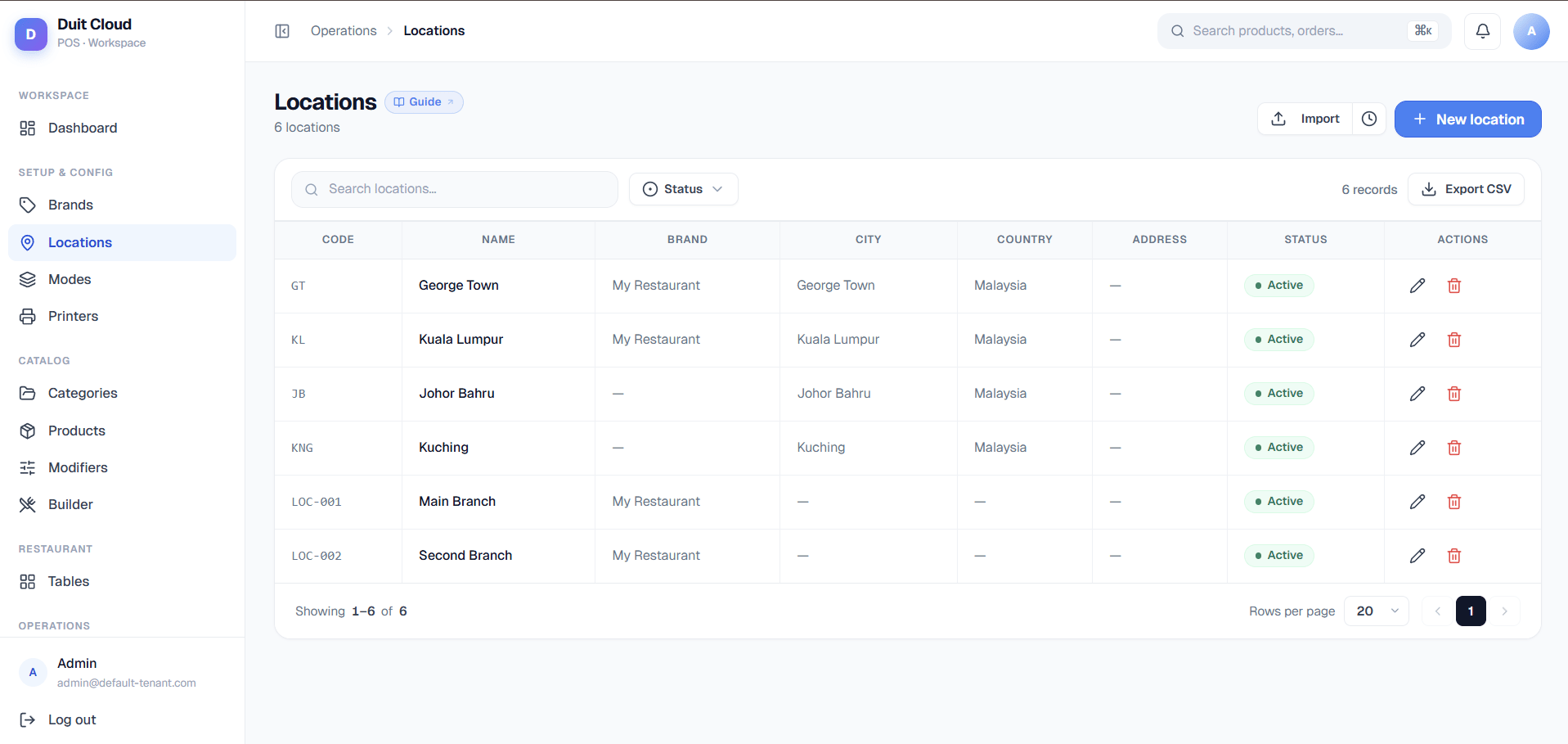 The location edit screen has two tabs. **General** covers the basics every tenant sees — Code, Name, Brand, address, and pricing settings. **E-Invoice** only appears for Malaysia-registered tenants, and is where you configure this location's tax identity and connect it to LHDN's MyInvois system. Because the E-Invoice tab is the part most owners get stuck on, it gets its own deep section below — read it before you go looking for TIN or address fields and can't find them on General.
## General Tab
### Basic Information
| Field | Required | Description |
| --------- | -------- | -------------------------------------------------------------------------------------------------------------------- |
| **Code** | Yes | A short internal identifier for this location, e.g. `KL01` or `MAIN`. Used in reports and exports |
| **Name** | Yes | The branch name displayed on receipts and in the dashboard, e.g. `KL Central` |
| **Brand** | No | Only shown if your account has Brands configured. Groups this location under a brand for reporting and menu purposes |
### E-Invoice Identity (Singapore only)
Singapore tenants don't get a separate E-Invoice tab — instead, a small **E-Invoice Identity** section appears right here on General, because Singapore's e-invoicing setup is simpler and doesn't need MyInvois-style intermediary onboarding.
| Field | Description |
| ---------------- | -------------------------------------------------------------------------- |
| **Company Name** | Legal company name used as the supplier on e-invoices this location issues |
| **UEN** | Singapore's Unique Entity Number — this is Singapore's equivalent of a TIN |
| **BRN** | Business Registration Number |
### Address
Every non-Malaysia tenant fills in the address here on General: Address Line 1/2/3, City, Postal Code, State (a dropdown where your country has a known state list, otherwise a free-text field), and Country.
**Malaysia tenants: the Address section does not appear on this tab.** For Malaysia, address fields move to the **E-Invoice tab** instead, because LHDN requires the address to be submitted alongside the tax identity fields on every e-invoice. If you're on a Malaysia account and can't find Address Line 1 here, that's not a bug — open the E-Invoice tab.
### Settings
| Field | Description |
| ------------------------- | ------------------------------------------------------------------------------------------------------------------------ |
| **Tax Inclusive Pricing** | Switch on if the prices shown on your menu at this location already include tax, so the POS doesn't add tax on top again |
| **Active** | Switch off to hide this location from reports and the POS location selector, without deleting its history |
## Create a Location
Click **Locations** in the left sidebar.
Fill in Code and Name at minimum, plus Brand if your account uses brands.
Click **Create**. The location is immediately available in the dashboard and POS. If you're on a Malaysia account, open it again afterward to fill in the E-Invoice tab — e-invoicing fields aren't part of the initial create form.
If you plan to submit e-invoices from this location, come back and complete the E-Invoice tab (TIN, MSIC Code, and address at minimum) before your first sale — LHDN will reject submissions with those fields missing, and any tickets rung up before it's configured won't retroactively pick up the identity once you fix it.
## E-Invoice Tab (Malaysia only)
Malaysia requires businesses to submit sales as electronic invoices to LHDN (the tax authority) through their **MyInvois** system. Getting your own developer credentials with LHDN is a real onboarding process — most restaurant and retail owners don't want to do that themselves. So DuitPOS is registered with LHDN as an **authorized intermediary**: one shared platform identity that is allowed to submit e-invoices on behalf of every DuitPOS tenant.
That doesn't mean e-invoicing is automatic the moment you sign up, though. Two things still have to happen for each location, and this tab is built around exactly those two things:
1. **You** fill in this location's own tax identity (its TIN, BRN, MSIC code, address) — LHDN needs to know who the invoice is actually from.
2. **You** log into your own MyInvois portal (outside of DuitPOS) and explicitly authorize DuitPOS as your intermediary — LHDN won't let a platform submit on your behalf until you've granted that permission yourself.
The tab is laid out as two cards, matching those two steps.
### Step 1 — Fill in e-Invoice details
| Field | Required | Description |
| --------------------------------------------- | ---------------------- | -------------------------------------------------------------------------------------------------------------------------------------------------------------------------------------------------------------------------------------------------------------------- |
| **Company** | Yes | The legal company name used on every e-invoice submitted for this branch. Can be different from the branch's display **Name** on General |
| **Identification No. (BRN)** | For MY | Business Registration Number |
| **Tax Identification No. (TIN)** | Yes | e.g. `C25405119070`. Nothing can be submitted to LHDN without a TIN — this is the one field that blocks everything else |
| **MSIC Code** | Yes | A searchable combobox against the full official Malaysia Standard Industrial Classification list. Describes what kind of business activity happens at this location — "restaurant," "cafe," and so on. LHDN requires one of their specific codes here, not free text |
| **SST Registration No.** | Only if SST-registered | Leave blank if this location isn't SST-registered |
| **Business Activity** | No | Free-text description of what the location does |
| **Consolidation Period** | No | See below |
| **Address Line 1 / 2, Postcode, City, State** | For MY | The Malaysia state field is a combobox. This is the address section — remember, for Malaysia tenants it lives here, not on General |
Click **Save** at the bottom of this card to persist changes — it saves independently of the General tab.
**Consolidation Period** controls something most owners never think about until a receipt goes missing from LHDN: LHDN lets you bundle small, unclaimed walk-in receipts into one **consolidated invoice** instead of submitting each one individually. This dropdown controls how often that bundle gets submitted — options are **Use tenant default**, **Daily** (1 day), **Every 3 days**, **Weekly** (7 days), and **Monthly** (30 days).
The reason to care: LHDN auto-invalidates a consolidated submission window after **38 days** (their CF321 rule). If a high-volume location waits a full month to consolidate, it's cutting it close to that window — a delay in your own reconciliation, or a late run, can push a batch past the deadline. A high-volume location should prefer a **shorter** period (Daily or Every 3 days), not a longer one, precisely because more receipts pile up faster and the 38-day clock doesn't move. For most single-location or lower-volume setups, **Use tenant default** is safe and one less thing to think about.
### Step 2 — Add as Intermediary in MyInvois
This card is a walkthrough for something you do **outside DuitPOS**, in your own government MyInvois account. DuitPOS can't do this step for you — LHDN requires the authorization to come from you, logged in as the taxpayer.
Go to the official MyTax Portal (`mytax.hasil.gov.my`) and sign in with your own credentials.
On the top menu, click **MyInvois**.
Open **Manage Taxpayer Profile**, then scroll to the **Representatives** section, under the intermediaries tab.
This opens a form asking for the intermediary's TIN, BRN, and Name.
The E-Invoice tab shows a read-only table with **TIN**, **BRN**, and **Name** — copy these into the MyTax form. This is **the platform's** shared identity, not this location's own TIN from Step 1. It's the same three values across every DuitPOS tenant, set once by DuitPOS's own root admin — you don't fill it in, you just copy it.
The form shows **Today Until 2030-12-31** — effectively an indefinite authorization. You don't need to renew this yearly.
Turn on all four: **Submit**, **Cancel**, **Request Rejection**, and **Notification**. Click **Add** to confirm.
Once you've added the intermediary on LHDN's side, come back to DuitPOS and click **Validate**.
**Intermediary Status** badges:
| Badge | Meaning |
| ----------------------- | --------------------------------------------------------------------------------------------------------------------------------- |
| **Not Checked** | You haven't clicked Validate yet for this location |
| **Active** | LHDN confirms the intermediary authorization is in place — ready to submit |
| **Pending** | LHDN hasn't found this TIN registered yet — it can take time for LHDN to process a new intermediary addition, check again shortly |
| **Not Configured** | This location is missing required fields (TIN, MSIC, etc.) before LHDN can even be checked |
| **Credentials Missing** | The platform-level LHDN credentials aren't set up — this is a platform admin issue, not something to fix on this location |
| **Error** | The validation request itself failed — try again, and contact support if it persists |
The **Validate** button always checks against LHDN's **production** endpoint, regardless of whether the platform-wide environment is set to Sandbox or Production on the LHDN Admin page. That means a "connected" or **Active** result here doesn't necessarily mean the platform is actually submitting real invoices yet — the environment setting that controls that lives separately, on [LHDN Admin](/features/lhdn-admin). Don't take an Active badge here as proof that live submissions are turned on.
### Invoices Tab (Malaysia only)
A third tab, **Invoices**, shows every e-invoice document generated for this specific location: search, date-range filters, a "Submitted only" filter, bulk submit for outstanding drafts, PDF/Excel export of validated invoices, and a **Validated Total** summary card showing the running total of everything LHDN has accepted. A **Submit Invoice** button jumps to the manual submission form pre-filled with this location.
This tab is a location-scoped view into the same e-invoicing system covered in full on [E-Invoicing](/features/e-invoicing) — head there for how statuses, consolidation, and the public claim flow work in depth.
## Frequently Asked Questions
Location visibility for employees is controlled by the role assigned to their user account. If a staff member should only see one location, assign them a role scoped to that location. Contact your administrator if you are unsure how location-based permissions are set up on your account.
Yes. Products and categories are shared by default, but you can use Bulk Pricing to create location-specific price or availability overrides.
Your location's TIN (from Step 1) identifies *your business* as the supplier on your own e-invoices. The platform Intermediary identity (TIN/BRN/Name shown in Step 2) identifies *DuitPOS itself* as the party LHDN allows to submit on your behalf — it's the same three values for every DuitPOS tenant, and you only ever copy it into MyTax, never edit it.
Active only confirms that LHDN recognizes DuitPOS as your authorized intermediary — it always checks against LHDN's production endpoint. If invoices still aren't going out, check the platform-wide environment setting on [LHDN Admin](/features/lhdn-admin): if it's set to Sandbox, submissions are intentionally not reaching LHDN's live system yet, even though the intermediary link itself is valid.
"Use tenant default" is the safe choice for most locations. If this location does high walk-in volume with a lot of unclaimed receipts, choose a shorter period (Daily or Every 3 days) rather than Monthly — LHDN auto-invalidates a consolidation window after 38 days (CF321), and a busier location has less margin before hitting that limit.
Deletion is blocked if the location has any associated transactions or employees. Deactivate it instead (Active switch, General tab) to keep your historical data intact while hiding it from the POS selector and active reports.
## Related
Document list, statuses, consolidation, and the public claim flow
Platform-wide LHDN environment, intermediary credentials, signing certificate
Configure tax rates and rules applied at this location
Filter reports by location
The location edit screen has two tabs. **General** covers the basics every tenant sees — Code, Name, Brand, address, and pricing settings. **E-Invoice** only appears for Malaysia-registered tenants, and is where you configure this location's tax identity and connect it to LHDN's MyInvois system. Because the E-Invoice tab is the part most owners get stuck on, it gets its own deep section below — read it before you go looking for TIN or address fields and can't find them on General.
## General Tab
### Basic Information
| Field | Required | Description |
| --------- | -------- | -------------------------------------------------------------------------------------------------------------------- |
| **Code** | Yes | A short internal identifier for this location, e.g. `KL01` or `MAIN`. Used in reports and exports |
| **Name** | Yes | The branch name displayed on receipts and in the dashboard, e.g. `KL Central` |
| **Brand** | No | Only shown if your account has Brands configured. Groups this location under a brand for reporting and menu purposes |
### E-Invoice Identity (Singapore only)
Singapore tenants don't get a separate E-Invoice tab — instead, a small **E-Invoice Identity** section appears right here on General, because Singapore's e-invoicing setup is simpler and doesn't need MyInvois-style intermediary onboarding.
| Field | Description |
| ---------------- | -------------------------------------------------------------------------- |
| **Company Name** | Legal company name used as the supplier on e-invoices this location issues |
| **UEN** | Singapore's Unique Entity Number — this is Singapore's equivalent of a TIN |
| **BRN** | Business Registration Number |
### Address
Every non-Malaysia tenant fills in the address here on General: Address Line 1/2/3, City, Postal Code, State (a dropdown where your country has a known state list, otherwise a free-text field), and Country.
**Malaysia tenants: the Address section does not appear on this tab.** For Malaysia, address fields move to the **E-Invoice tab** instead, because LHDN requires the address to be submitted alongside the tax identity fields on every e-invoice. If you're on a Malaysia account and can't find Address Line 1 here, that's not a bug — open the E-Invoice tab.
### Settings
| Field | Description |
| ------------------------- | ------------------------------------------------------------------------------------------------------------------------ |
| **Tax Inclusive Pricing** | Switch on if the prices shown on your menu at this location already include tax, so the POS doesn't add tax on top again |
| **Active** | Switch off to hide this location from reports and the POS location selector, without deleting its history |
## Create a Location
Click **Locations** in the left sidebar.
Fill in Code and Name at minimum, plus Brand if your account uses brands.
Click **Create**. The location is immediately available in the dashboard and POS. If you're on a Malaysia account, open it again afterward to fill in the E-Invoice tab — e-invoicing fields aren't part of the initial create form.
If you plan to submit e-invoices from this location, come back and complete the E-Invoice tab (TIN, MSIC Code, and address at minimum) before your first sale — LHDN will reject submissions with those fields missing, and any tickets rung up before it's configured won't retroactively pick up the identity once you fix it.
## E-Invoice Tab (Malaysia only)
Malaysia requires businesses to submit sales as electronic invoices to LHDN (the tax authority) through their **MyInvois** system. Getting your own developer credentials with LHDN is a real onboarding process — most restaurant and retail owners don't want to do that themselves. So DuitPOS is registered with LHDN as an **authorized intermediary**: one shared platform identity that is allowed to submit e-invoices on behalf of every DuitPOS tenant.
That doesn't mean e-invoicing is automatic the moment you sign up, though. Two things still have to happen for each location, and this tab is built around exactly those two things:
1. **You** fill in this location's own tax identity (its TIN, BRN, MSIC code, address) — LHDN needs to know who the invoice is actually from.
2. **You** log into your own MyInvois portal (outside of DuitPOS) and explicitly authorize DuitPOS as your intermediary — LHDN won't let a platform submit on your behalf until you've granted that permission yourself.
The tab is laid out as two cards, matching those two steps.
### Step 1 — Fill in e-Invoice details
| Field | Required | Description |
| --------------------------------------------- | ---------------------- | -------------------------------------------------------------------------------------------------------------------------------------------------------------------------------------------------------------------------------------------------------------------- |
| **Company** | Yes | The legal company name used on every e-invoice submitted for this branch. Can be different from the branch's display **Name** on General |
| **Identification No. (BRN)** | For MY | Business Registration Number |
| **Tax Identification No. (TIN)** | Yes | e.g. `C25405119070`. Nothing can be submitted to LHDN without a TIN — this is the one field that blocks everything else |
| **MSIC Code** | Yes | A searchable combobox against the full official Malaysia Standard Industrial Classification list. Describes what kind of business activity happens at this location — "restaurant," "cafe," and so on. LHDN requires one of their specific codes here, not free text |
| **SST Registration No.** | Only if SST-registered | Leave blank if this location isn't SST-registered |
| **Business Activity** | No | Free-text description of what the location does |
| **Consolidation Period** | No | See below |
| **Address Line 1 / 2, Postcode, City, State** | For MY | The Malaysia state field is a combobox. This is the address section — remember, for Malaysia tenants it lives here, not on General |
Click **Save** at the bottom of this card to persist changes — it saves independently of the General tab.
**Consolidation Period** controls something most owners never think about until a receipt goes missing from LHDN: LHDN lets you bundle small, unclaimed walk-in receipts into one **consolidated invoice** instead of submitting each one individually. This dropdown controls how often that bundle gets submitted — options are **Use tenant default**, **Daily** (1 day), **Every 3 days**, **Weekly** (7 days), and **Monthly** (30 days).
The reason to care: LHDN auto-invalidates a consolidated submission window after **38 days** (their CF321 rule). If a high-volume location waits a full month to consolidate, it's cutting it close to that window — a delay in your own reconciliation, or a late run, can push a batch past the deadline. A high-volume location should prefer a **shorter** period (Daily or Every 3 days), not a longer one, precisely because more receipts pile up faster and the 38-day clock doesn't move. For most single-location or lower-volume setups, **Use tenant default** is safe and one less thing to think about.
### Step 2 — Add as Intermediary in MyInvois
This card is a walkthrough for something you do **outside DuitPOS**, in your own government MyInvois account. DuitPOS can't do this step for you — LHDN requires the authorization to come from you, logged in as the taxpayer.
Go to the official MyTax Portal (`mytax.hasil.gov.my`) and sign in with your own credentials.
On the top menu, click **MyInvois**.
Open **Manage Taxpayer Profile**, then scroll to the **Representatives** section, under the intermediaries tab.
This opens a form asking for the intermediary's TIN, BRN, and Name.
The E-Invoice tab shows a read-only table with **TIN**, **BRN**, and **Name** — copy these into the MyTax form. This is **the platform's** shared identity, not this location's own TIN from Step 1. It's the same three values across every DuitPOS tenant, set once by DuitPOS's own root admin — you don't fill it in, you just copy it.
The form shows **Today Until 2030-12-31** — effectively an indefinite authorization. You don't need to renew this yearly.
Turn on all four: **Submit**, **Cancel**, **Request Rejection**, and **Notification**. Click **Add** to confirm.
Once you've added the intermediary on LHDN's side, come back to DuitPOS and click **Validate**.
**Intermediary Status** badges:
| Badge | Meaning |
| ----------------------- | --------------------------------------------------------------------------------------------------------------------------------- |
| **Not Checked** | You haven't clicked Validate yet for this location |
| **Active** | LHDN confirms the intermediary authorization is in place — ready to submit |
| **Pending** | LHDN hasn't found this TIN registered yet — it can take time for LHDN to process a new intermediary addition, check again shortly |
| **Not Configured** | This location is missing required fields (TIN, MSIC, etc.) before LHDN can even be checked |
| **Credentials Missing** | The platform-level LHDN credentials aren't set up — this is a platform admin issue, not something to fix on this location |
| **Error** | The validation request itself failed — try again, and contact support if it persists |
The **Validate** button always checks against LHDN's **production** endpoint, regardless of whether the platform-wide environment is set to Sandbox or Production on the LHDN Admin page. That means a "connected" or **Active** result here doesn't necessarily mean the platform is actually submitting real invoices yet — the environment setting that controls that lives separately, on [LHDN Admin](/features/lhdn-admin). Don't take an Active badge here as proof that live submissions are turned on.
### Invoices Tab (Malaysia only)
A third tab, **Invoices**, shows every e-invoice document generated for this specific location: search, date-range filters, a "Submitted only" filter, bulk submit for outstanding drafts, PDF/Excel export of validated invoices, and a **Validated Total** summary card showing the running total of everything LHDN has accepted. A **Submit Invoice** button jumps to the manual submission form pre-filled with this location.
This tab is a location-scoped view into the same e-invoicing system covered in full on [E-Invoicing](/features/e-invoicing) — head there for how statuses, consolidation, and the public claim flow work in depth.
## Frequently Asked Questions
Location visibility for employees is controlled by the role assigned to their user account. If a staff member should only see one location, assign them a role scoped to that location. Contact your administrator if you are unsure how location-based permissions are set up on your account.
Yes. Products and categories are shared by default, but you can use Bulk Pricing to create location-specific price or availability overrides.
Your location's TIN (from Step 1) identifies *your business* as the supplier on your own e-invoices. The platform Intermediary identity (TIN/BRN/Name shown in Step 2) identifies *DuitPOS itself* as the party LHDN allows to submit on your behalf — it's the same three values for every DuitPOS tenant, and you only ever copy it into MyTax, never edit it.
Active only confirms that LHDN recognizes DuitPOS as your authorized intermediary — it always checks against LHDN's production endpoint. If invoices still aren't going out, check the platform-wide environment setting on [LHDN Admin](/features/lhdn-admin): if it's set to Sandbox, submissions are intentionally not reaching LHDN's live system yet, even though the intermediary link itself is valid.
"Use tenant default" is the safe choice for most locations. If this location does high walk-in volume with a lot of unclaimed receipts, choose a shorter period (Daily or Every 3 days) rather than Monthly — LHDN auto-invalidates a consolidation window after 38 days (CF321), and a busier location has less margin before hitting that limit.
Deletion is blocked if the location has any associated transactions or employees. Deactivate it instead (Active switch, General tab) to keep your historical data intact while hiding it from the POS selector and active reports.
## Related
Document list, statuses, consolidation, and the public claim flow
Platform-wide LHDN environment, intermediary credentials, signing certificate
Configure tax rates and rules applied at this location
Filter reports by location