> ## Documentation Index
> Fetch the complete documentation index at: https://docs.duitpos.com/llms.txt
> Use this file to discover all available pages before exploring further.
# Order Modes
> Define service types and control how orders behave across your system.
**Order Modes** represent the channel or service type for an order — e.g. *Dine In*, *Takeaway*, *Delivery*, *Reservation*. Every ticket is tagged with an Order Mode when it opens, and that mode cascades through your entire system: it controls which printers receive the ticket, which tax rules apply, which products are available, and how orders appear in sales reports.
In short, **Order Modes determine *how* orders behave**, not just what customers see.
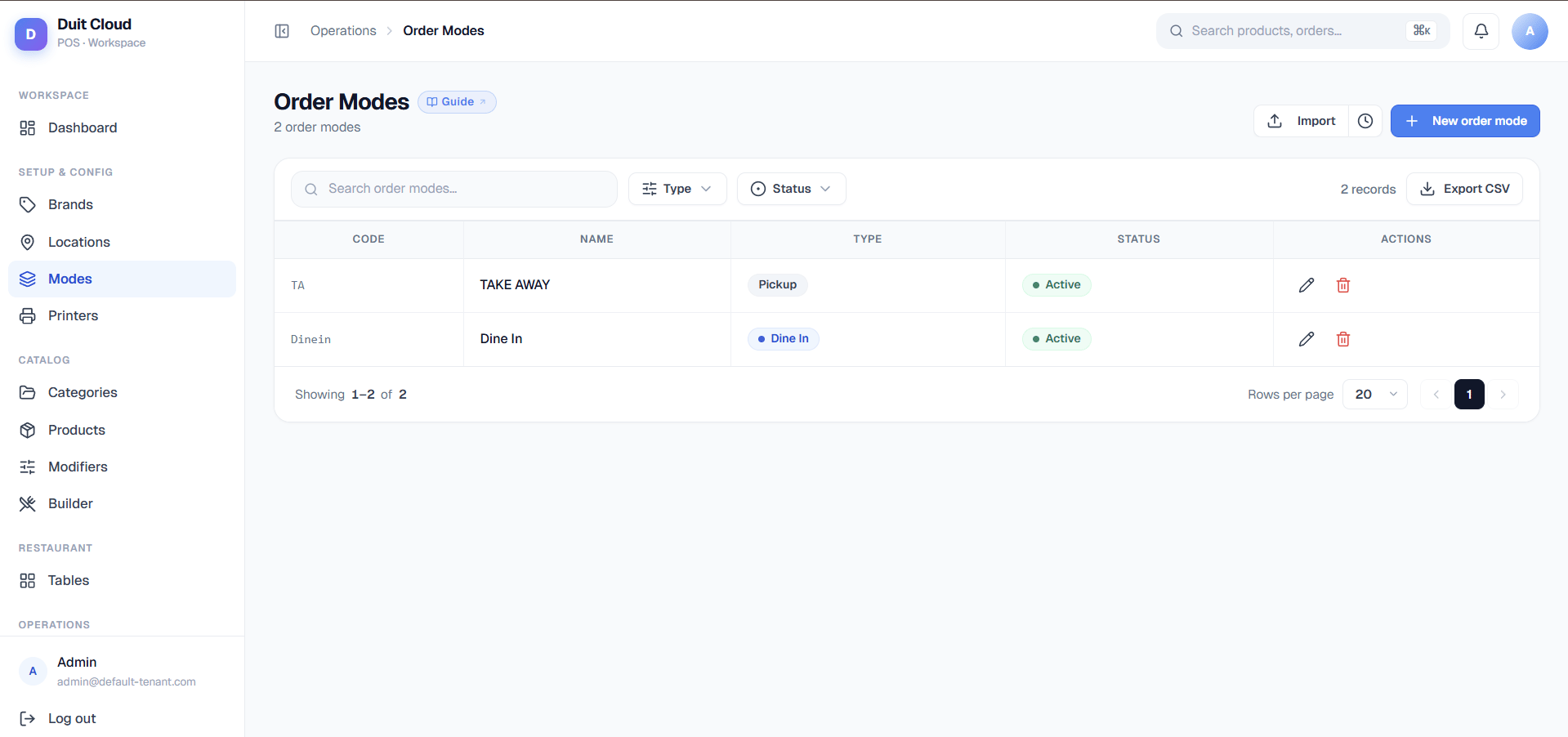 ## Order Mode Fields
| Field | Required | Description |
| ---------- | -------- | ------------------------------------------------------------------------------------------------------------------------------------------------------------------- |
| **Code** | Yes | A short internal identifier, e.g. `DINE_IN`, `TAKEAWAY`, `DELIVERY`. Used in reports, routing rules, and tax logic |
| **Name** | Yes | The display label shown to staff on the POS when selecting the order type |
| **Type** | Yes | Service classification: `Pickup`, `Dine In`, `Delivery`, or `Reservation`. Drives downstream business logic (e.g. printer routing, tax rules, product restrictions) |
| **Active** | No | Toggle off to hide this mode from the POS. The mode still appears in historical reports |
Add only the modes your business actually uses. Too many options on the POS selection screen slow down staff. Start with Dine In and Takeaway, and add Delivery only when you are ready to handle it operationally. The **Type** field determines how the mode behaves in printer routing, tax rules, and product overrides — most setups use only 2–4 modes.
## Create an Order Mode
Click **Order Modes** in the left sidebar under Manage.
Fill in the Code, Name, and Active fields.
Click **Create**. The mode is immediately available on the POS.
## Reorder
Drag rows using the sort handle to change the order they appear in the POS selection screen. The topmost active mode is the default when a new ticket is opened.
Changing the default order mode (the first active item in the list) will affect all POS terminals immediately. Staff accustomed to the existing order may select the wrong mode by habit. Communicate any reorder changes to your team before making them.
## Using Order Modes in Printer Routing
Printer routing rules can filter by order mode — for example, you can send Delivery orders to a separate docket printer. See [Printers](/features/printers) for how to configure routing rules.
## Frequently Asked Questions
Yes. Create a Delivery order mode and use it when entering orders received from delivery platforms. You can also configure a separate printer routing rule for Delivery orders to print a distinct kitchen docket format.
Order modes appear as a filter dimension in Sales Reports, so you can compare revenue by service type. Dine In and Takeaway are tracked separately, letting you see which generates more revenue or which has a higher average order value.
Yes, you can edit the Name at any time. Historical tickets keep a snapshot of the mode name at the time of the transaction, so renaming only affects future orders.
Make sure the mode is set to **Active**. If it is active and still not showing, reload the POS app to pick up the latest configuration.
## Related
Route print jobs by order mode
Apply different tax rules per order mode
Restrict product availability by order mode
Filter sales reports by order mode
## Order Mode Fields
| Field | Required | Description |
| ---------- | -------- | ------------------------------------------------------------------------------------------------------------------------------------------------------------------- |
| **Code** | Yes | A short internal identifier, e.g. `DINE_IN`, `TAKEAWAY`, `DELIVERY`. Used in reports, routing rules, and tax logic |
| **Name** | Yes | The display label shown to staff on the POS when selecting the order type |
| **Type** | Yes | Service classification: `Pickup`, `Dine In`, `Delivery`, or `Reservation`. Drives downstream business logic (e.g. printer routing, tax rules, product restrictions) |
| **Active** | No | Toggle off to hide this mode from the POS. The mode still appears in historical reports |
Add only the modes your business actually uses. Too many options on the POS selection screen slow down staff. Start with Dine In and Takeaway, and add Delivery only when you are ready to handle it operationally. The **Type** field determines how the mode behaves in printer routing, tax rules, and product overrides — most setups use only 2–4 modes.
## Create an Order Mode
Click **Order Modes** in the left sidebar under Manage.
Fill in the Code, Name, and Active fields.
Click **Create**. The mode is immediately available on the POS.
## Reorder
Drag rows using the sort handle to change the order they appear in the POS selection screen. The topmost active mode is the default when a new ticket is opened.
Changing the default order mode (the first active item in the list) will affect all POS terminals immediately. Staff accustomed to the existing order may select the wrong mode by habit. Communicate any reorder changes to your team before making them.
## Using Order Modes in Printer Routing
Printer routing rules can filter by order mode — for example, you can send Delivery orders to a separate docket printer. See [Printers](/features/printers) for how to configure routing rules.
## Frequently Asked Questions
Yes. Create a Delivery order mode and use it when entering orders received from delivery platforms. You can also configure a separate printer routing rule for Delivery orders to print a distinct kitchen docket format.
Order modes appear as a filter dimension in Sales Reports, so you can compare revenue by service type. Dine In and Takeaway are tracked separately, letting you see which generates more revenue or which has a higher average order value.
Yes, you can edit the Name at any time. Historical tickets keep a snapshot of the mode name at the time of the transaction, so renaming only affects future orders.
Make sure the mode is set to **Active**. If it is active and still not showing, reload the POS app to pick up the latest configuration.
## Related
Route print jobs by order mode
Apply different tax rules per order mode
Restrict product availability by order mode
Filter sales reports by order mode