> ## Documentation Index
> Fetch the complete documentation index at: https://docs.duitpos.com/llms.txt
> Use this file to discover all available pages before exploring further.
# Printers
> Set up printer devices and routing rules to control what prints where.
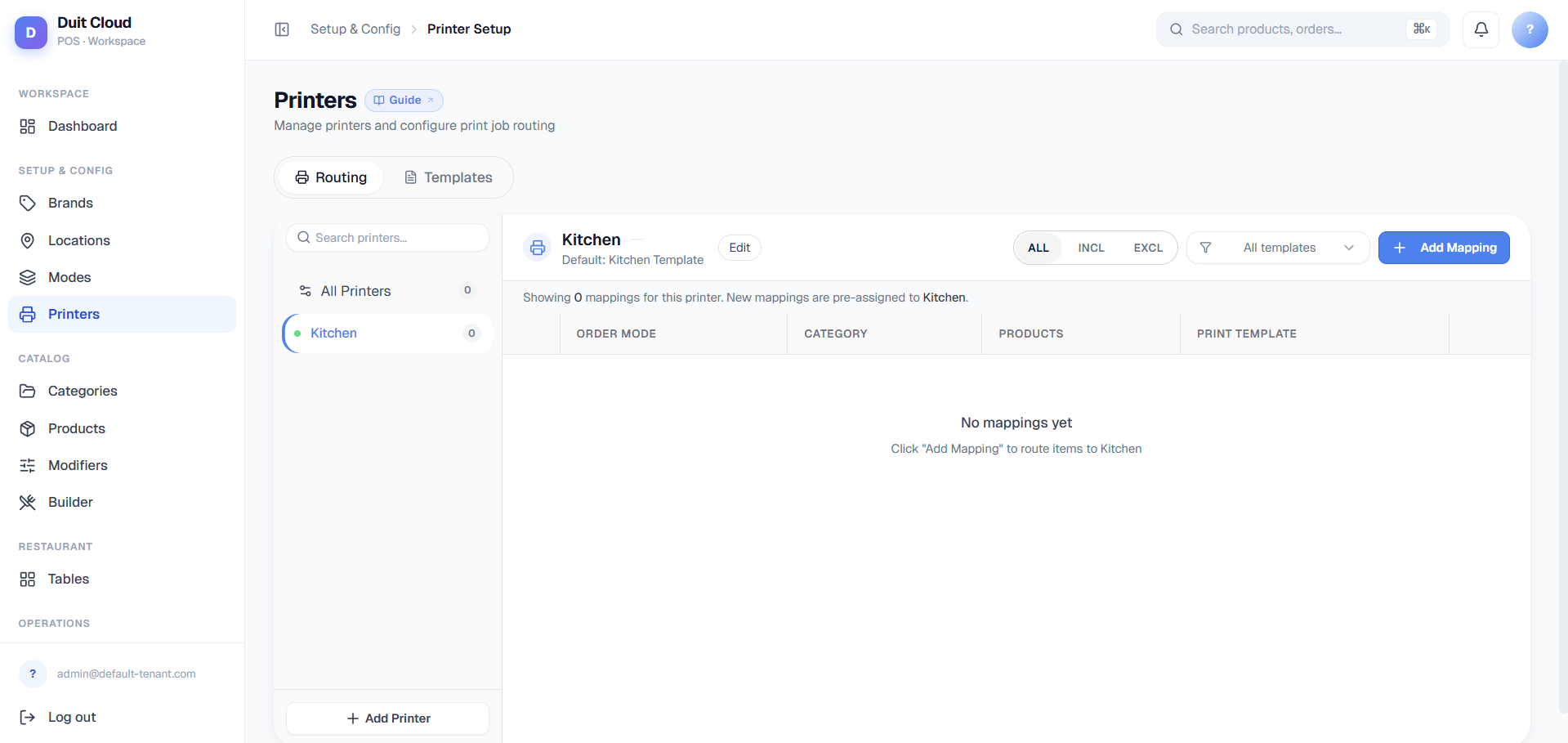
The printer system has two core concepts that work together:
* **Printer Devices** — physical hardware (thermal receipt printers, kitchen display systems, label printers, etc.) identified by their network address and connection type. Each device connects to your POS system and outputs a specific media format.
* **Routing Rules** — the logic that decides which items or orders print on which device. A single order item can match multiple rules and print to multiple printers (e.g. a kitchen ticket *and* a receipt).
 ## Printer Devices
A **Printer Device** is a physical printer on your network. Each device has a network address (IP or USB port), a connection type, and a role in your workflow (receipt printer, kitchen display, label printer, etc.).
### Printer Device Fields
| Field | Required | Description |
| --------------------- | --------------- | ----------------------------------------------------------------------------------------------------------------------------------------------------------------------------------------------------------------- |
| **Name** | Yes | A human-readable label, e.g. `Kitchen Bar` or `Front Counter Receipt` |
| **Code** | No | An internal reference code (for API or advanced routing) |
| **Device Type** | Yes | The role this printer plays: `POS` (register/receipt), `KDS` (kitchen display), `Kiosk` (self-service terminal), or other—determines which apps can use this printer and whether item-level routing is allowed |
| **Printer Type** | Yes | Connection method: `Ethernet` (TCP/IP address), `USB`, or others—determines how the device connects to your network |
| **No. of Characters** | Yes | Chars per line on the printer, e.g. `42` for typical 58mm thermal receipt printer, `48–54` for 80mm thermal printer. Must match the paper roll width installed. This controls text wrapping on output. |
| **Default Template** | Yes | The print template this device uses by default. Must match the device type—e.g. a `KDS` device must use a `Kitchen` template; a `POS` device uses a `Receipt` template. Routing rules can override this per-rule. |
| **Fallback Printer** | No | Optional. If this printer goes offline or times out, automatically route jobs to this fallback device instead. Must be the same device type. Leave blank if you don't have a backup. |
| **IP Address** | (Conditionally) | If **Printer Type** is `Ethernet`: the static IP address on your local network, e.g. `192.168.1.100` |
| **Port** | (Conditionally) | If **Printer Type** is `Ethernet`: the network port, default `9100` for most receipt and kitchen printers |
| **Active** | No | Toggle off to disable this printer without deleting its routing rules |
If you configure an **Ethernet printer**, assign it a **static (fixed) IP address** on your local network. If the IP changes (due to DHCP), the printer will stop responding. Set a static IP either on the printer itself (via its settings menu or self-test print) or by reserving a DHCP address on your router using the printer's MAC address. Most printers default to DHCP — you must fix this before relying on network addressing.
### Create a Printer Device
Click **Printers** in the left sidebar.
Fill in the Name, Device Type (POS/KDS/Kiosk), Printer Type (Ethernet/USB), No. of Characters, and Default Template.
If Ethernet, enter the IP Address and Port. If USB, enter the port or device path.
Select another printer of the same device type as a backup if this one goes offline.
Click **Test Print** to send a test page. Confirm the printer receives it before saving.
Click **Create**.
If you enter the wrong IP address or port, **Test Print** will time out silently — the printer itself will not show an error. Always verify the IP and port from the printer's self-test page (usually printed by holding the feed button while powering on, or checking the printer's built-in web UI) before saving.
## Routing Rules
**Routing Rules** decide which items (or full orders) print on which printers, and optionally which template to use. The critical insight is: **a single order item can match multiple rules and print on multiple printers**. For example, a food item can route to both a kitchen display *and* a chit printer for the server.
### Why Multi-Printer Routing?
In a typical restaurant workflow:
* An order comes in (say, a burger + a drink).
* The burger matches a rule "All food → Kitchen Station" → prints to KDS.
* The same burger *also* matches a rule "All items → Receipt Chit" → prints to a thermal chit printer.
* The drink matches a rule "Drinks only → Bar" → prints to bar display.
Each rule fires independently. This is intentional and powerful — you don't have to create one complex rule; create simple, overlapping ones and let the system route based on priority and conditions.
### CRITICAL: Item-Level Routing Only Works for KDS Device Type
This is the most important restriction to understand:
* **KDS (Kitchen Display System)**: Item-level routing rules *do* function. You can filter by category, product, or order mode, and route different items to different displays within the kitchen. Example: "Appetizers → Appetizers Station", "Mains → Mains Station", "Drinks → Bar".
* **POS (Register/Receipt)**: Item-level routing rules *do not* function. A POS printer always uses its **Device Default Template** and prints the entire order/receipt as one unit. You cannot configure rules to "print only appetizers on this receipt printer" — the rule will be ignored. POS output is simpler by design (a receipt is a register document, not a kitchen station display).
* **Kiosk (Self-Service Terminal)**: Same as POS — item-level routing is not supported. Kiosk output is also a full-order template.
If you need different POS layouts for different order types (e.g., dine-in vs. delivery), create separate POS device entries, each with its own Default Template, and route entire orders to the appropriate device using order-mode-level rules (not item-level rules).
### Routing Rule Structure
Each rule specifies:
| Field | Description |
| --------------------------- | --------------------------------------------------------------------------------------------------------------------------------------------------------------- |
| **Printer** | Which device this rule targets |
| **Priority** | Higher number = checked first. If multiple rules match, the highest priority wins. Ties broken by creation time (older first). |
| **Filter Mode** | `Include` (match only items in the lists) or `Exclude` (match all items *except* those in the lists) |
| **Is Catch-All** | If `true`, this rule matches every item regardless of conditions below. Catch-all rules bypass all category/product/order-mode filters and serve as a fallback. |
| **Order Mode** | Blank = all order modes; specific = only that mode (e.g., "Dine-In", "Delivery"). Independent per rule. |
| **Category** | Blank = all categories; specific = only that category (e.g., "Appetizers"). Only filters if device type is KDS. |
| **Products** | Blank = all products in the matched category; specific = named products only (e.g., "Burger", "Steak"). Only filters if device type is KDS. |
| **Print Template Override** | Optional. If set, use this template instead of the device's default. Must match the device type. |
### Include vs. Exclude
* **Include Mode**: The rule fires if the item is in the named categories/products/order modes. Leave all lists blank to match everything (equivalent to catch-all for those dimensions). Combine lists with OR logic (if category *or* product matches, the rule fires).
* **Exclude Mode**: The rule fires if the item is *not* in the named categories/products/order modes. Useful for "send everything to the kitchen printer except drinks" (Exclude mode, Drinks category listed).
* **Is Catch-All**: Bypasses all include/exclude logic. Rule always fires. Typically given the lowest priority to act as a default route.
### Example Routing Setup
Scenario: 3 printers, KDS device type.
| Priority | Printer | Filter Mode | Category | Order Mode | Catch-All |
| -------- | ------------------ | ----------- | ---------- | ---------- | --------- |
| 90 | Appetizers Station | Include | Appetizers | (blank) | No |
| 80 | Mains Station | Include | Mains | (blank) | No |
| 70 | Drinks Display | Include | Beverages | (blank) | No |
| 10 | Hold Station | (any) | (any) | (any) | Yes |
Behavior:
* An appetizer item matches Priority 90 → prints to Appetizers Station only.
* A main course matches Priority 80 → prints to Mains Station only.
* A beverage matches Priority 70 → prints to Drinks Display only.
* An item from an unmapped category (e.g., Desserts) matches no specific rule, but catches Priority 10 (catch-all) → prints to Hold Station.
Scenario: POS device type (receipt printer).
| Priority | Printer | Template | Order Mode |
| -------- | --------------- | ---------------- | ---------- |
| 50 | Counter Printer | Dine-In Receipt | Dine-In |
| 40 | Counter Printer | Delivery Receipt | Delivery |
Behavior:
* A dine-in order (regardless of item type) prints on Counter Printer with the Dine-In Receipt template.
* A delivery order prints on Counter Printer with the Delivery Receipt template.
* Item-level category/product filtering is ignored because the device is POS, not KDS.
Start simple: one high-priority rule per category that needs special handling, plus one low-priority catch-all rule as a safety net. Test with the **Simulate Routing** tool before going live. Add complexity only if your workflow demands it.
### Simulate Routing
Before trusting a new or edited routing rule in production, use **Simulate Routing** on the Printers page to test it without creating a real order. Enter a sample order mode and a list of items (by category and/or product), and the system shows exactly which printer(s) and template(s) each item would be routed to — based on your current active rules, sorted by priority. This is the fastest way to verify a rule change before staff start taking real orders.
Don't create overlapping rules without testing them with Simulate Routing first. The multi-printer-match behavior is powerful but can lead to unexpected outputs if rules conflict. Higher priority always wins; ties are broken by creation time. Use Simulate Routing to validate your logic.
## Troubleshooting
See [Printer Not Printing](/troubleshooting/printer-not-printing) if a printer is not responding.
## Frequently Asked Questions
Yes. This is one of the most important features. If multiple routing rules match an item's category/product/order mode, each rule fires independently and the item prints on all matching printers (in priority order). For example, a food item can print on both a kitchen display *and* a receipt chit printer. Use priority and filter mode to control which items go where.
POS printers are designed to output a complete register receipt or order ticket as a single unit. They do not support item-level routing (category/product filtering). If you need different layouts for different order types (dine-in vs. delivery), create separate POS printer devices, each with its own default template, and route entire orders by order mode. Only KDS devices support item-level routing because a KDS is a kitchen station display that needs to know which items go to which station.
Work through this checklist: (1) Is the printer powered on and ready? (2) Is it on the same network as your POS terminal? (3) Does the IP address in the dashboard match the printer's self-test page (press Feed while powering on)? (4) Is there an active routing rule that targets this printer? (5) Use **Simulate Routing** to check if your rules would match a test item. See [Printer Not Printing](/troubleshooting/printer-not-printing) for a full diagnosis checklist.
Most Epson, Star, and generic receipt/KDS printers use port `9100` for RAW TCP/IP printing. Check your printer's manual or web UI if `9100` doesn't work — some models support `515` (LPR), `631` (CUPS), or proprietary ports.
A **Fallback Printer** is a backup device that receives jobs if the primary printer goes offline or times out. It must be the same device type. Use fallback printers only if you have high-traffic locations and cannot afford print downtime — for example, a backup receipt printer at the counter, or a backup kitchen display. Fallback adds complexity (you must maintain two devices); leave it blank unless you truly need it.
## Related
Design layouts and control codes for printer output
Step-by-step diagnosis guide
Create and manage order types (dine-in, delivery, etc.)
Organize menu items for routing and display
## Printer Devices
A **Printer Device** is a physical printer on your network. Each device has a network address (IP or USB port), a connection type, and a role in your workflow (receipt printer, kitchen display, label printer, etc.).
### Printer Device Fields
| Field | Required | Description |
| --------------------- | --------------- | ----------------------------------------------------------------------------------------------------------------------------------------------------------------------------------------------------------------- |
| **Name** | Yes | A human-readable label, e.g. `Kitchen Bar` or `Front Counter Receipt` |
| **Code** | No | An internal reference code (for API or advanced routing) |
| **Device Type** | Yes | The role this printer plays: `POS` (register/receipt), `KDS` (kitchen display), `Kiosk` (self-service terminal), or other—determines which apps can use this printer and whether item-level routing is allowed |
| **Printer Type** | Yes | Connection method: `Ethernet` (TCP/IP address), `USB`, or others—determines how the device connects to your network |
| **No. of Characters** | Yes | Chars per line on the printer, e.g. `42` for typical 58mm thermal receipt printer, `48–54` for 80mm thermal printer. Must match the paper roll width installed. This controls text wrapping on output. |
| **Default Template** | Yes | The print template this device uses by default. Must match the device type—e.g. a `KDS` device must use a `Kitchen` template; a `POS` device uses a `Receipt` template. Routing rules can override this per-rule. |
| **Fallback Printer** | No | Optional. If this printer goes offline or times out, automatically route jobs to this fallback device instead. Must be the same device type. Leave blank if you don't have a backup. |
| **IP Address** | (Conditionally) | If **Printer Type** is `Ethernet`: the static IP address on your local network, e.g. `192.168.1.100` |
| **Port** | (Conditionally) | If **Printer Type** is `Ethernet`: the network port, default `9100` for most receipt and kitchen printers |
| **Active** | No | Toggle off to disable this printer without deleting its routing rules |
If you configure an **Ethernet printer**, assign it a **static (fixed) IP address** on your local network. If the IP changes (due to DHCP), the printer will stop responding. Set a static IP either on the printer itself (via its settings menu or self-test print) or by reserving a DHCP address on your router using the printer's MAC address. Most printers default to DHCP — you must fix this before relying on network addressing.
### Create a Printer Device
Click **Printers** in the left sidebar.
Fill in the Name, Device Type (POS/KDS/Kiosk), Printer Type (Ethernet/USB), No. of Characters, and Default Template.
If Ethernet, enter the IP Address and Port. If USB, enter the port or device path.
Select another printer of the same device type as a backup if this one goes offline.
Click **Test Print** to send a test page. Confirm the printer receives it before saving.
Click **Create**.
If you enter the wrong IP address or port, **Test Print** will time out silently — the printer itself will not show an error. Always verify the IP and port from the printer's self-test page (usually printed by holding the feed button while powering on, or checking the printer's built-in web UI) before saving.
## Routing Rules
**Routing Rules** decide which items (or full orders) print on which printers, and optionally which template to use. The critical insight is: **a single order item can match multiple rules and print on multiple printers**. For example, a food item can route to both a kitchen display *and* a chit printer for the server.
### Why Multi-Printer Routing?
In a typical restaurant workflow:
* An order comes in (say, a burger + a drink).
* The burger matches a rule "All food → Kitchen Station" → prints to KDS.
* The same burger *also* matches a rule "All items → Receipt Chit" → prints to a thermal chit printer.
* The drink matches a rule "Drinks only → Bar" → prints to bar display.
Each rule fires independently. This is intentional and powerful — you don't have to create one complex rule; create simple, overlapping ones and let the system route based on priority and conditions.
### CRITICAL: Item-Level Routing Only Works for KDS Device Type
This is the most important restriction to understand:
* **KDS (Kitchen Display System)**: Item-level routing rules *do* function. You can filter by category, product, or order mode, and route different items to different displays within the kitchen. Example: "Appetizers → Appetizers Station", "Mains → Mains Station", "Drinks → Bar".
* **POS (Register/Receipt)**: Item-level routing rules *do not* function. A POS printer always uses its **Device Default Template** and prints the entire order/receipt as one unit. You cannot configure rules to "print only appetizers on this receipt printer" — the rule will be ignored. POS output is simpler by design (a receipt is a register document, not a kitchen station display).
* **Kiosk (Self-Service Terminal)**: Same as POS — item-level routing is not supported. Kiosk output is also a full-order template.
If you need different POS layouts for different order types (e.g., dine-in vs. delivery), create separate POS device entries, each with its own Default Template, and route entire orders to the appropriate device using order-mode-level rules (not item-level rules).
### Routing Rule Structure
Each rule specifies:
| Field | Description |
| --------------------------- | --------------------------------------------------------------------------------------------------------------------------------------------------------------- |
| **Printer** | Which device this rule targets |
| **Priority** | Higher number = checked first. If multiple rules match, the highest priority wins. Ties broken by creation time (older first). |
| **Filter Mode** | `Include` (match only items in the lists) or `Exclude` (match all items *except* those in the lists) |
| **Is Catch-All** | If `true`, this rule matches every item regardless of conditions below. Catch-all rules bypass all category/product/order-mode filters and serve as a fallback. |
| **Order Mode** | Blank = all order modes; specific = only that mode (e.g., "Dine-In", "Delivery"). Independent per rule. |
| **Category** | Blank = all categories; specific = only that category (e.g., "Appetizers"). Only filters if device type is KDS. |
| **Products** | Blank = all products in the matched category; specific = named products only (e.g., "Burger", "Steak"). Only filters if device type is KDS. |
| **Print Template Override** | Optional. If set, use this template instead of the device's default. Must match the device type. |
### Include vs. Exclude
* **Include Mode**: The rule fires if the item is in the named categories/products/order modes. Leave all lists blank to match everything (equivalent to catch-all for those dimensions). Combine lists with OR logic (if category *or* product matches, the rule fires).
* **Exclude Mode**: The rule fires if the item is *not* in the named categories/products/order modes. Useful for "send everything to the kitchen printer except drinks" (Exclude mode, Drinks category listed).
* **Is Catch-All**: Bypasses all include/exclude logic. Rule always fires. Typically given the lowest priority to act as a default route.
### Example Routing Setup
Scenario: 3 printers, KDS device type.
| Priority | Printer | Filter Mode | Category | Order Mode | Catch-All |
| -------- | ------------------ | ----------- | ---------- | ---------- | --------- |
| 90 | Appetizers Station | Include | Appetizers | (blank) | No |
| 80 | Mains Station | Include | Mains | (blank) | No |
| 70 | Drinks Display | Include | Beverages | (blank) | No |
| 10 | Hold Station | (any) | (any) | (any) | Yes |
Behavior:
* An appetizer item matches Priority 90 → prints to Appetizers Station only.
* A main course matches Priority 80 → prints to Mains Station only.
* A beverage matches Priority 70 → prints to Drinks Display only.
* An item from an unmapped category (e.g., Desserts) matches no specific rule, but catches Priority 10 (catch-all) → prints to Hold Station.
Scenario: POS device type (receipt printer).
| Priority | Printer | Template | Order Mode |
| -------- | --------------- | ---------------- | ---------- |
| 50 | Counter Printer | Dine-In Receipt | Dine-In |
| 40 | Counter Printer | Delivery Receipt | Delivery |
Behavior:
* A dine-in order (regardless of item type) prints on Counter Printer with the Dine-In Receipt template.
* A delivery order prints on Counter Printer with the Delivery Receipt template.
* Item-level category/product filtering is ignored because the device is POS, not KDS.
Start simple: one high-priority rule per category that needs special handling, plus one low-priority catch-all rule as a safety net. Test with the **Simulate Routing** tool before going live. Add complexity only if your workflow demands it.
### Simulate Routing
Before trusting a new or edited routing rule in production, use **Simulate Routing** on the Printers page to test it without creating a real order. Enter a sample order mode and a list of items (by category and/or product), and the system shows exactly which printer(s) and template(s) each item would be routed to — based on your current active rules, sorted by priority. This is the fastest way to verify a rule change before staff start taking real orders.
Don't create overlapping rules without testing them with Simulate Routing first. The multi-printer-match behavior is powerful but can lead to unexpected outputs if rules conflict. Higher priority always wins; ties are broken by creation time. Use Simulate Routing to validate your logic.
## Troubleshooting
See [Printer Not Printing](/troubleshooting/printer-not-printing) if a printer is not responding.
## Frequently Asked Questions
Yes. This is one of the most important features. If multiple routing rules match an item's category/product/order mode, each rule fires independently and the item prints on all matching printers (in priority order). For example, a food item can print on both a kitchen display *and* a receipt chit printer. Use priority and filter mode to control which items go where.
POS printers are designed to output a complete register receipt or order ticket as a single unit. They do not support item-level routing (category/product filtering). If you need different layouts for different order types (dine-in vs. delivery), create separate POS printer devices, each with its own default template, and route entire orders by order mode. Only KDS devices support item-level routing because a KDS is a kitchen station display that needs to know which items go to which station.
Work through this checklist: (1) Is the printer powered on and ready? (2) Is it on the same network as your POS terminal? (3) Does the IP address in the dashboard match the printer's self-test page (press Feed while powering on)? (4) Is there an active routing rule that targets this printer? (5) Use **Simulate Routing** to check if your rules would match a test item. See [Printer Not Printing](/troubleshooting/printer-not-printing) for a full diagnosis checklist.
Most Epson, Star, and generic receipt/KDS printers use port `9100` for RAW TCP/IP printing. Check your printer's manual or web UI if `9100` doesn't work — some models support `515` (LPR), `631` (CUPS), or proprietary ports.
A **Fallback Printer** is a backup device that receives jobs if the primary printer goes offline or times out. It must be the same device type. Use fallback printers only if you have high-traffic locations and cannot afford print downtime — for example, a backup receipt printer at the counter, or a backup kitchen display. Fallback adds complexity (you must maintain two devices); leave it blank unless you truly need it.
## Related
Design layouts and control codes for printer output
Step-by-step diagnosis guide
Create and manage order types (dine-in, delivery, etc.)
Organize menu items for routing and display