> ## Documentation Index
> Fetch the complete documentation index at: https://docs.duitpos.com/llms.txt
> Use this file to discover all available pages before exploring further.
# Settings
> Configure tenant-wide preferences for your account.
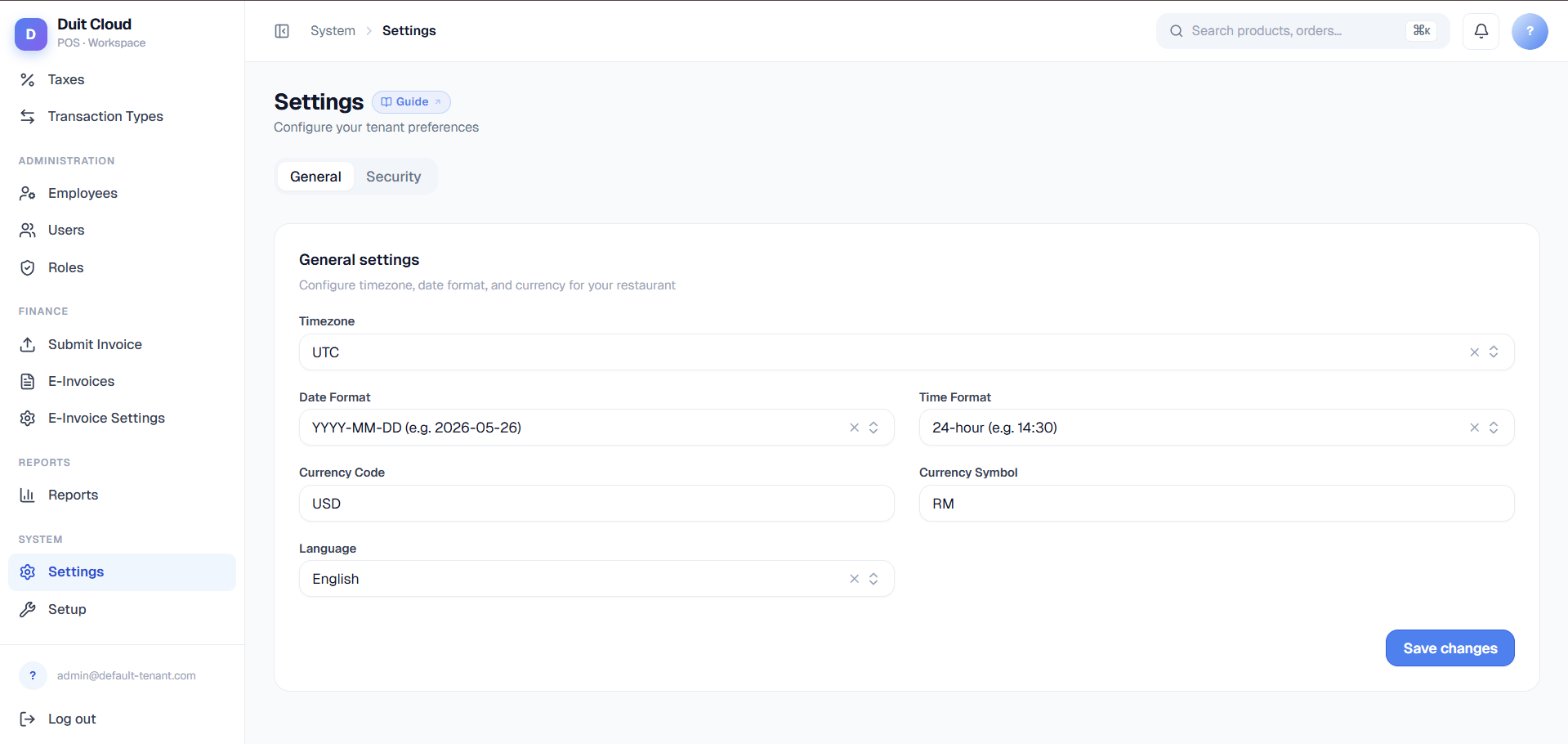
**Settings** contains system-wide configuration for your DuitPOS account. Changes here affect all locations, all users, and all POS terminals under your tenant. Each tab controls a different aspect of your business:
 ## Settings Overview
| Tab | What it controls |
| ---------------- | ------------------------------------------------------------------------------- |
| **General** | Timezone, date/time format, currency, language, and business defaults |
| **Denomination** | Cash drawer denominations for staff count-up during cash reconciliation |
| **Plan** | Your current subscription plan, billing status, seat usage, and upgrade options |
| **Security** | Password management for your account |
***
## General Tab
Configure your account's core preferences. These settings apply globally across all locations.
### Timezone
* **Why it matters**: Your timezone determines when daily reports roll over (at midnight in your timezone). If you set the wrong timezone, your daily sales summaries will group sales from the wrong calendar day.
* **How to set**: Use the searchable combobox to find your IANA timezone (e.g. "Asia/Kuala\_Lumpur"). The dropdown shows UTC offset (e.g. UTC+8).
* **Default**: Auto-detected from your device on first login.
### Date Format
* **Why it matters**: Affects how dates display on receipts, reports, and the UI.
* **Options**:
* **DD/MM/YYYY** — 15/07/2024 (common in Malaysia and Europe)
* **MM/DD/YYYY** — 07/15/2024 (common in the USA)
* **YYYY-MM-DD** — 2024-07-15 (ISO standard, good for sorting and logs)
* **Tip**: Set once, then use consistently across all locations for staff clarity.
### Time Format
* **Why it matters**: Determines whether times on receipts and reports show as 24-hour (HH:MM) or 12-hour (HH:MM AM/PM) format.
* **Options**:
* **24-hour** — 14:30 (no AM/PM suffix; common in Malaysia)
* **12-hour** — 02:30 PM (with AM/PM suffix)
### Currency Code & Symbol
* **Why it matters**: Affects how prices display on receipts, reports, and the POS screen.
* **Examples**:
* MYR (Malaysia) / RM
* SGD (Singapore) / S\$
* USD (USA) / \$
* THB (Thailand) / ฿
* **Warning** — Changing the currency does not convert existing prices. All product prices are stored as raw numbers — changing from MYR to USD will display the same prices in USD. You must manually update all product prices if you switch currencies.
### Language
* **Why it matters**: Sets the UI language for all users on the account.
* **Options**:
* **English** — Default; all features available
* **Bahasa Malaysia** — Complete Malaysian translation
* **中文 (Chinese)** — Simplified Chinese translation
* **Note**: Language is account-wide. Individual users cannot override this setting.
Set **Timezone** correctly before your first day of trading. Reports group sales by midnight in your configured timezone — a wrong timezone will make daily summaries inaccurate forever.
***
## Denomination Tab
Set up the cash denominations that match your actual cash drawer. This helps staff count up accurately during reconciliation.
### What are denominations?
Denominations are the coin and note values in your drawer:
* **Notes**: $1, $5, $10, $50, \$100 (or equivalent in your currency)
* **Coins**: $0.05, $0.10, $0.20, $0.50 (or equivalent)
### How to add denominations
1. Click the **+ Add Denomination** button.
2. Enter the **Value** (e.g. `10` for a \$10 note).
3. Select the **Type**:
* **Note** — for banknotes
* **Coin** — for coins
4. Click **Save**.
### Why this matters
When staff use the cash drawer reconciliation screen, they'll count how many of each denomination they have. DuitPOS will automatically calculate the total cash amount by multiplying count × value × type. Without accurate denominations, staff have to manually convert everything to a base unit, which is error-prone.
### Example
If your drawer has:
* 2× \$100 notes
* 5× \$50 notes
* 3× \$10 notes
* 10× \$1 notes
* 25× \$0.50 coins
Set up these 5 denominations on this tab, and staff can simply enter the count for each during reconciliation.
Add denominations that match your actual cash drawer layout. If you accept both MYR and SGD, create separate denominations for each currency's notes and coins.
***
## Plan Tab
Your plan determines which features are available on your account and how many users or locations you can have.
### Plan Information
| Field | What it shows |
| -------------------------- | --------------------------------------------------------------- |
| **Current Plan** | Your subscription tier (e.g. Free, Pro, Enterprise) |
| **Status** | Active, Inactive, Cancelled, or Expired |
| **Expiry Date** | When your current plan renews or expires |
| **Users Used / Limit** | How many team members are on your account (e.g. "3 of 5 users") |
| **Locations Used / Limit** | How many store locations you operate (e.g. "1 of 3 locations") |
### Plan Features
Your plan controls access to:
* Advanced reporting and analytics
* Online ordering (QR code and digital menu)
* E-invoicing (LHDN MyInvois integration)
* Payment processor integrations (Stripe, Share Commerce)
* Multi-location management
* Unlimited products and inventory
* Priority support
### How to upgrade
If you've reached your seat or location limit, or need advanced features:
1. Click **Contact Support** or **Upgrade Plan** button on this tab.
2. Specify which plan features you need (more users, more locations, advanced reports, etc.).
3. Our team will send you a quote and help you onboard to the new plan.
You can also email [support@duitpos.com](mailto:support@duitpos.com) or call your account manager directly.
### Understanding your usage
* **Users**: Count of active team member accounts on your account. Archived or disabled users do not count toward the limit.
* **Locations**: Count of separate store locations you've created under Manage → Locations.
If your usage reaches the plan limit, new users or locations will be rejected until you upgrade.
Your plan is billed annually or monthly, depending on your agreement. Check the expiry date to know when your next billing cycle begins.
***
## Security Tab
Manage your account password and authentication settings.
### Change Password
Update the password for your currently logged-in user account.
1. Enter your **Current Password** (to verify it's really you).
2. Enter your **New Password** (minimum 8 characters, must include uppercase, lowercase, number, and special character).
3. Confirm the **New Password** by typing it again.
4. Click **Save**.
Your password will be updated immediately. You'll stay logged in; no need to re-authenticate.
### Password Requirements
* Minimum 8 characters
* At least one uppercase letter (A–Z)
* At least one lowercase letter (a–z)
* At least one number (0–9)
* At least one special character (!@#\$%^&\*)
### Important Notes
* This changes **only your password**, not global or team-wide passwords.
* If you forget your password, use the login page's "Forgot Password" link to reset it via email.
* For other team members' passwords, they can reset their own passwords independently, or a Root Admin can reset them (see [User Management & Permissions](/features/permissions)).
Never share your password with others, even support staff. DuitPOS support will never ask for your password.
***
## Saving Changes
Changes are saved automatically as you update each field. All settings take effect immediately — no restart or re-login required (except password changes, which apply on your next login).
***
## Frequently Asked Questions
No. The Settings page applies to your entire account (all locations at once). Location-specific details like address, phone, and TIN are configured per location under Manage → Locations → Edit.
Future reports will group sales by midnight in the new timezone. Past reports are not recalculated. We recommend setting the timezone correctly before your first trading day.
No. Prices are stored as raw numbers and will display in the new currency without conversion. For example, if your product is priced at 50 in MYR and you switch to USD, it will still show as 50 (now in USD). You must manually update all product prices after a currency change.
Click the **Upgrade Plan** or **Contact Support** button on the Plan tab. Tell us how many additional users or locations you need, and we'll send you a quote.
Yes. The Settings page is available on any device where you can log in. Your password change will apply to all sessions — you may need to re-log in on other devices.
Add denominations matching your actual drawer. For Malaysia (MYR), typical denominations are: Notes ($1, $5, $10, $20, $50, $100) and Coins ($0.05, $0.10, $0.20, $0.50, \$1). For other currencies, use your country's standard denominations.
Currently, DuitPOS supports one global currency per account. If you operate in multiple currencies, create separate accounts (separate tenants) for each currency. Multi-currency support is on our roadmap.
***
## Related
Configure device-level printer, payment processor, and order mode settings
Manage team member roles, permissions, and account access
Set up and manage store locations
Set up LHDN MyInvois integration
## Settings Overview
| Tab | What it controls |
| ---------------- | ------------------------------------------------------------------------------- |
| **General** | Timezone, date/time format, currency, language, and business defaults |
| **Denomination** | Cash drawer denominations for staff count-up during cash reconciliation |
| **Plan** | Your current subscription plan, billing status, seat usage, and upgrade options |
| **Security** | Password management for your account |
***
## General Tab
Configure your account's core preferences. These settings apply globally across all locations.
### Timezone
* **Why it matters**: Your timezone determines when daily reports roll over (at midnight in your timezone). If you set the wrong timezone, your daily sales summaries will group sales from the wrong calendar day.
* **How to set**: Use the searchable combobox to find your IANA timezone (e.g. "Asia/Kuala\_Lumpur"). The dropdown shows UTC offset (e.g. UTC+8).
* **Default**: Auto-detected from your device on first login.
### Date Format
* **Why it matters**: Affects how dates display on receipts, reports, and the UI.
* **Options**:
* **DD/MM/YYYY** — 15/07/2024 (common in Malaysia and Europe)
* **MM/DD/YYYY** — 07/15/2024 (common in the USA)
* **YYYY-MM-DD** — 2024-07-15 (ISO standard, good for sorting and logs)
* **Tip**: Set once, then use consistently across all locations for staff clarity.
### Time Format
* **Why it matters**: Determines whether times on receipts and reports show as 24-hour (HH:MM) or 12-hour (HH:MM AM/PM) format.
* **Options**:
* **24-hour** — 14:30 (no AM/PM suffix; common in Malaysia)
* **12-hour** — 02:30 PM (with AM/PM suffix)
### Currency Code & Symbol
* **Why it matters**: Affects how prices display on receipts, reports, and the POS screen.
* **Examples**:
* MYR (Malaysia) / RM
* SGD (Singapore) / S\$
* USD (USA) / \$
* THB (Thailand) / ฿
* **Warning** — Changing the currency does not convert existing prices. All product prices are stored as raw numbers — changing from MYR to USD will display the same prices in USD. You must manually update all product prices if you switch currencies.
### Language
* **Why it matters**: Sets the UI language for all users on the account.
* **Options**:
* **English** — Default; all features available
* **Bahasa Malaysia** — Complete Malaysian translation
* **中文 (Chinese)** — Simplified Chinese translation
* **Note**: Language is account-wide. Individual users cannot override this setting.
Set **Timezone** correctly before your first day of trading. Reports group sales by midnight in your configured timezone — a wrong timezone will make daily summaries inaccurate forever.
***
## Denomination Tab
Set up the cash denominations that match your actual cash drawer. This helps staff count up accurately during reconciliation.
### What are denominations?
Denominations are the coin and note values in your drawer:
* **Notes**: $1, $5, $10, $50, \$100 (or equivalent in your currency)
* **Coins**: $0.05, $0.10, $0.20, $0.50 (or equivalent)
### How to add denominations
1. Click the **+ Add Denomination** button.
2. Enter the **Value** (e.g. `10` for a \$10 note).
3. Select the **Type**:
* **Note** — for banknotes
* **Coin** — for coins
4. Click **Save**.
### Why this matters
When staff use the cash drawer reconciliation screen, they'll count how many of each denomination they have. DuitPOS will automatically calculate the total cash amount by multiplying count × value × type. Without accurate denominations, staff have to manually convert everything to a base unit, which is error-prone.
### Example
If your drawer has:
* 2× \$100 notes
* 5× \$50 notes
* 3× \$10 notes
* 10× \$1 notes
* 25× \$0.50 coins
Set up these 5 denominations on this tab, and staff can simply enter the count for each during reconciliation.
Add denominations that match your actual cash drawer layout. If you accept both MYR and SGD, create separate denominations for each currency's notes and coins.
***
## Plan Tab
Your plan determines which features are available on your account and how many users or locations you can have.
### Plan Information
| Field | What it shows |
| -------------------------- | --------------------------------------------------------------- |
| **Current Plan** | Your subscription tier (e.g. Free, Pro, Enterprise) |
| **Status** | Active, Inactive, Cancelled, or Expired |
| **Expiry Date** | When your current plan renews or expires |
| **Users Used / Limit** | How many team members are on your account (e.g. "3 of 5 users") |
| **Locations Used / Limit** | How many store locations you operate (e.g. "1 of 3 locations") |
### Plan Features
Your plan controls access to:
* Advanced reporting and analytics
* Online ordering (QR code and digital menu)
* E-invoicing (LHDN MyInvois integration)
* Payment processor integrations (Stripe, Share Commerce)
* Multi-location management
* Unlimited products and inventory
* Priority support
### How to upgrade
If you've reached your seat or location limit, or need advanced features:
1. Click **Contact Support** or **Upgrade Plan** button on this tab.
2. Specify which plan features you need (more users, more locations, advanced reports, etc.).
3. Our team will send you a quote and help you onboard to the new plan.
You can also email [support@duitpos.com](mailto:support@duitpos.com) or call your account manager directly.
### Understanding your usage
* **Users**: Count of active team member accounts on your account. Archived or disabled users do not count toward the limit.
* **Locations**: Count of separate store locations you've created under Manage → Locations.
If your usage reaches the plan limit, new users or locations will be rejected until you upgrade.
Your plan is billed annually or monthly, depending on your agreement. Check the expiry date to know when your next billing cycle begins.
***
## Security Tab
Manage your account password and authentication settings.
### Change Password
Update the password for your currently logged-in user account.
1. Enter your **Current Password** (to verify it's really you).
2. Enter your **New Password** (minimum 8 characters, must include uppercase, lowercase, number, and special character).
3. Confirm the **New Password** by typing it again.
4. Click **Save**.
Your password will be updated immediately. You'll stay logged in; no need to re-authenticate.
### Password Requirements
* Minimum 8 characters
* At least one uppercase letter (A–Z)
* At least one lowercase letter (a–z)
* At least one number (0–9)
* At least one special character (!@#\$%^&\*)
### Important Notes
* This changes **only your password**, not global or team-wide passwords.
* If you forget your password, use the login page's "Forgot Password" link to reset it via email.
* For other team members' passwords, they can reset their own passwords independently, or a Root Admin can reset them (see [User Management & Permissions](/features/permissions)).
Never share your password with others, even support staff. DuitPOS support will never ask for your password.
***
## Saving Changes
Changes are saved automatically as you update each field. All settings take effect immediately — no restart or re-login required (except password changes, which apply on your next login).
***
## Frequently Asked Questions
No. The Settings page applies to your entire account (all locations at once). Location-specific details like address, phone, and TIN are configured per location under Manage → Locations → Edit.
Future reports will group sales by midnight in the new timezone. Past reports are not recalculated. We recommend setting the timezone correctly before your first trading day.
No. Prices are stored as raw numbers and will display in the new currency without conversion. For example, if your product is priced at 50 in MYR and you switch to USD, it will still show as 50 (now in USD). You must manually update all product prices after a currency change.
Click the **Upgrade Plan** or **Contact Support** button on the Plan tab. Tell us how many additional users or locations you need, and we'll send you a quote.
Yes. The Settings page is available on any device where you can log in. Your password change will apply to all sessions — you may need to re-log in on other devices.
Add denominations matching your actual drawer. For Malaysia (MYR), typical denominations are: Notes ($1, $5, $10, $20, $50, $100) and Coins ($0.05, $0.10, $0.20, $0.50, \$1). For other currencies, use your country's standard denominations.
Currently, DuitPOS supports one global currency per account. If you operate in multiple currencies, create separate accounts (separate tenants) for each currency. Multi-currency support is on our roadmap.
***
## Related
Configure device-level printer, payment processor, and order mode settings
Manage team member roles, permissions, and account access
Set up and manage store locations
Set up LHDN MyInvois integration