> ## Documentation Index
> Fetch the complete documentation index at: https://docs.duitpos.com/llms.txt
> Use this file to discover all available pages before exploring further.
# Submit Invoice
> Manually create and submit an e-invoice for a walk-in or B2B customer, without waiting for the QR claim flow.
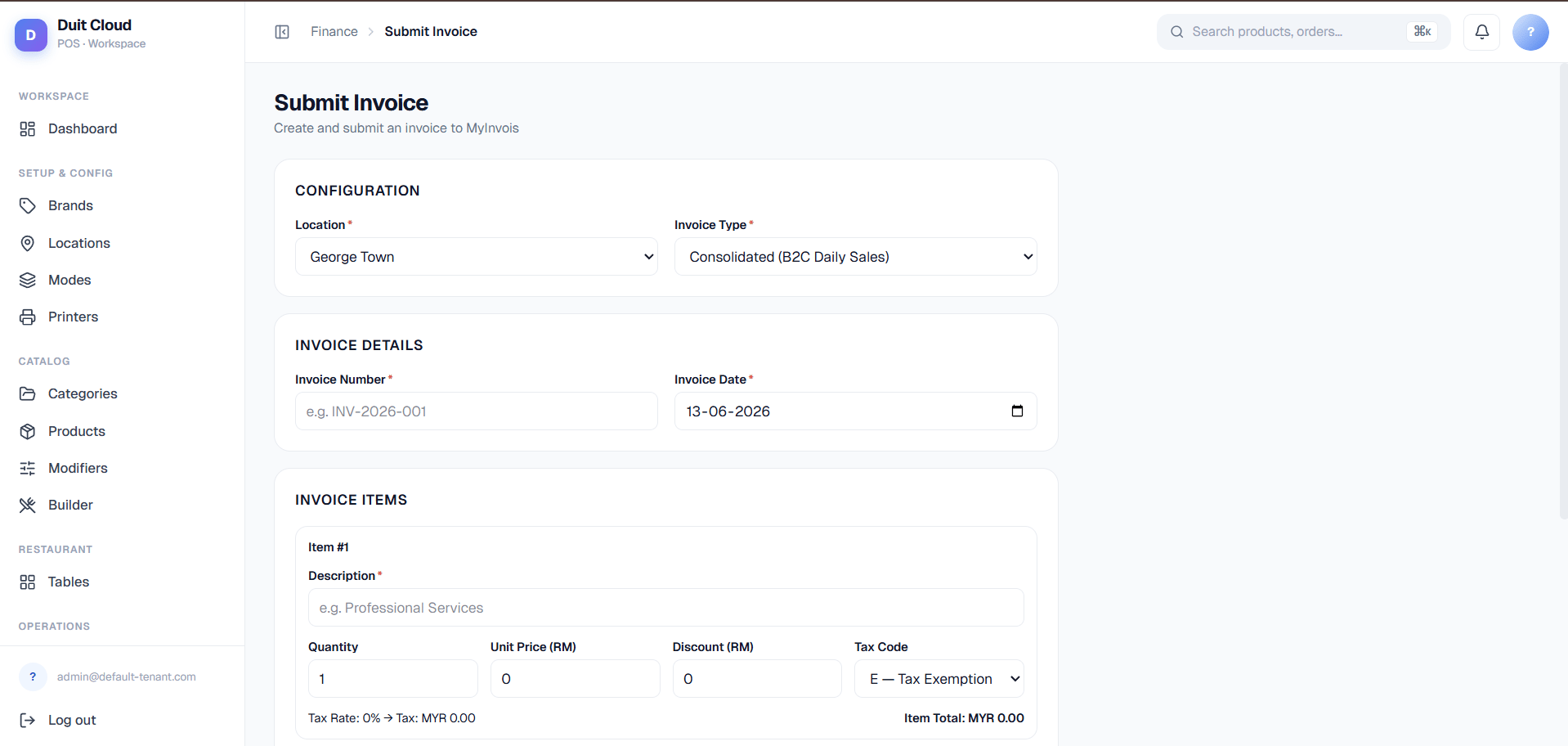
The **Submit Invoice** form lets staff create an e-invoice by hand instead of relying on the automatic QR-claim flow. It's the right tool when a customer wants a proper invoice right now — a walk-in B2B buyer with their own TIN who won't be scanning a receipt QR, or a batch of small daily sales you want to consolidate on demand. Every invoice this form creates goes through the same lifecycle described on [E-Invoices](/features/e-invoicing) — this page only covers how to fill in the form correctly.
 ## Configuration
| Field | Required | Description |
| ---------------- | -------- | ------------------------------------------------------------------------------------------------------------------------------------------------------ |
| **Location** | Yes | Which branch this invoice is issued from — its TIN, BRN, and MSIC code (from [Locations](/features/locations)) become the invoice's supplier identity. |
| **Invoice Type** | Yes | Determines what buyer information the rest of the form asks for. See below. |
**Invoice Type** has three options:
| Type | Use it for |
| ---------------------------------- | -------------------------------------------------------------------------------------------------------------------------------------------------------------------------------------------------------------------- |
| **Consolidated (B2C Daily Sales)** | Manually bundling a day's worth of small, anonymous sales into one invoice — the same concept as automatic consolidation, just triggered on demand instead of waiting for the schedule. No buyer information needed. |
| **Buyer (B2B)** | A full invoice issued to a business customer that has its own TIN — the customer's TIN is required for this type. |
| **Personal (B2C)** | An invoice issued to an individual customer by name — no business TIN required. |
## Invoice Details
| Field | Required | Description |
| ------------------ | -------- | ------------------------------------------------------------------------------------- |
| **Invoice Number** | Yes | The number for this invoice, e.g. `INV-2026-001`. Not auto-generated — you choose it. |
| **Invoice Date** | Yes | Defaults to today; change it if you're backdating. |
## Buyer Information
This section only appears for **Buyer (B2B)** and **Personal (B2C)** invoice types — a Consolidated invoice skips it entirely since it isn't issued to a named buyer.
| Field | Required | Description |
| ------------------ | --------------- | ------------------------------------------------------------------------------------------------------------------------------ |
| **Full Name** | Yes | The buyer's legal name, as it appears on their MyKad or business registration. |
| **TIN** | Buyer type only | The buyer's own Tax Identification Number — only asked for on Buyer (B2B) invoices, since a Personal invoice doesn't need one. |
| **ID Type** | Yes | One of **NRIC/MyKad**, **Passport**, **Business Registration No. (BRN)**, or **Army ID**. |
| **ID Number** | Yes | The value matching the selected ID Type. |
| **Email** | No | Optional contact email for the buyer. |
| **Phone** | No | Optional contact number for the buyer. |
| **Street Address** | No | Address line 1. |
| **City** | No | — |
| **Postal Code** | No | — |
| **State** | No | Malaysian state, selected from a dropdown. |
## Invoice Items
Add one row per line item. Each row has:
| Field | Description |
| ------------------- | -------------------------------------------------------------------------- |
| **Description** | What the line item is, e.g. "Professional Services". |
| **Quantity** | Number of units. |
| **Unit Price (RM)** | Price per unit before tax. |
| **Discount (RM)** | Flat amount deducted from this line before tax is calculated. |
| **Tax Code** | Picked from a fixed rate table — selecting a code auto-fills its tax rate. |
Quantity, Unit Price, Discount, and Tax Code combine to compute a live **Item Total** shown under each row — you don't calculate tax by hand. Use **Add Item** to add another row, or the trash icon to remove one (at least one row is required).
### Tax codes
| Code | Meaning | Rate |
| ------ | --------------- | ---- |
| **E** | Tax Exemption | 0% |
| **01** | Sales Tax (SST) | 10% |
| **02** | Service Tax | 6% |
| **03** | Service Tax | 8% |
| **07** | Tourism Tax | 0% |
## Summary
| Field | Description |
| ------------ | --------------------------------------------------------------------------------------------------------------------------------------------------------- |
| **Subtotal** | Sum of all line items before tax, after discounts. |
| **Discount** | Total discount across all line items. |
| **Tax** | Sum of tax computed per line item. |
| **Rounding** | A manual input for cash-rounding adjustments (e.g. rounding a total to the nearest 5 sen) — this is the only field on the summary you type into directly. |
| **Total** | Subtotal + Tax + Rounding — the final invoice amount. |
**Creating this form does not submit the invoice to LHDN.** Clicking **Create Draft** only creates the e-invoice as a **Draft** — exactly the same starting point as one generated automatically from a POS ticket. Staff still need to go to [E-Invoices](/features/e-invoicing), find the new document, and click **Submit to LHDN** (or leave it for consolidation to pick up, if applicable). This is the single most common point of confusion with this form — "I submitted the invoice" usually means "I created the draft," not "LHDN has it."
## Create a Manual Invoice
Open **Submit Invoice** from the E-Invoicing section, or click the **Submit Invoice** button on a location's Invoices tab to arrive here pre-filled with that location.
Pick the branch this invoice belongs to, then choose Consolidated, Buyer, or Personal based on who it's for.
Enter the invoice number and date. If you picked Buyer or Personal, fill in the buyer's name, ID, and contact details — TIN is required for Buyer only.
Add each item with its quantity, unit price, discount, and tax code. Check the live item totals as you go.
Review the Summary totals, add a rounding adjustment if your cash total needs one, and click **Create Draft**.
Head to [E-Invoices](/features/e-invoicing), find the new Draft, and click **Submit to LHDN** — the form above only creates the draft, it doesn't send it.
## Frequently Asked Questions
Because it isn't submitted yet. Creating the form only produces a Draft e-invoice, identical in status to one auto-generated from a POS ticket. You still need to open it from the [E-Invoices](/features/e-invoicing) list and click **Submit to LHDN**.
Use **Buyer (B2B)** for a business customer who has their own TIN and needs a proper company invoice. Use **Personal (B2C)** for an individual who wants an invoice in their own name but has no business TIN. Use **Consolidated** when you're manually bundling several small anonymous sales into one invoice instead of issuing them one by one.
Match it to how that item is actually taxed at your location — check your [Tax](/features/tax) setup for the rates you're registered for. Code **E** (0%, exempt) is a safe default for items with no applicable tax; picking the wrong code will produce an incorrect tax total on the invoice.
Not from this form — once a draft exists, changes happen from the document's detail view on [E-Invoices](/features/e-invoicing). If you made a mistake before submitting, it's usually easiest to purge the incorrect draft (from the location's Invoices tab) and create a new one here.
## Related
Full document list, statuses, and submission lifecycle
Configure TIN, BRN, MSIC, and address per location
Platform-level credentials and signing certificate (root admin)
Configure the tax rates behind each Tax Code
## Configuration
| Field | Required | Description |
| ---------------- | -------- | ------------------------------------------------------------------------------------------------------------------------------------------------------ |
| **Location** | Yes | Which branch this invoice is issued from — its TIN, BRN, and MSIC code (from [Locations](/features/locations)) become the invoice's supplier identity. |
| **Invoice Type** | Yes | Determines what buyer information the rest of the form asks for. See below. |
**Invoice Type** has three options:
| Type | Use it for |
| ---------------------------------- | -------------------------------------------------------------------------------------------------------------------------------------------------------------------------------------------------------------------- |
| **Consolidated (B2C Daily Sales)** | Manually bundling a day's worth of small, anonymous sales into one invoice — the same concept as automatic consolidation, just triggered on demand instead of waiting for the schedule. No buyer information needed. |
| **Buyer (B2B)** | A full invoice issued to a business customer that has its own TIN — the customer's TIN is required for this type. |
| **Personal (B2C)** | An invoice issued to an individual customer by name — no business TIN required. |
## Invoice Details
| Field | Required | Description |
| ------------------ | -------- | ------------------------------------------------------------------------------------- |
| **Invoice Number** | Yes | The number for this invoice, e.g. `INV-2026-001`. Not auto-generated — you choose it. |
| **Invoice Date** | Yes | Defaults to today; change it if you're backdating. |
## Buyer Information
This section only appears for **Buyer (B2B)** and **Personal (B2C)** invoice types — a Consolidated invoice skips it entirely since it isn't issued to a named buyer.
| Field | Required | Description |
| ------------------ | --------------- | ------------------------------------------------------------------------------------------------------------------------------ |
| **Full Name** | Yes | The buyer's legal name, as it appears on their MyKad or business registration. |
| **TIN** | Buyer type only | The buyer's own Tax Identification Number — only asked for on Buyer (B2B) invoices, since a Personal invoice doesn't need one. |
| **ID Type** | Yes | One of **NRIC/MyKad**, **Passport**, **Business Registration No. (BRN)**, or **Army ID**. |
| **ID Number** | Yes | The value matching the selected ID Type. |
| **Email** | No | Optional contact email for the buyer. |
| **Phone** | No | Optional contact number for the buyer. |
| **Street Address** | No | Address line 1. |
| **City** | No | — |
| **Postal Code** | No | — |
| **State** | No | Malaysian state, selected from a dropdown. |
## Invoice Items
Add one row per line item. Each row has:
| Field | Description |
| ------------------- | -------------------------------------------------------------------------- |
| **Description** | What the line item is, e.g. "Professional Services". |
| **Quantity** | Number of units. |
| **Unit Price (RM)** | Price per unit before tax. |
| **Discount (RM)** | Flat amount deducted from this line before tax is calculated. |
| **Tax Code** | Picked from a fixed rate table — selecting a code auto-fills its tax rate. |
Quantity, Unit Price, Discount, and Tax Code combine to compute a live **Item Total** shown under each row — you don't calculate tax by hand. Use **Add Item** to add another row, or the trash icon to remove one (at least one row is required).
### Tax codes
| Code | Meaning | Rate |
| ------ | --------------- | ---- |
| **E** | Tax Exemption | 0% |
| **01** | Sales Tax (SST) | 10% |
| **02** | Service Tax | 6% |
| **03** | Service Tax | 8% |
| **07** | Tourism Tax | 0% |
## Summary
| Field | Description |
| ------------ | --------------------------------------------------------------------------------------------------------------------------------------------------------- |
| **Subtotal** | Sum of all line items before tax, after discounts. |
| **Discount** | Total discount across all line items. |
| **Tax** | Sum of tax computed per line item. |
| **Rounding** | A manual input for cash-rounding adjustments (e.g. rounding a total to the nearest 5 sen) — this is the only field on the summary you type into directly. |
| **Total** | Subtotal + Tax + Rounding — the final invoice amount. |
**Creating this form does not submit the invoice to LHDN.** Clicking **Create Draft** only creates the e-invoice as a **Draft** — exactly the same starting point as one generated automatically from a POS ticket. Staff still need to go to [E-Invoices](/features/e-invoicing), find the new document, and click **Submit to LHDN** (or leave it for consolidation to pick up, if applicable). This is the single most common point of confusion with this form — "I submitted the invoice" usually means "I created the draft," not "LHDN has it."
## Create a Manual Invoice
Open **Submit Invoice** from the E-Invoicing section, or click the **Submit Invoice** button on a location's Invoices tab to arrive here pre-filled with that location.
Pick the branch this invoice belongs to, then choose Consolidated, Buyer, or Personal based on who it's for.
Enter the invoice number and date. If you picked Buyer or Personal, fill in the buyer's name, ID, and contact details — TIN is required for Buyer only.
Add each item with its quantity, unit price, discount, and tax code. Check the live item totals as you go.
Review the Summary totals, add a rounding adjustment if your cash total needs one, and click **Create Draft**.
Head to [E-Invoices](/features/e-invoicing), find the new Draft, and click **Submit to LHDN** — the form above only creates the draft, it doesn't send it.
## Frequently Asked Questions
Because it isn't submitted yet. Creating the form only produces a Draft e-invoice, identical in status to one auto-generated from a POS ticket. You still need to open it from the [E-Invoices](/features/e-invoicing) list and click **Submit to LHDN**.
Use **Buyer (B2B)** for a business customer who has their own TIN and needs a proper company invoice. Use **Personal (B2C)** for an individual who wants an invoice in their own name but has no business TIN. Use **Consolidated** when you're manually bundling several small anonymous sales into one invoice instead of issuing them one by one.
Match it to how that item is actually taxed at your location — check your [Tax](/features/tax) setup for the rates you're registered for. Code **E** (0%, exempt) is a safe default for items with no applicable tax; picking the wrong code will produce an incorrect tax total on the invoice.
Not from this form — once a draft exists, changes happen from the document's detail view on [E-Invoices](/features/e-invoicing). If you made a mistake before submitting, it's usually easiest to purge the incorrect draft (from the location's Invoices tab) and create a new one here.
## Related
Full document list, statuses, and submission lifecycle
Configure TIN, BRN, MSIC, and address per location
Platform-level credentials and signing certificate (root admin)
Configure the tax rates behind each Tax Code