> ## Documentation Index
> Fetch the complete documentation index at: https://docs.duitpos.com/llms.txt
> Use this file to discover all available pages before exploring further.
# Tax
> Configure tax rules, rates, and overrides for items and locations.
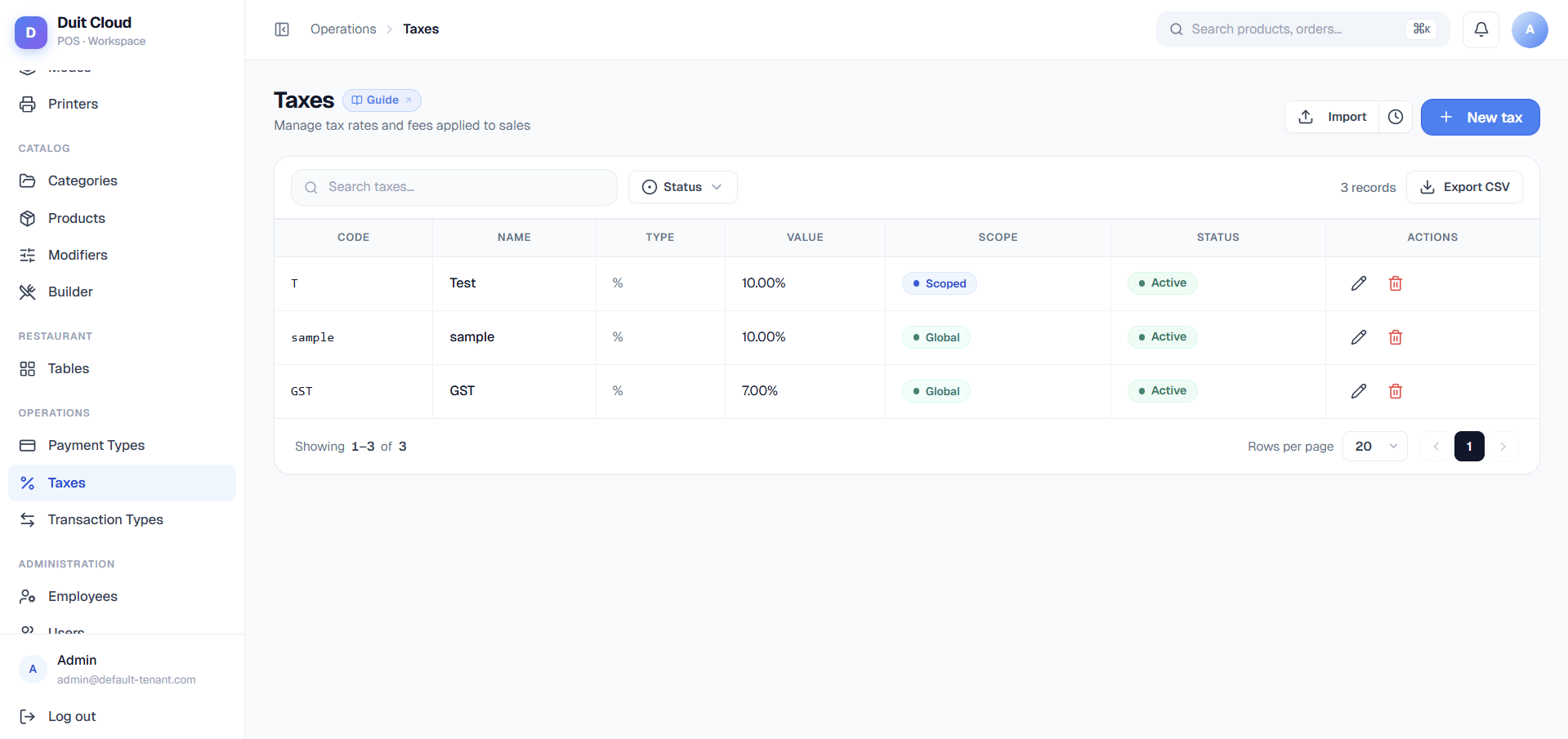
**Taxes** are calculated charges applied to items on a ticket — either as a fixed amount (e.g. 50¢ service fee) or a percentage of the sale (e.g. 10% GST). You can set a **global tax** that always applies, or a **scoped tax** that applies only to items in a specific category or product group. For advanced use, **tax rules** let you override the rate for a specific location or order mode (e.g. "6% GST in Region A, 10% in Region B"). **Associated taxes** let you stack taxes (e.g. a tax-on-service charge when service tax is applied).
 ## General Tab
The General tab defines the core tax — its code, rate type, and how it applies across your business.
### General Fields
| Field | Required | Description |
| -------------------- | -------- | -------------------------------------------------------------------------------------------------------------------------------------------------------------------------------------------- |
| **Code** | Yes | A short internal identifier, e.g. `SST` or `SVC`. Used in reports, exports, and tickets |
| **Name** | Yes | Display name shown on receipts and reports, e.g. `Sales & Service Tax` |
| **Type** | Yes | **Fixed Amount** (flat charge, e.g. 50¢) or **Percentage** (rate, e.g. 10%) |
| **Value** | Yes | For Fixed: the amount (e.g. `0.50`). For Percentage: the rate without % (e.g. `10` for 10%). Supports up to 4 decimal places |
| **Max Amount** | No | For Percentage type only. If set (e.g. `100`), the calculated tax never exceeds this cap. Useful for percentage taxes with a service-charge ceiling |
| **Transaction Type** | Yes | Which transaction type ledger this tax posts to (e.g. Tax, Service Charge). Determines grouping on tickets and in reconciliation |
| **Tax Inclusive** | No | If enabled, the displayed price to customers **already includes** this tax. POS calculates the tax-exclusive base internally. Used for restaurants where menu prices show the "all-in" total |
| **Scope** | Yes | **Global** (always applied to matching items) or **Scoped** (applied only if the item is in a matching Mapping). See Mapping tab for scoped definition |
| **Active** | No | Inactive taxes are excluded from all future transactions. Historical data is unchanged |
**Tax Inclusive example**: A 10% GST tax-inclusive means the customer sees "100 THB" on the menu, but the system calculates 90.91 THB (ex-GST) + 9.09 THB (tax) = 100 THB total. Enable **Tax Inclusive** only if your menu prices are published with tax already baked in. Leave it off for most use cases (item prices are pre-tax, tax is added at checkout).
### Create a Tax
Click **Tax** in the left sidebar under Operations.
Enter the Code, Name, Type (Fixed or Percentage), Value, Transaction Type, and Scope.
* **Global**: Tax applies to all items (or all items of the Transaction Type).
* **Scoped**: Tax applies only to items you explicitly map in the Mapping tab below.
Click **Create**. Tax is immediately active.
***
## Rules Tab
**Tax Rules** override the base tax value (or disable it entirely) for a specific **location** and/or **order mode**. This is how you implement regional rate differences or mode-specific charges.
### Why Tax Rules Matter
Example: You operate in Singapore (10% GST) and Malaysia (6% SST). Create one "GST/SST" tax, then add two rules:
* Rule 1: Location = Singapore → Value 10%
* Rule 2: Location = Malaysia → Value 6%
Each location will charge the correct rate automatically.
### Tax Rule Priority — **Inverted vs. Products**
**CRITICAL: Tax Rules use the opposite priority order from Product Prices.** This is a common gotcha.
**Products** (price overrides):
| Most specific | Least specific |
| --------------------- | ------------------ |
| Location + Order Mode | (most common case) |
| Location only | |
| Order Mode only | |
| Global | (fallback) |
**Tax Rules** (rate overrides):
| Most specific | Least specific |
| --------------- | ----------------------------------- |
| Order Mode only | (most common case — beats location) |
| Location only | |
| Global | (fallback) |
**The difference**: For taxes, an **Order Mode override always wins over a Location override**. For products, **Location + Mode wins over either alone**.
**Example**: You have:
* Base 6% GST (Global)
* Rule A: Location = "Branch 1" → 5%
* Rule B: Order Mode = "Delivery" → 8%
A Delivery order at Branch 1 is taxed at **8% (Order Mode wins)**, not 5%. For products, the same situation would choose the Location value if no Location+Mode row existed.
### Rules Fields
| Field | Required | Description |
| ------------------ | -------- | ------------------------------------------------------------------------------------------- |
| **Location** | No | Leave blank to apply to all locations. Select a specific location to apply only there |
| **Order Mode** | No | Leave blank to apply to all order modes. Select a specific mode to apply only there |
| **Override Value** | Yes | The new tax value (same format as General tab: amount for Fixed, percentage for Percentage) |
| **Enabled** | No | If unchecked, this rule is ignored and the base tax is used |
### Create a Tax Rule
Click **Edit** on any tax, then go to the **Rules** tab.
Optionally select a Location and/or Order Mode.
Provide the new tax rate or amount for this context.
The rule is active immediately. Future transactions in that context use the override.
***
## Mapping Tab
**Mapping** defines which **categories** and **products** a scoped tax applies to. Global taxes ignore this tab (they always apply); scoped taxes only apply to items in a matching mapping.
### Why Mapping Matters
Example: You want 10% tax on food items only, not beverages.
1. Create a tax "Food Tax" with Scope = **Scoped**.
2. In the Mapping tab, add two mappings:
* Category = "Main Dishes"
* Category = "Appetizers"
3. Beverages (even if in the menu) are never taxed because they aren't in the mapping.
### Mapping Rules
* A **Category mapping** applies to all products in that category (and sub-categories if nested).
* A **Product mapping** applies only to that specific product.
* If a product is explicitly mapped, its category mapping is ignored (product is more specific).
* **Scope must be "Scoped"** for mappings to have effect. Global scope bypasses this tab.
### Add a Mapping
Click **Edit**, then go to the **Mapping** tab.
Choose **Category** or **Product**.
The tax will now apply to that category (or product).
Add as many mappings as needed.
Mappings take effect immediately.
***
## Associated Taxes
**Associated taxes** let you stack taxes — apply one tax only when another tax is applied. This is used for compound charges like "apply a tax-on-service charge whenever the Service Tax is applied."
### Example: Service Tax + Tax on Service
1. Create "Service Tax" (e.g. 10%, Scope = Global).
2. Create "Tax on Service" (e.g. 5% of the Service Tax, Scope = Global).
3. In "Tax on Service" → **Associated Taxes** tab, select "Service Tax".
4. Result: When a ticket applies the Service Tax, it automatically also applies the Tax on Service to the service charge line, not to food items.
### Associated Taxes Fields
| Field | Description |
| ------------ | ------------------------------------------------------------------------------------------------------------- |
| **Base Tax** | The tax(es) that trigger this one. When a base tax is applied, this tax is also applied (if conditions match) |
***
## Frequently Asked Questions
**Scope** determines **when** the tax is used:
* **Global**: Always apply to items of the matching transaction type.
* **Scoped**: Only apply to items that are explicitly listed in the Mapping tab.
**Mapping** defines **which items** (categories or products) qualify for a scoped tax. A global tax ignores mappings and always applies.
Yes. If multiple taxes are global (or both match the item's mapping), all apply. They are stacked per line item and summed in the Tax Report. Use the Transaction Type field to group them clearly on the receipt.
Check: (1) The Rule is set to **Enabled**. (2) The Rule's Location matches where the sale occurred. (3) If an Order Mode rule also exists for that order, the **Order Mode rule wins** (even if you expect the Location rule). This is the inverted priority for taxes — see the Rules tab Warning for details.
Uncheck the **Active** field on the General tab. Inactive taxes are excluded from all new transactions but historical data is preserved. To temporarily override a tax for one context, create a Rule with Override Value = 0 and enable it for that location/mode.
**Tax Exclusive** (default): Menu prices shown to customers don't include tax. Tax is calculated and added at checkout. "Item 100 → +10% tax → 110 charged".
**Tax Inclusive**: Menu prices already include tax. The system calculates the tax-free base internally. "Menu shows 110 → system calculates 100 base + 10 tax → 110 charged". Use this only if your menu prices are published with tax baked in (common in some regions).
Yes. Set Type = **Percentage**, enter the rate in Value (e.g. `10`), and optionally enter a Max Amount (e.g. `100`). If the calculated tax would exceed the max, it's capped at the max. Useful for service charges that are percentage-based but have a hard ceiling.
## Related
Link taxes to categories and products via Mapping
Choose the ledger account for tax posting
Set mode-specific tax overrides in Rules
View tax collected by type and location
## General Tab
The General tab defines the core tax — its code, rate type, and how it applies across your business.
### General Fields
| Field | Required | Description |
| -------------------- | -------- | -------------------------------------------------------------------------------------------------------------------------------------------------------------------------------------------- |
| **Code** | Yes | A short internal identifier, e.g. `SST` or `SVC`. Used in reports, exports, and tickets |
| **Name** | Yes | Display name shown on receipts and reports, e.g. `Sales & Service Tax` |
| **Type** | Yes | **Fixed Amount** (flat charge, e.g. 50¢) or **Percentage** (rate, e.g. 10%) |
| **Value** | Yes | For Fixed: the amount (e.g. `0.50`). For Percentage: the rate without % (e.g. `10` for 10%). Supports up to 4 decimal places |
| **Max Amount** | No | For Percentage type only. If set (e.g. `100`), the calculated tax never exceeds this cap. Useful for percentage taxes with a service-charge ceiling |
| **Transaction Type** | Yes | Which transaction type ledger this tax posts to (e.g. Tax, Service Charge). Determines grouping on tickets and in reconciliation |
| **Tax Inclusive** | No | If enabled, the displayed price to customers **already includes** this tax. POS calculates the tax-exclusive base internally. Used for restaurants where menu prices show the "all-in" total |
| **Scope** | Yes | **Global** (always applied to matching items) or **Scoped** (applied only if the item is in a matching Mapping). See Mapping tab for scoped definition |
| **Active** | No | Inactive taxes are excluded from all future transactions. Historical data is unchanged |
**Tax Inclusive example**: A 10% GST tax-inclusive means the customer sees "100 THB" on the menu, but the system calculates 90.91 THB (ex-GST) + 9.09 THB (tax) = 100 THB total. Enable **Tax Inclusive** only if your menu prices are published with tax already baked in. Leave it off for most use cases (item prices are pre-tax, tax is added at checkout).
### Create a Tax
Click **Tax** in the left sidebar under Operations.
Enter the Code, Name, Type (Fixed or Percentage), Value, Transaction Type, and Scope.
* **Global**: Tax applies to all items (or all items of the Transaction Type).
* **Scoped**: Tax applies only to items you explicitly map in the Mapping tab below.
Click **Create**. Tax is immediately active.
***
## Rules Tab
**Tax Rules** override the base tax value (or disable it entirely) for a specific **location** and/or **order mode**. This is how you implement regional rate differences or mode-specific charges.
### Why Tax Rules Matter
Example: You operate in Singapore (10% GST) and Malaysia (6% SST). Create one "GST/SST" tax, then add two rules:
* Rule 1: Location = Singapore → Value 10%
* Rule 2: Location = Malaysia → Value 6%
Each location will charge the correct rate automatically.
### Tax Rule Priority — **Inverted vs. Products**
**CRITICAL: Tax Rules use the opposite priority order from Product Prices.** This is a common gotcha.
**Products** (price overrides):
| Most specific | Least specific |
| --------------------- | ------------------ |
| Location + Order Mode | (most common case) |
| Location only | |
| Order Mode only | |
| Global | (fallback) |
**Tax Rules** (rate overrides):
| Most specific | Least specific |
| --------------- | ----------------------------------- |
| Order Mode only | (most common case — beats location) |
| Location only | |
| Global | (fallback) |
**The difference**: For taxes, an **Order Mode override always wins over a Location override**. For products, **Location + Mode wins over either alone**.
**Example**: You have:
* Base 6% GST (Global)
* Rule A: Location = "Branch 1" → 5%
* Rule B: Order Mode = "Delivery" → 8%
A Delivery order at Branch 1 is taxed at **8% (Order Mode wins)**, not 5%. For products, the same situation would choose the Location value if no Location+Mode row existed.
### Rules Fields
| Field | Required | Description |
| ------------------ | -------- | ------------------------------------------------------------------------------------------- |
| **Location** | No | Leave blank to apply to all locations. Select a specific location to apply only there |
| **Order Mode** | No | Leave blank to apply to all order modes. Select a specific mode to apply only there |
| **Override Value** | Yes | The new tax value (same format as General tab: amount for Fixed, percentage for Percentage) |
| **Enabled** | No | If unchecked, this rule is ignored and the base tax is used |
### Create a Tax Rule
Click **Edit** on any tax, then go to the **Rules** tab.
Optionally select a Location and/or Order Mode.
Provide the new tax rate or amount for this context.
The rule is active immediately. Future transactions in that context use the override.
***
## Mapping Tab
**Mapping** defines which **categories** and **products** a scoped tax applies to. Global taxes ignore this tab (they always apply); scoped taxes only apply to items in a matching mapping.
### Why Mapping Matters
Example: You want 10% tax on food items only, not beverages.
1. Create a tax "Food Tax" with Scope = **Scoped**.
2. In the Mapping tab, add two mappings:
* Category = "Main Dishes"
* Category = "Appetizers"
3. Beverages (even if in the menu) are never taxed because they aren't in the mapping.
### Mapping Rules
* A **Category mapping** applies to all products in that category (and sub-categories if nested).
* A **Product mapping** applies only to that specific product.
* If a product is explicitly mapped, its category mapping is ignored (product is more specific).
* **Scope must be "Scoped"** for mappings to have effect. Global scope bypasses this tab.
### Add a Mapping
Click **Edit**, then go to the **Mapping** tab.
Choose **Category** or **Product**.
The tax will now apply to that category (or product).
Add as many mappings as needed.
Mappings take effect immediately.
***
## Associated Taxes
**Associated taxes** let you stack taxes — apply one tax only when another tax is applied. This is used for compound charges like "apply a tax-on-service charge whenever the Service Tax is applied."
### Example: Service Tax + Tax on Service
1. Create "Service Tax" (e.g. 10%, Scope = Global).
2. Create "Tax on Service" (e.g. 5% of the Service Tax, Scope = Global).
3. In "Tax on Service" → **Associated Taxes** tab, select "Service Tax".
4. Result: When a ticket applies the Service Tax, it automatically also applies the Tax on Service to the service charge line, not to food items.
### Associated Taxes Fields
| Field | Description |
| ------------ | ------------------------------------------------------------------------------------------------------------- |
| **Base Tax** | The tax(es) that trigger this one. When a base tax is applied, this tax is also applied (if conditions match) |
***
## Frequently Asked Questions
**Scope** determines **when** the tax is used:
* **Global**: Always apply to items of the matching transaction type.
* **Scoped**: Only apply to items that are explicitly listed in the Mapping tab.
**Mapping** defines **which items** (categories or products) qualify for a scoped tax. A global tax ignores mappings and always applies.
Yes. If multiple taxes are global (or both match the item's mapping), all apply. They are stacked per line item and summed in the Tax Report. Use the Transaction Type field to group them clearly on the receipt.
Check: (1) The Rule is set to **Enabled**. (2) The Rule's Location matches where the sale occurred. (3) If an Order Mode rule also exists for that order, the **Order Mode rule wins** (even if you expect the Location rule). This is the inverted priority for taxes — see the Rules tab Warning for details.
Uncheck the **Active** field on the General tab. Inactive taxes are excluded from all new transactions but historical data is preserved. To temporarily override a tax for one context, create a Rule with Override Value = 0 and enable it for that location/mode.
**Tax Exclusive** (default): Menu prices shown to customers don't include tax. Tax is calculated and added at checkout. "Item 100 → +10% tax → 110 charged".
**Tax Inclusive**: Menu prices already include tax. The system calculates the tax-free base internally. "Menu shows 110 → system calculates 100 base + 10 tax → 110 charged". Use this only if your menu prices are published with tax baked in (common in some regions).
Yes. Set Type = **Percentage**, enter the rate in Value (e.g. `10`), and optionally enter a Max Amount (e.g. `100`). If the calculated tax would exceed the max, it's capped at the max. Useful for service charges that are percentage-based but have a hard ceiling.
## Related
Link taxes to categories and products via Mapping
Choose the ledger account for tax posting
Set mode-specific tax overrides in Rules
View tax collected by type and location