> ## Documentation Index
> Fetch the complete documentation index at: https://docs.duitpos.com/llms.txt
> Use this file to discover all available pages before exploring further.
# Transaction Types
> Define line-item categories for accounting and reporting.
**Transaction Types** are the line-item categories that form the ledger of every ticket — e.g. *Sale*, *Discount*, *Tax*, *Void*, *Refund*. Each type serves a different accounting function: Sale lines become revenue, Tax lines go to your tax payable account, Discount lines post to expenses, and so on. Transaction types help you track exactly what happened on every order and keep your accounts accurate.
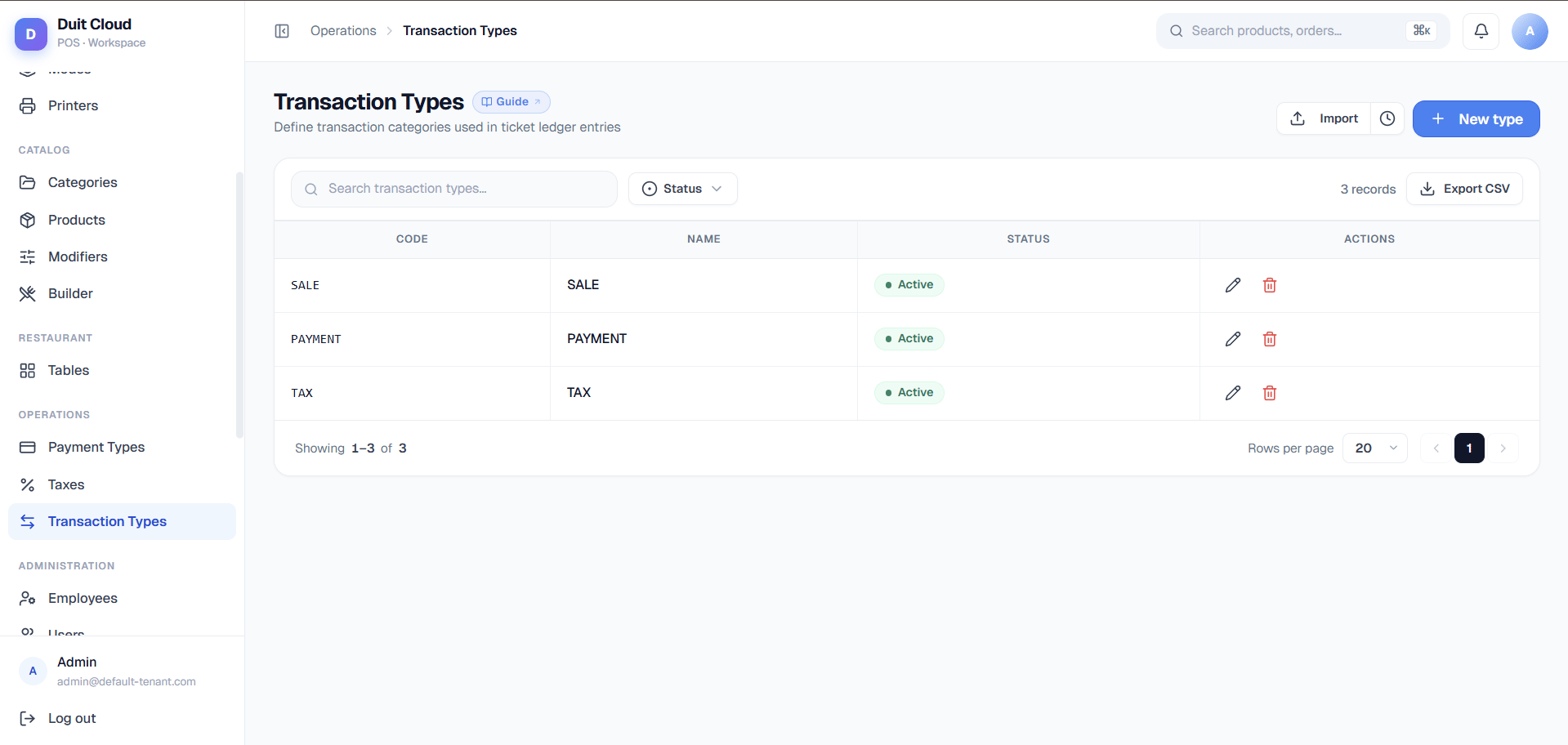 ## Default Types
Most setups include these out of the box:
| Code | Name | Purpose |
| -------- | -------- | ------------------------------------------ |
| `SALE` | Sale | Standard product sale line |
| `TAX` | Tax | Tax amount applied to the ticket |
| `DISC` | Discount | Manual or promotional discount |
| `VOID` | Void | Cancelled line item removed before payment |
| `REFUND` | Refund | Post-payment refund issued to the customer |
## Transaction Type Fields
| Field | Required | Description |
| ---------- | -------- | ----------------------------------------------------------------------------------- |
| **Code** | Yes | A short unique identifier used in reports and exports, e.g. `SALE`, `REFUND` |
| **Name** | Yes | The display name shown on receipts and in the ticket detail view |
| **Active** | No | Inactive types are hidden from new ticket creation but remain in historical records |
Only create custom transaction types if your business needs to track a specific category that is not covered by the defaults — for example, a surcharge, gratuity, or rounding adjustment. Most businesses operate fine with the five default types. Transaction types map to your accounting ledger, so keep the list focused on your actual bookkeeping needs.
## Create a Custom Type
Click **Transaction Types** under Manage in the left sidebar.
Enter a **Code** and **Name** for the new type.
Click **Create**. The type is immediately available on new tickets.
Transaction types are referenced in historical tickets. Renaming a type changes how it appears in all reports retroactively — both past and future transactions using that type will show the new name. If you need to track a renamed concept separately, create a new type rather than renaming the existing one.
## Frequently Asked Questions
A **Void** cancels a line item before payment is processed — it removes the item from the open ticket. A **Refund** is issued after payment has been completed — money is returned to the customer. Voids do not appear in payment processing; refunds do and may require reversing a card transaction.
The five default types (Sale, Tax, Discount, Void, Refund) are created automatically during setup. You can go live without creating any additional types.
Deletion is blocked if the type is referenced in any historical ticket. Deactivate the type instead — it will no longer appear in new ticket creation but will remain visible in historical records.
Each line item on a receipt shows the transaction type name next to the amount. For example, a discount line shows `DISC — (-RM5.00)` and a tax line shows `SST (6%) — RM3.60`. You can customise how these appear by editing the Print Template.
## Related
Add reasons for void, comp, and gift line items
Define service types that affect ticket behavior
Configure tax rates applied to tickets
Control how transaction lines appear on receipts
## Default Types
Most setups include these out of the box:
| Code | Name | Purpose |
| -------- | -------- | ------------------------------------------ |
| `SALE` | Sale | Standard product sale line |
| `TAX` | Tax | Tax amount applied to the ticket |
| `DISC` | Discount | Manual or promotional discount |
| `VOID` | Void | Cancelled line item removed before payment |
| `REFUND` | Refund | Post-payment refund issued to the customer |
## Transaction Type Fields
| Field | Required | Description |
| ---------- | -------- | ----------------------------------------------------------------------------------- |
| **Code** | Yes | A short unique identifier used in reports and exports, e.g. `SALE`, `REFUND` |
| **Name** | Yes | The display name shown on receipts and in the ticket detail view |
| **Active** | No | Inactive types are hidden from new ticket creation but remain in historical records |
Only create custom transaction types if your business needs to track a specific category that is not covered by the defaults — for example, a surcharge, gratuity, or rounding adjustment. Most businesses operate fine with the five default types. Transaction types map to your accounting ledger, so keep the list focused on your actual bookkeeping needs.
## Create a Custom Type
Click **Transaction Types** under Manage in the left sidebar.
Enter a **Code** and **Name** for the new type.
Click **Create**. The type is immediately available on new tickets.
Transaction types are referenced in historical tickets. Renaming a type changes how it appears in all reports retroactively — both past and future transactions using that type will show the new name. If you need to track a renamed concept separately, create a new type rather than renaming the existing one.
## Frequently Asked Questions
A **Void** cancels a line item before payment is processed — it removes the item from the open ticket. A **Refund** is issued after payment has been completed — money is returned to the customer. Voids do not appear in payment processing; refunds do and may require reversing a card transaction.
The five default types (Sale, Tax, Discount, Void, Refund) are created automatically during setup. You can go live without creating any additional types.
Deletion is blocked if the type is referenced in any historical ticket. Deactivate the type instead — it will no longer appear in new ticket creation but will remain visible in historical records.
Each line item on a receipt shows the transaction type name next to the amount. For example, a discount line shows `DISC — (-RM5.00)` and a tax line shows `SST (6%) — RM3.60`. You can customise how these appear by editing the Print Template.
## Related
Add reasons for void, comp, and gift line items
Define service types that affect ticket behavior
Configure tax rates applied to tickets
Control how transaction lines appear on receipts