> ## Documentation Index
> Fetch the complete documentation index at: https://docs.duitpos.com/llms.txt
> Use this file to discover all available pages before exploring further.
# Reports Overview
> Find the right report for what you need to know, before you start digging through numbers.
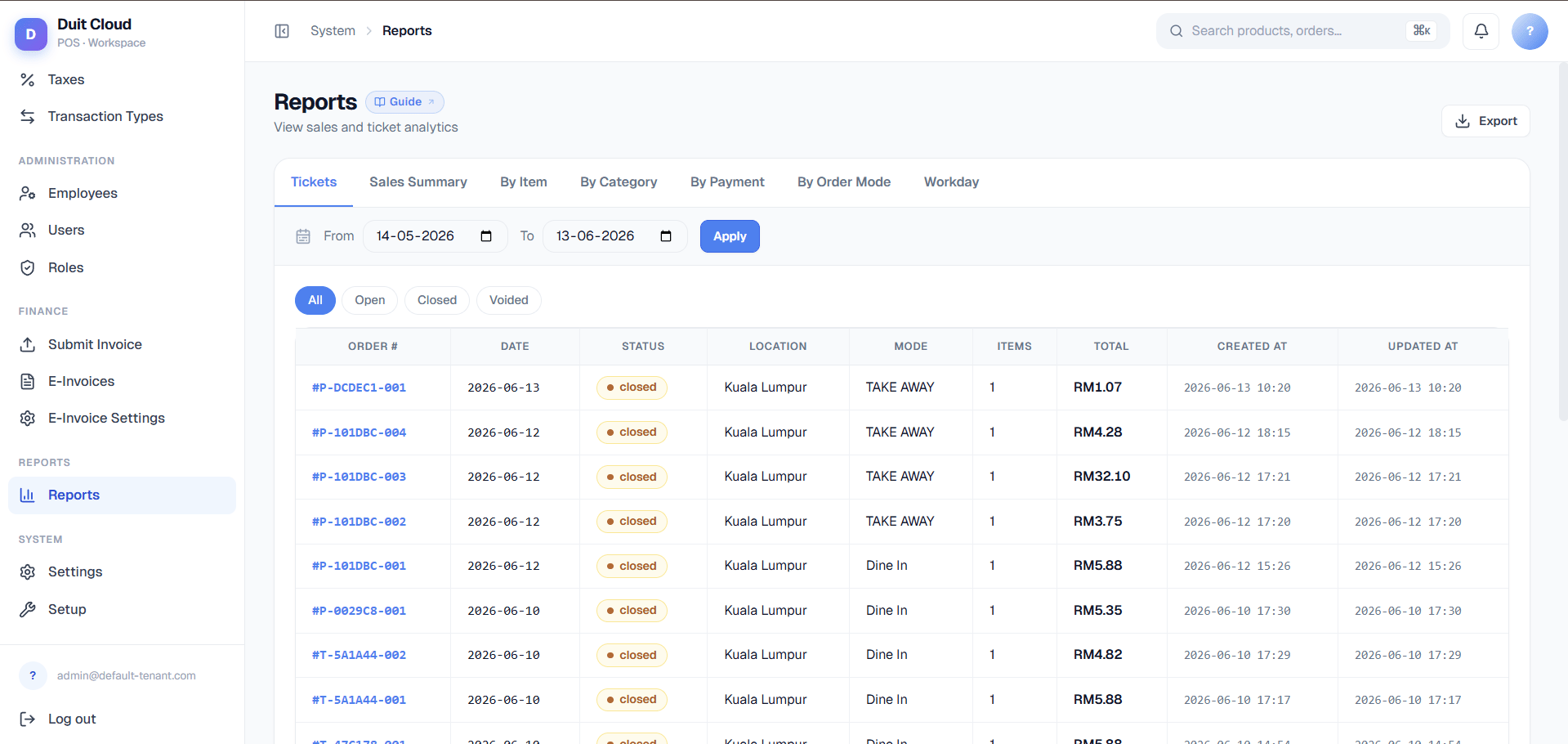
The **Reports** screen has nine tabs, and that's not accidental complexity — "how did we do" means something different depending on what you're actually checking. Total revenue for the day is a different question from what sold well, which is a different question from how customers paid, which is a different question from tracking down one specific order a customer is asking about. Picking the wrong report doesn't just waste time — it can make correct numbers look wrong (see the By Item vs Sales Summary note below).
 ## Which Report Do I Want?
Start here before opening any report.
| I want to know\... | Use this report |
| --------------------------------------------------------- | ---------------------------------------- |
| How much did we make today / this week? | **Sales Summary** |
| What are our best-selling items? | **By Item** |
| Which menu categories perform best? | **By Category** |
| How much cash vs card did we take? | **By Payment** |
| How is each channel (dine-in, delivery, etc.) performing? | **By Order Mode** |
| Which register/terminal is underperforming? | **By Terminal** |
| I need to look up one specific order | **Tickets** (Ticket Summary) |
| How much are we losing to voids, comps, or gifts? | **Void/Comp/Gift** (Item Reason Summary) |
| Did the night shift balance their cash drawer? | [Workday Reports](/reports/workday) |
Those nine rows are the nine tabs, grouped into three families, each with its own page:
* **[Sales Reports](/reports/sales-reports)** — Sales Summary, By Item, By Category, By Payment, By Order Mode, By Terminal. Six aggregate reports: every one of them groups and sums transaction data, and every one shares the same filters and export behavior described below.
* **[Tickets & Voids](/reports/tickets-and-voids)** — Ticket Summary and Item Reason Summary. These two are different in kind, not just in subject: Ticket Summary is the only report that isn't aggregated at all (one row per order, with a drill-down detail view), and Item Reason Summary is the only report that requires a Reason to exist on a line item before it shows up.
* **[Workday Reports](/reports/workday)** — shift and till reconciliation. This lives on a separate backend service from the other eight reports (specifically so it can reflect offline-synced tickets live rather than from a cache), has its own filter set, and is documented on its own page.
## Shared Filters
Sales Summary, By Item, By Category, By Payment, By Order Mode, By Terminal, Ticket Summary, and Item Reason Summary — all eight of them, everything except Workday Reports — share the same filter bar:
| Filter | Behavior |
| -------------------------- | ----------------------------------------------------------------------- |
| **Date Range** (From / To) | Filters by business date, not by exact clock time |
| **Location** | Only shown if your tenant has more than one location; otherwise omitted |
| **Order Mode** | Filter to Dine In, Takeaway, Delivery, etc. |
Ticket Summary has one filter none of the other seven get: **Status** (All / Open / Closed / Voided) — see [Tickets & Voids](/reports/tickets-and-voids) for why.
## Export
Every report in this family (Sales Reports and Tickets & Voids — not Workday's live views) can be exported to CSV or XLSX.
Apply the date range, location, and order mode you want before exporting — the export includes every row matching the current filters, not just what's visible on screen.
Click the **Export** button on the report toolbar and choose CSV or XLSX.
For smaller result sets, the file downloads immediately. For larger ones, see the note below — nothing extra to configure either way.
Export size is handled automatically — there's nothing you need to configure differently. If a requested export is under roughly 5,000 rows, it's generated instantly. Above that, DuitPOS prepares the file in the background and gives you a link once it's ready, which usually shows up as a notification a few seconds later. This only tends to happen with very large date ranges or "all locations" exports on high-volume tenants.
## Frequently Asked Questions
This is expected, not a bug. By Item deliberately excludes voided line items, so it reflects what actually sold — Sales Summary and Ticket Summary include the full transaction history. If a cashier rings up an item and then voids it, Sales Summary reflects the ticket's final state but By Item simply won't count the voided line. See [Sales Reports](/reports/sales-reports) for details.
Reports filter by business date, which follows your location's configured timezone and trading hours — not the exact clock timestamp. If you trade past midnight, check [Workday Reports](/reports/workday) instead, since a workday groups a full trading session together even if it spans two calendar days.
Ticket Summary. It's the only report with a Status filter and the only one where clicking a row opens a full order detail — every line item, modifiers, payments, and timestamps. See [Tickets & Voids](/reports/tickets-and-voids).
Item Reason Summary only shows line items that have a **Reason** attached. If staff void or comp an item without selecting a reason code, it won't appear in this report at all, even though the void itself is recorded. Configure reason codes under [Reasons](/features/reasons) and make sure staff are selecting one when they void, comp, or gift an item.
## Related
The six aggregate reports — Sales Summary, By Item, By Category, By Payment, By Order Mode, By Terminal
Look up a specific order or investigate voids, comps, and gifts
Shift-level reconciliation and live till tracking
Review past bulk import results
## Which Report Do I Want?
Start here before opening any report.
| I want to know\... | Use this report |
| --------------------------------------------------------- | ---------------------------------------- |
| How much did we make today / this week? | **Sales Summary** |
| What are our best-selling items? | **By Item** |
| Which menu categories perform best? | **By Category** |
| How much cash vs card did we take? | **By Payment** |
| How is each channel (dine-in, delivery, etc.) performing? | **By Order Mode** |
| Which register/terminal is underperforming? | **By Terminal** |
| I need to look up one specific order | **Tickets** (Ticket Summary) |
| How much are we losing to voids, comps, or gifts? | **Void/Comp/Gift** (Item Reason Summary) |
| Did the night shift balance their cash drawer? | [Workday Reports](/reports/workday) |
Those nine rows are the nine tabs, grouped into three families, each with its own page:
* **[Sales Reports](/reports/sales-reports)** — Sales Summary, By Item, By Category, By Payment, By Order Mode, By Terminal. Six aggregate reports: every one of them groups and sums transaction data, and every one shares the same filters and export behavior described below.
* **[Tickets & Voids](/reports/tickets-and-voids)** — Ticket Summary and Item Reason Summary. These two are different in kind, not just in subject: Ticket Summary is the only report that isn't aggregated at all (one row per order, with a drill-down detail view), and Item Reason Summary is the only report that requires a Reason to exist on a line item before it shows up.
* **[Workday Reports](/reports/workday)** — shift and till reconciliation. This lives on a separate backend service from the other eight reports (specifically so it can reflect offline-synced tickets live rather than from a cache), has its own filter set, and is documented on its own page.
## Shared Filters
Sales Summary, By Item, By Category, By Payment, By Order Mode, By Terminal, Ticket Summary, and Item Reason Summary — all eight of them, everything except Workday Reports — share the same filter bar:
| Filter | Behavior |
| -------------------------- | ----------------------------------------------------------------------- |
| **Date Range** (From / To) | Filters by business date, not by exact clock time |
| **Location** | Only shown if your tenant has more than one location; otherwise omitted |
| **Order Mode** | Filter to Dine In, Takeaway, Delivery, etc. |
Ticket Summary has one filter none of the other seven get: **Status** (All / Open / Closed / Voided) — see [Tickets & Voids](/reports/tickets-and-voids) for why.
## Export
Every report in this family (Sales Reports and Tickets & Voids — not Workday's live views) can be exported to CSV or XLSX.
Apply the date range, location, and order mode you want before exporting — the export includes every row matching the current filters, not just what's visible on screen.
Click the **Export** button on the report toolbar and choose CSV or XLSX.
For smaller result sets, the file downloads immediately. For larger ones, see the note below — nothing extra to configure either way.
Export size is handled automatically — there's nothing you need to configure differently. If a requested export is under roughly 5,000 rows, it's generated instantly. Above that, DuitPOS prepares the file in the background and gives you a link once it's ready, which usually shows up as a notification a few seconds later. This only tends to happen with very large date ranges or "all locations" exports on high-volume tenants.
## Frequently Asked Questions
This is expected, not a bug. By Item deliberately excludes voided line items, so it reflects what actually sold — Sales Summary and Ticket Summary include the full transaction history. If a cashier rings up an item and then voids it, Sales Summary reflects the ticket's final state but By Item simply won't count the voided line. See [Sales Reports](/reports/sales-reports) for details.
Reports filter by business date, which follows your location's configured timezone and trading hours — not the exact clock timestamp. If you trade past midnight, check [Workday Reports](/reports/workday) instead, since a workday groups a full trading session together even if it spans two calendar days.
Ticket Summary. It's the only report with a Status filter and the only one where clicking a row opens a full order detail — every line item, modifiers, payments, and timestamps. See [Tickets & Voids](/reports/tickets-and-voids).
Item Reason Summary only shows line items that have a **Reason** attached. If staff void or comp an item without selecting a reason code, it won't appear in this report at all, even though the void itself is recorded. Configure reason codes under [Reasons](/features/reasons) and make sure staff are selecting one when they void, comp, or gift an item.
## Related
The six aggregate reports — Sales Summary, By Item, By Category, By Payment, By Order Mode, By Terminal
Look up a specific order or investigate voids, comps, and gifts
Shift-level reconciliation and live till tracking
Review past bulk import results