> ## Documentation Index
> Fetch the complete documentation index at: https://docs.duitpos.com/llms.txt
> Use this file to discover all available pages before exploring further.
# Workday Reports
> Shift and till reconciliation, reflecting offline-synced tickets live.
**Workday Reports** is architecturally a different system from the other eight reports on the Reports screen. Sales Summary, By Item, and the rest are aggregate queries against your transaction history; Workday Reports runs on a separate backend service specifically so it can reflect tickets synced from offline registers **live**, rather than waiting on a cache to catch up. That's why it has its own filter set (no shared date-range/Location/Order Mode bar) and its own set of seven tabs, covered below.
 ## Workday vs Shift
Two terms, and they mean different things:
* A **Workday** is one Location's business day as a whole — for example, "Tuesday at the Main Street branch." It's the container.
* A **Shift** is one staff member or till session within that day — for example, "Sarah's morning shift" or "Register 2's evening shift." A Workday can contain several Shifts, and it only closes once **every** Shift inside it has closed.
Keep this distinction in mind while reading the tabs below — some views operate at the Workday level (one Location, one day), some at the Shift level (one person/till), and some compare across both.
## Workdays
The primary tab, and a three-level drill-down.
**Level 1 — Workday list.** One row per Location per business date:
| Field | Description |
| ------------------- | ------------------------------------------------------------------ |
| **Status** | Open or Closed — Closed only once every Shift inside it has closed |
| **Shift Count** | Number of Shifts opened within the workday |
| **Sales** | Gross revenue for the whole workday |
| **Tax** | Tax collected for the whole workday |
| **Tickets** | Ticket count for the whole workday |
| **Opened / Closed** | Timestamps for the first shift opened and the last shift closed |
**Level 2 — Shifts within a workday.** Click **Open** on a workday row to see every Shift inside it:
| Field | Description |
| -------------------- | --------------------------------------------------- |
| **Shift ID** | Unique identifier for the shift/till session |
| **Status** | Open or Closed |
| **Opened By** | Staff member who opened the till |
| **Start / Duration** | When the shift began and how long it's run (or ran) |
| **Sales** | Gross revenue for that shift |
| **Tickets** | Ticket count for that shift |
Alongside the shift list, this level also shows two workday-wide breakdowns: **By User** (sales attributed to each staff member across all shifts that day) and **By Terminal** (sales per register across all shifts that day).
**Level 3 — Per-shift detail.** Click into an individual shift to see its own **By User** breakdown — useful when a single till session was handled by more than one staff member (a handover mid-shift without formally closing the till, for example).
Because a Workday only closes once every Shift inside it closes, an open Shift left behind at the end of trading is the most common reason a Workday shows Status: Open the next morning. Check the **Open Now** tab below to catch this before it happens.
## Shifts
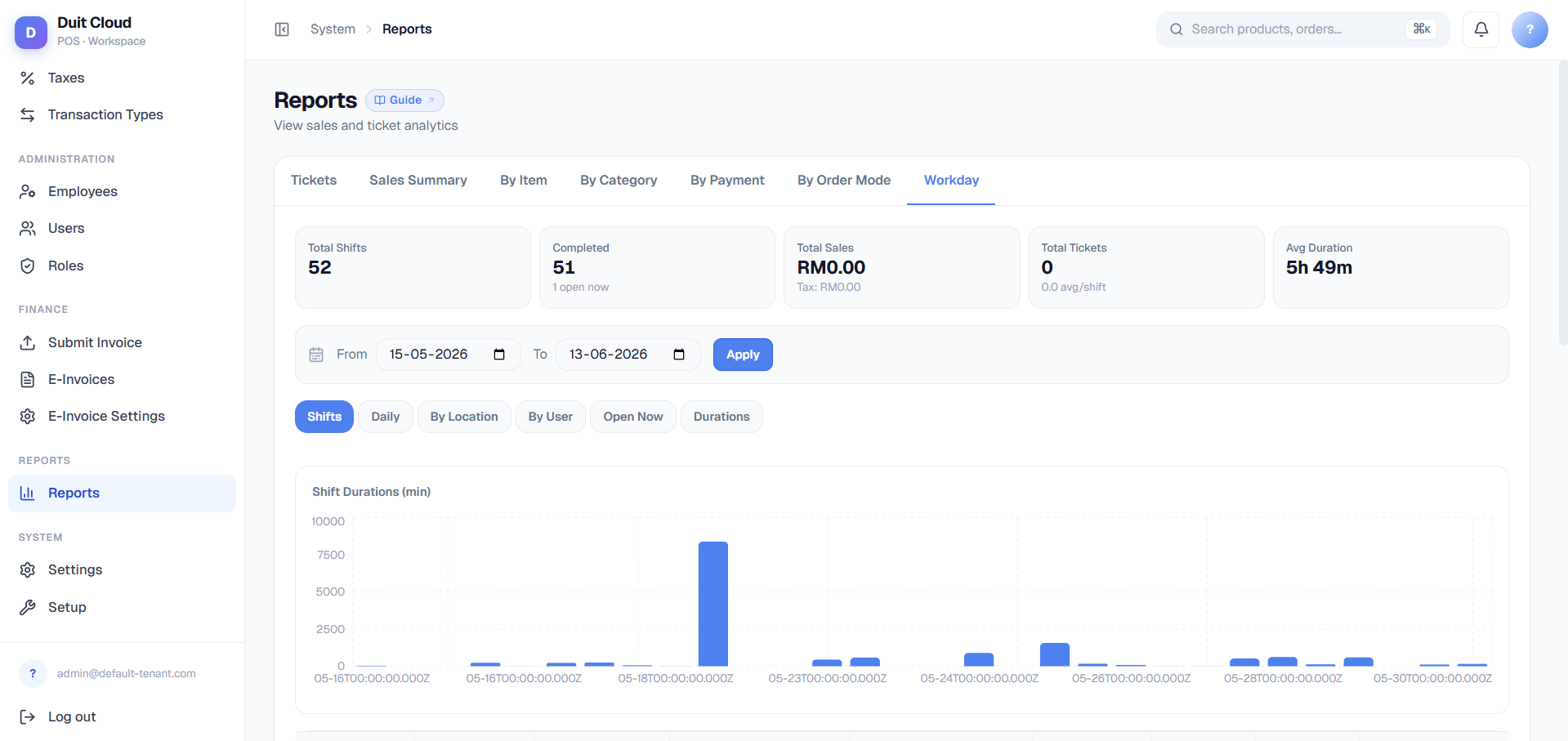
A flat, cross-workday view: a bar chart of shift durations plus a table listing every shift across all workdays in range. Use this when you want to compare shift lengths at a glance rather than drilling through workdays one at a time.
## Daily
An area chart plotting Sales and Tickets over time, with a supporting daily table underneath. This is the closest Workday Reports gets to the trend view Sales Summary gives you — the difference is that everything here is grouped by workday/business-date rather than calendar date, so it stays accurate for locations that trade past midnight.
## By Location
Compares Locations against each other — useful once you have more than one site and want to see which is trading strongest, or whether one location's shifts are consistently running long or short relative to the rest.
## By User
Compares staff shift performance against each other — sales per shift, shift duration, and ticket counts, side by side across your team.
## Open Now
A **live** list of every currently-open shift, across all Locations. There is no date filter here — it always shows the current moment — and it auto-refreshes every 60 seconds.
Open Now shows a warning banner if any shift has been open for more than **8 hours**. In practice this almost always means someone forgot to close out their till at the end of a shift, rather than a genuinely 8-hour session — check the shift's Opened By and Start time and follow up with that staff member.
## Durations
A scatter chart plotting Duration against Sales for every shift in range. This is the anomaly-spotting view: a shift that ran unusually long but produced unusually low sales stands out visually as an outlier from the rest of the cluster, which can indicate a forgotten open till, a very slow trading period, or a shift that should be looked into more closely — not necessarily a slow night.
## Investigating a Long-Open Shift
Look for the warning banner and identify which shift(s) have been open more than 8 hours.
Check the Location and Start time — an overnight venue may legitimately have a long-running shift; a lunch counter still "open" at midnight almost certainly isn't.
Use the Opened By field to identify who needs to close out the till, or have a manager close it on their behalf if they're unreachable.
Once closed, open the shift under the Workdays drill-down to confirm the sales and ticket totals look reasonable for the actual trading window, not the inflated open duration.
## Frequently Asked Questions
A Workday only closes once every Shift inside it has closed — if another register or staff member's till is still open, the Workday stays Open. Drill into the Workday (Level 2) to see which shift is still outstanding.
Workday Reports runs on a separate backend service built specifically to reflect offline-synced tickets live, rather than from a cache. Tickets rung up while a register was offline appear here as soon as they sync, without waiting on the aggregation cycle the other eight reports use.
Not always — a slow trading period can look the same on the chart as a forgotten open till. Cross-check with Open Now (was it flagged for being open too long?) and the shift's ticket count before assuming it's an error.
Workdays, Shifts, Daily, By Location, and By User all support date filtering within their own tab. Open Now is the exception — it's always the current live state and has no date filter by design.
## Related
The "which report do I want" decision table and shared filter/export behavior
Date-range aggregate sales totals
Look up a specific order or investigate voids, comps, and gifts
Staff records referenced in Opened By / By User breakdowns
## Workday vs Shift
Two terms, and they mean different things:
* A **Workday** is one Location's business day as a whole — for example, "Tuesday at the Main Street branch." It's the container.
* A **Shift** is one staff member or till session within that day — for example, "Sarah's morning shift" or "Register 2's evening shift." A Workday can contain several Shifts, and it only closes once **every** Shift inside it has closed.
Keep this distinction in mind while reading the tabs below — some views operate at the Workday level (one Location, one day), some at the Shift level (one person/till), and some compare across both.
## Workdays
The primary tab, and a three-level drill-down.
**Level 1 — Workday list.** One row per Location per business date:
| Field | Description |
| ------------------- | ------------------------------------------------------------------ |
| **Status** | Open or Closed — Closed only once every Shift inside it has closed |
| **Shift Count** | Number of Shifts opened within the workday |
| **Sales** | Gross revenue for the whole workday |
| **Tax** | Tax collected for the whole workday |
| **Tickets** | Ticket count for the whole workday |
| **Opened / Closed** | Timestamps for the first shift opened and the last shift closed |
**Level 2 — Shifts within a workday.** Click **Open** on a workday row to see every Shift inside it:
| Field | Description |
| -------------------- | --------------------------------------------------- |
| **Shift ID** | Unique identifier for the shift/till session |
| **Status** | Open or Closed |
| **Opened By** | Staff member who opened the till |
| **Start / Duration** | When the shift began and how long it's run (or ran) |
| **Sales** | Gross revenue for that shift |
| **Tickets** | Ticket count for that shift |
Alongside the shift list, this level also shows two workday-wide breakdowns: **By User** (sales attributed to each staff member across all shifts that day) and **By Terminal** (sales per register across all shifts that day).
**Level 3 — Per-shift detail.** Click into an individual shift to see its own **By User** breakdown — useful when a single till session was handled by more than one staff member (a handover mid-shift without formally closing the till, for example).
Because a Workday only closes once every Shift inside it closes, an open Shift left behind at the end of trading is the most common reason a Workday shows Status: Open the next morning. Check the **Open Now** tab below to catch this before it happens.
## Shifts
A flat, cross-workday view: a bar chart of shift durations plus a table listing every shift across all workdays in range. Use this when you want to compare shift lengths at a glance rather than drilling through workdays one at a time.
## Daily
An area chart plotting Sales and Tickets over time, with a supporting daily table underneath. This is the closest Workday Reports gets to the trend view Sales Summary gives you — the difference is that everything here is grouped by workday/business-date rather than calendar date, so it stays accurate for locations that trade past midnight.
## By Location
Compares Locations against each other — useful once you have more than one site and want to see which is trading strongest, or whether one location's shifts are consistently running long or short relative to the rest.
## By User
Compares staff shift performance against each other — sales per shift, shift duration, and ticket counts, side by side across your team.
## Open Now
A **live** list of every currently-open shift, across all Locations. There is no date filter here — it always shows the current moment — and it auto-refreshes every 60 seconds.
Open Now shows a warning banner if any shift has been open for more than **8 hours**. In practice this almost always means someone forgot to close out their till at the end of a shift, rather than a genuinely 8-hour session — check the shift's Opened By and Start time and follow up with that staff member.
## Durations
A scatter chart plotting Duration against Sales for every shift in range. This is the anomaly-spotting view: a shift that ran unusually long but produced unusually low sales stands out visually as an outlier from the rest of the cluster, which can indicate a forgotten open till, a very slow trading period, or a shift that should be looked into more closely — not necessarily a slow night.
## Investigating a Long-Open Shift
Look for the warning banner and identify which shift(s) have been open more than 8 hours.
Check the Location and Start time — an overnight venue may legitimately have a long-running shift; a lunch counter still "open" at midnight almost certainly isn't.
Use the Opened By field to identify who needs to close out the till, or have a manager close it on their behalf if they're unreachable.
Once closed, open the shift under the Workdays drill-down to confirm the sales and ticket totals look reasonable for the actual trading window, not the inflated open duration.
## Frequently Asked Questions
A Workday only closes once every Shift inside it has closed — if another register or staff member's till is still open, the Workday stays Open. Drill into the Workday (Level 2) to see which shift is still outstanding.
Workday Reports runs on a separate backend service built specifically to reflect offline-synced tickets live, rather than from a cache. Tickets rung up while a register was offline appear here as soon as they sync, without waiting on the aggregation cycle the other eight reports use.
Not always — a slow trading period can look the same on the chart as a forgotten open till. Cross-check with Open Now (was it flagged for being open too long?) and the shift's ticket count before assuming it's an error.
Workdays, Shifts, Daily, By Location, and By User all support date filtering within their own tab. Open Now is the exception — it's always the current live state and has no date filter by design.
## Related
The "which report do I want" decision table and shared filter/export behavior
Date-range aggregate sales totals
Look up a specific order or investigate voids, comps, and gifts
Staff records referenced in Opened By / By User breakdowns