
Employees vs Users: Key Distinction
Employees and Users are two separate systems often confused. Here’s the difference:
- Employees are POS terminal login accounts: Staff log in using a PIN (4–6 digits) at the point of sale. Each employee is tied to a location. Use for frontline staff (cashiers, supervisors, waiters, kitchen staff).
-
Users are admin dashboard login accounts: Staff log in with email + password in a browser at
https://app.duitpos.comto view reports, manage products, and control the account. Accessed from anywhere, not at the terminal. - Relationship: An employee can be linked to a user account via the “User Account” field (allowing the same person to log in both at the POS terminal AND the dashboard). But they don’t have to be linked — most POS staff need only an employee record.
-
Access rule:
- A staff member working the POS needs an Employee profile (with PIN).
- A manager accessing the admin dashboard needs a User account.
- A staff member doing both needs both — an Employee linked to a User.
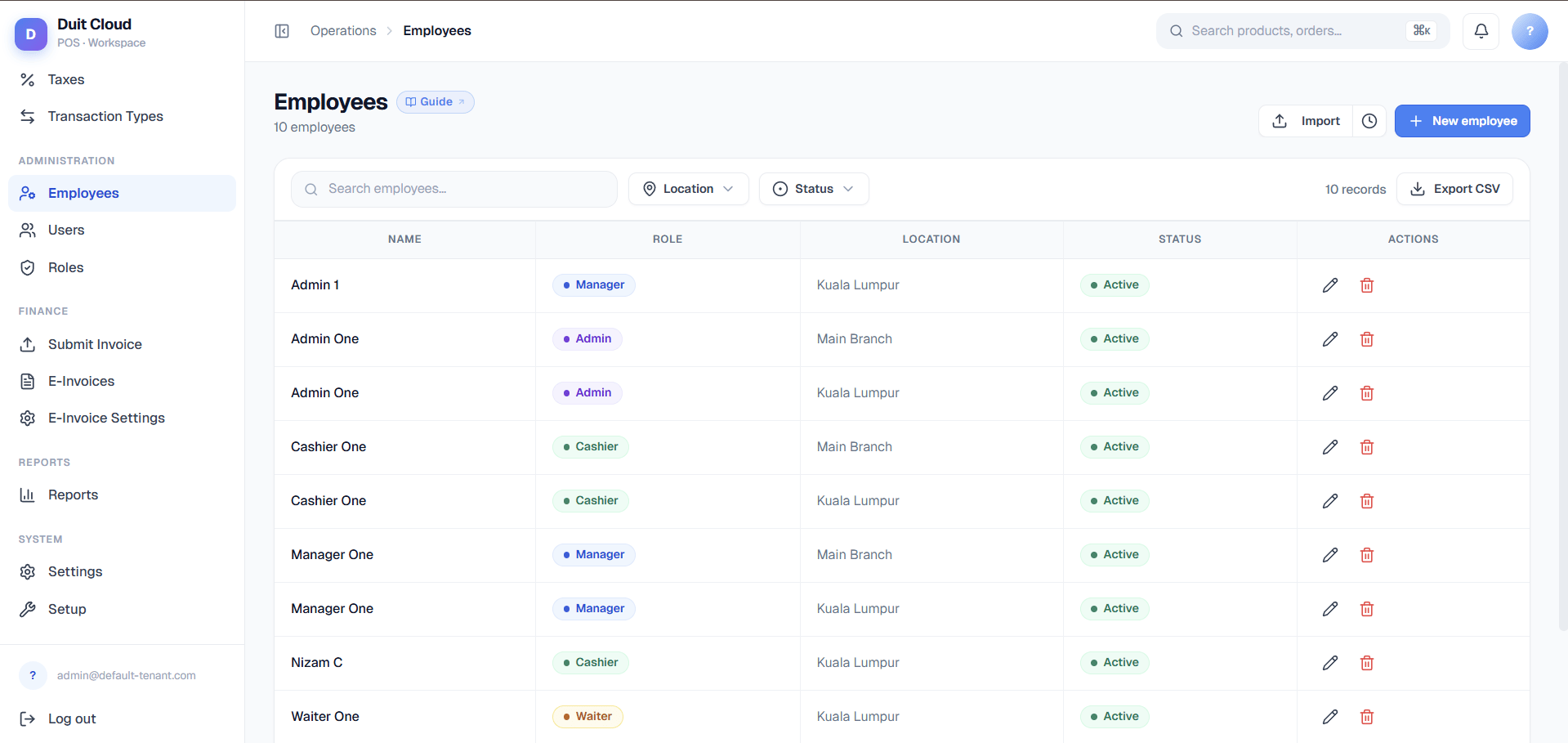
Employee Fields
Create an Employee
1
Go to Staff → Employees
Click Employees in the left sidebar under Staff.
2
Click New Employee
Fill in the employee’s name, role, and PIN. Optionally add a colour and location.
3
Save
Click Create. The employee can immediately log in to the POS using their PIN.
Link to a User Account (Enable Dashboard Access)
If this employee also needs admin dashboard access (to view reports, manage settings, etc.), open their employee record and use the User Account dropdown to link it to the corresponding User account (created in Setup → Users & Roles). Once linked:- The same person can log in at the POS using their PIN
- The same person can log in at the dashboard using their email + password
- Sales, shifts, and reports are attributed to them by name in both systems
- This person inherits the permissions assigned to their user role (e.g. “Manager” can view reports; “Cashier” cannot)
Deactivate
Toggle Active off to mark an employee as inactive (e.g. when they leave or are on extended leave). Their historical records — sales, shifts, and reports — are fully preserved.Frequently Asked Questions
An employee forgot their PIN — how do I reset it?
An employee forgot their PIN — how do I reset it?
Go to Staff → Employees, click Edit on the employee’s record, and enter a new PIN in the PIN field. Save the change. The new PIN takes effect immediately on the POS.
An employee says they cannot clock in — what do I check?
An employee says they cannot clock in — what do I check?
Check that the employee’s record is set to Active. Also verify their PIN — ask them to re-enter it carefully (PINs are numeric only and must match exactly). If the POS still rejects the PIN, reset it in the employee record.
What is the difference between 'POS Role' and 'Permissions' (from user roles)?
What is the difference between 'POS Role' and 'Permissions' (from user roles)?
These are two separate systems:
- POS Role (e.g. Cashier, Supervisor, Kitchen) controls what an employee can do at the POS terminal — void items, apply discounts, open drawers, etc. This is a simple terminal-level classification built into the POS application.
- Permissions (from user roles like Manager, Admin, Accountant) control what a user can do in the admin dashboard — view reports, manage products, change settings, etc. Permissions only apply if the employee is linked to a user account.
Can a staff member access both the POS and the admin dashboard?
Can a staff member access both the POS and the admin dashboard?
Yes. Create an employee record with a PIN (for POS login), then link it to a user account (for dashboard login). The same person can then log in at the POS using their PIN and access the admin dashboard at
https://app.duitpos.com using their email + password. Use this for managers or supervisors who need both POS and reporting/settings access.Can I delete an employee?
Can I delete an employee?
Yes. Go to Staff → Employees, select the employee, and click Delete. Deactivating (via the Active toggle) is recommended first, as it prevents login while preserving historical sales, shifts, and reports tied to that employee. Hard deletion removes the employee record entirely but does not erase historical transactions.
Related
Users & Roles
Manage dashboard login accounts (email + password). Link a user to an employee to grant dashboard access. See this page to understand the employee–user relationship better.
Permissions
Control fine-grained dashboard access (what users can do in the admin panel). POS roles are separate — see the FAQ for clarification.
Locations
Assign employees to branches. Location affects POS behavior and report filtering.
Reports
View sales, shifts, and revenue attributed to each employee by name.