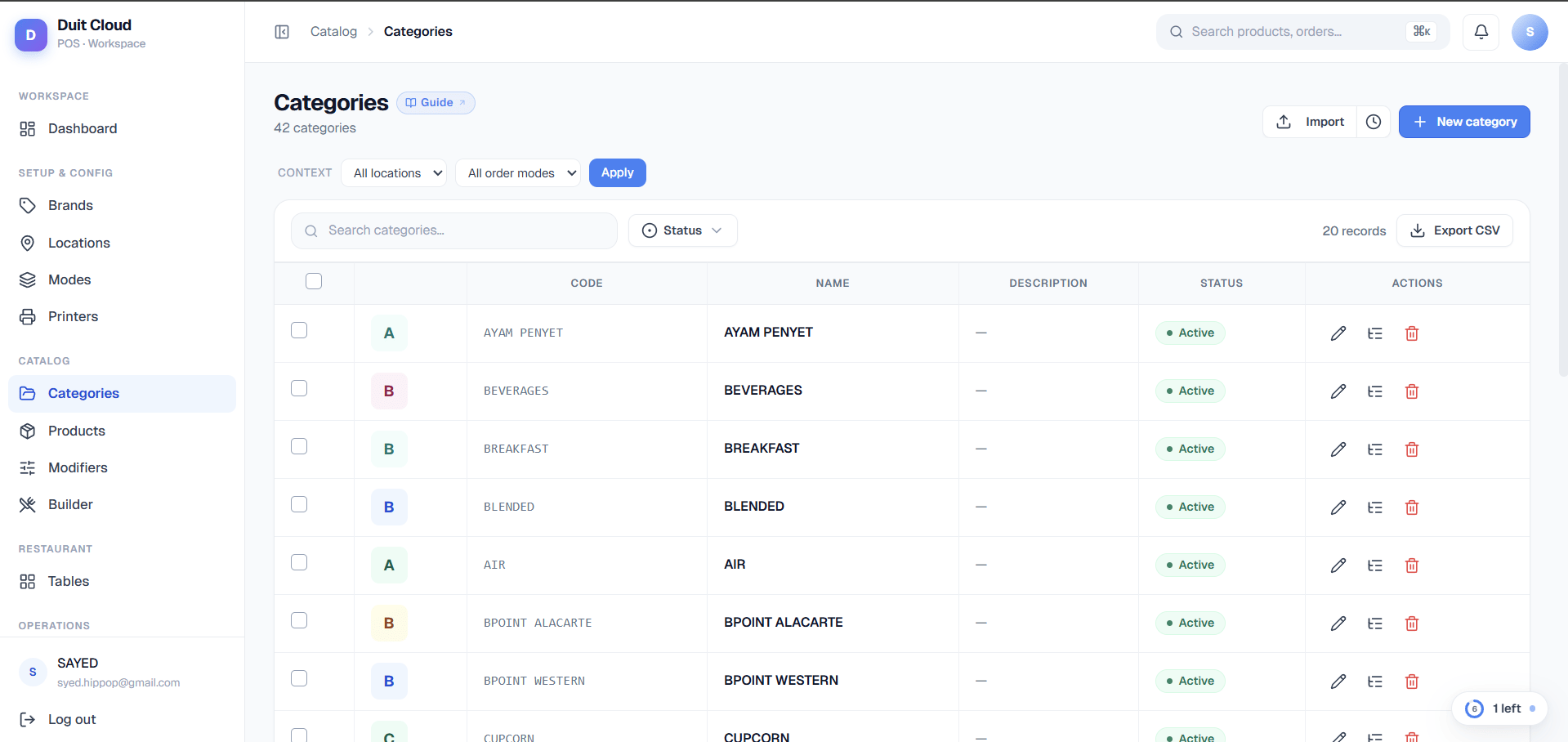
Category Fields
Context Selector & Overrides
The Context Selector bar at the top lets you preview and edit category behaviour for a specific Location and Order Mode combination. This is useful when your menu differs by channel—for example, a delivery order mode might not offer dine-in-only items, or a specific location might have a local item not sold elsewhere.How to Use the Context Selector
- Pick a Location (optional) — select from your locations, or leave blank to apply to all locations.
- Pick an Order Mode (optional) — select Pickup, Dine In, Delivery, or Reservation, or leave blank to apply to all order modes.
- Click Refresh — the table reloads and displays a new Context column showing any overrides for the selected combination.
- View Overrides — each row now shows badges:
- A green “Active in ctx” or red “Hidden in ctx” badge (if the category’s Active status is overridden in this context)
- A blue name badge (if the category’s Name is overridden in this context)
- Clear the Context — click Refresh with both Location and Order Mode blank to return to the global view (no context).
Create a Category
1
Go to Menu Builder → Categories
Categories can be managed directly from the Menu Builder page or via the Categories shortcut in the left sidebar.
2
Click New Category
Fill in the Code (internal ID) and Name fields. Optionally add a Description, Colour, and Image.
3
Set Active
Toggle Active to show or hide this category globally (on by default).
4
Save
Click Create. The category appears immediately in the Menu Builder and on the POS.
Bulk Edit in Context
When a context is active (Location and/or Order Mode selected), you can quickly apply the same override to multiple categories at once.How to Bulk Edit
1
Select a Context
Use the Context Selector at the top to pick a Location and/or Order Mode.
2
Select Categories
Check the boxes next to the categories you want to override.
3
Click 'Edit in Context'
The bulk-edit dialog opens.
4
Set Active Override
Choose Active, Inactive, or Inherit (remove override). Selecting “Inherit” removes any Active override for those categories in the chosen context, reverting to the global setting.
5
Set Name Override (Optional)
Enter a new name for the selected categories in this context only. Leave blank to keep the global name (or remove an existing name override).
6
Save
Click Save. All selected categories are updated at once with the new overrides for the chosen Location + Order Mode.
Reorder Categories
Drag rows by the sort handle (the six-dot icon) to change the order on the POS. The first active category is selected by default when the POS loads. Reordering applies globally—if you need a different order for specific locations or order modes, you must use the Context Selector to create location/mode-specific name overrides that reflect the desired grouping, or split the categories into different products lists.Add Products to a Category
After creating a category, go to Menu Builder → Products and either:- Click New Product while the category is selected in the Menu Builder.
- Edit an existing product and change its Category field.
Bulk Import & Export
Use Bulk Import to add or update multiple categories at once from a CSV file. Use Export CSV to download all current categories (including override values if a context is active) for backup or editing offline.Frequently Asked Questions
Why are a category's products not showing on the POS?
Why are a category's products not showing on the POS?
Both the category and the individual products must be set to Active globally. If the category is active but a product is not, that product will be hidden. If the category itself is inactive, all products within it are hidden regardless of their own Active status. Additionally, check whether a Context Override is hiding the category for the currently logged-in location or order mode.
Can I hide a category from a specific Order Mode?
Can I hide a category from a specific Order Mode?
Yes. Use the Context Selector to pick the Order Mode, then select the categories you want to hide and click Edit in context → set Active to Inactive. That category will now be hidden for that Order Mode only, while remaining visible in other channels.
What's the difference between deactivating a category and hiding it in a context?
What's the difference between deactivating a category and hiding it in a context?
Deactivating globally turns the category off everywhere. Hiding in a context (via Context Overrides) affects only that specific Location + Order Mode combination. Use global deactivation for categories you no longer offer; use context overrides for channel-specific menus (e.g., no dine-in items on delivery).
Can I have products in multiple categories?
Can I have products in multiple categories?
Each product belongs to one category at a time. If you need to show the same item in multiple sections, create a separate product entry for each category. You can use the same name and price for both.
Can I use categories in printer routing rules?
Can I use categories in printer routing rules?
Yes. Routing rules can match by category — for example, you can send all products in the
Hot Food category to the kitchen printer and all products in the Beverages category to the bar printer. See Printers for details.Related
Products
Add items within your categories; override prices and availability by location and order mode
Bulk Pricing
Manage category and product overrides across multiple locations and order modes at once
Menu Builder
Manage your full menu in one place with drag-and-drop organization
Printers
Route kitchen prints by category to different printers