Users
Users are the people who can log in to the DuitPOS admin panel. A user is identified by their email address and password, and gets their permissions from the single role you assign them. Note: Users in DuitPOS are different from Employees (POS staff with PINs and terminals) — see the Employees page to manage point-of-sale workers.User Fields
Create a User
Inviting a new user means creating an admin panel account and assigning them a role that matches their responsibilities — for example, Manager (full access) or Cashier (POS-only, no admin).1
Go to Users
In the DuitPOS sidebar, click Users & Roles → Users.
2
Click New User
A dialog will open to create a new account.
3
Fill in the details
- Name: Enter the user’s display name (e.g., “Ali Manager”).
- Email: Enter a unique email address. This is their login username.
- Password: Set a temporary password (at least 6 characters). Share it securely — not via the same channel as the email.
- Role: Select one role from the dropdown (e.g., “Manager”, “Cashier”). The user will get all permissions in that role.
- Active: Toggle on (default) so they can log in immediately.
4
Save
Click Create. The account is now ready. Share the email and temporary password with the user; ask them to change the password on first login.
Edit a User
After creation, you can change a user’s name and active status — but not their email, password, or role without deleting and recreating them.1
Find the user in the list
Use the Status filter to quickly find Active or Inactive users.
2
Click Edit (pencil icon)
The edit dialog opens showing only Name and Active fields.
3
Make changes
- Name: Update the display name if it changes (e.g., on marriage/promotion).
- Active: Toggle off to block login (preserves all historical data), or on to re-enable access.
4
Save
Click Update. Changes take effect on their next login.
List & Filters
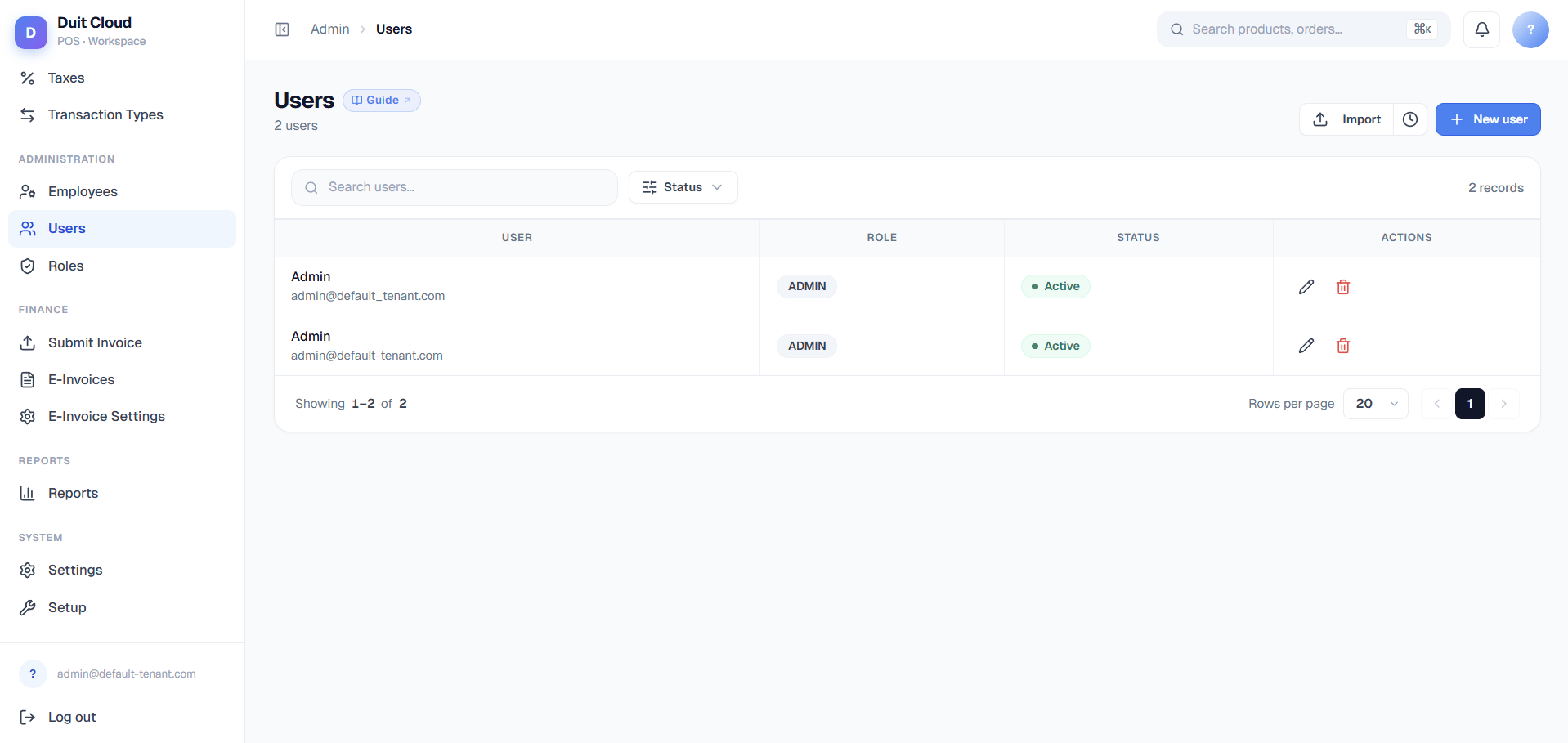
The Users list shows all admin accounts in a table with columns for Name + Email, Role, and Status (Active/Inactive). Use the Status filter at the top to quickly view only active or inactive users. Click an action icon to edit or delete (delete permanently removes historical records associated with that user).Roles
Roles are named templates of permissions. Instead of setting permissions one-by-one for each user, you create a role (e.g., “Supervisor”), choose which permissions it should have, and then assign that role to all users who need the same capabilities. A user gets exactly one role, so all their permissions come from that single role.Role Fields
Permission Matrix UI
When you create or edit a role, the Permissions panel is the main interface. It uses a visual matrix to show all available permissions grouped by function:- Filter Tabs (top): All, Admin, POS, KDS, Kiosk. Click a tab to show only permissions relevant to that module. (For example, a Cashier might only need POS; a manager needs Admin.)
- Permission Cards: Each card represents a business function (e.g., “Users & Roles”, “Tax”, “Products”, “Reports”). Shows the resource label and a count like “2/4 selected” (2 of 4 permissions in this resource are enabled).
- Toggle Permissions: Click individual permission pills within a card to toggle them on/off. A pill shows the permission action (Create, List, Update, Delete).
- Select All / Deselect All: At the top-right of each card, a checkbox lets you quickly toggle all permissions in that resource at once.
- Unsaved Changes Indicator: If you’ve made changes, a badge or button appears (e.g., “3 unsaved”). Click Save to apply changes, or Discard to revert.
Create a Role
1
Go to Users & Roles → Roles
Click the Roles tab in the Users & Roles section.
2
Click New Role
A sidebar and permission matrix will appear on the right. Fill in:
- Name: e.g., “Supervisor”, “Inventory Specialist”
- Description (optional): e.g., “Can manage inventory, tax, and reports but cannot process payments”
3
Select Permissions
Use the Filter Tabs to navigate by function (All / Admin / POS / KDS / Kiosk). Click individual permission pills to enable them, or use the “Select All” checkbox in each resource card to bulk-toggle. Watch the “N/M selected” count update as you choose.
4
Save
Click the Save button at the bottom. The role is now available to assign to users.
Edit a Role
1
Go to Users & Roles → Roles
The left sidebar shows all existing roles.
2
Click a role in the sidebar
The role details and permission matrix load on the right.
3
Make changes
- Update Name or Description fields.
- Toggle permissions in the matrix. Use Filter Tabs to find the ones you need.
4
Save or Discard
Click Save to apply changes, or Discard to revert. Changes take effect on users’ next login.
Delete a Role
You can only delete a role if no users are currently assigned to it. The system will warn you if users depend on the role and prevent deletion until they are reassigned.1
Go to Users & Roles → Roles
Select the role in the left sidebar.
2
Click Delete Role
Confirm the deletion. The role and all its permissions are permanently removed.
Frequently Asked Questions
Can a user have multiple roles?
Can a user have multiple roles?
No. In DuitPOS, each user is assigned exactly one role. The user gets all permissions defined in that single role. If you need different permission sets, create multiple roles and assign each user to the one that best matches their job.
Can I change a user's email address?
Can I change a user's email address?
No. Email is the login username and cannot be edited after account creation. If a user’s email must change (e.g., they leave your organization), delete the old account and create a new user with the correct email. Their historical data (sales, audit logs) will be preserved in reports by their user ID, but the name will show as deleted or orphaned.
What if I edit a role and now users cannot log in?
What if I edit a role and now users cannot log in?
If you removed critical permissions from a role, users may see a “permission denied” error when accessing parts of the dashboard they used before. They will still be able to log in and access other functions. To restore access, either re-enable the permissions in the role, or reassign the users to a different role that has those permissions. Changes take effect on their next login.
Can I clone or copy a role?
Can I clone or copy a role?
There is no direct clone function. However, you can manually recreate a similar role by: (1) writing down the permissions from an existing role, (2) creating a new role with a new name, (3) selecting the same permissions from the matrix. For frequently-used role templates, consider documenting their permission sets (e.g., in a spreadsheet) so you can replicate them quickly.
A user was deactivated but I see their sales in reports — is that correct?
A user was deactivated but I see their sales in reports — is that correct?
Yes. Deactivating a user only blocks their login. All historical data (sales, voided items, shift logs) linked to that user is preserved in reports and audit trails. Deactivation is reversible — click Edit, toggle Active on, and they can log in again. Permanent deletion removes the user account; some reports may show them as “deleted user” for historical accuracy.
How do permissions work in DuitPOS?
How do permissions work in DuitPOS?
Permissions are action-based. Each role contains a set of permissions like “Users:Create”, “Products:Update”, “Reports:View”. When a user logs in, DuitPOS checks their role’s permissions and shows/hides dashboard sections and buttons accordingly. If a permission is missing, the user sees “Access Denied” for that feature. See Permissions for the complete list of available permissions.
Related
Permissions
See what each permission controls and which features require which permissions.
Employees
Manage POS staff records, PINs, and terminal assignments — separate from admin users.
Settings
Configure security settings, password policies, and other account-level preferences.
Login Problems
Troubleshoot sign-in issues, password resets, and permission errors.