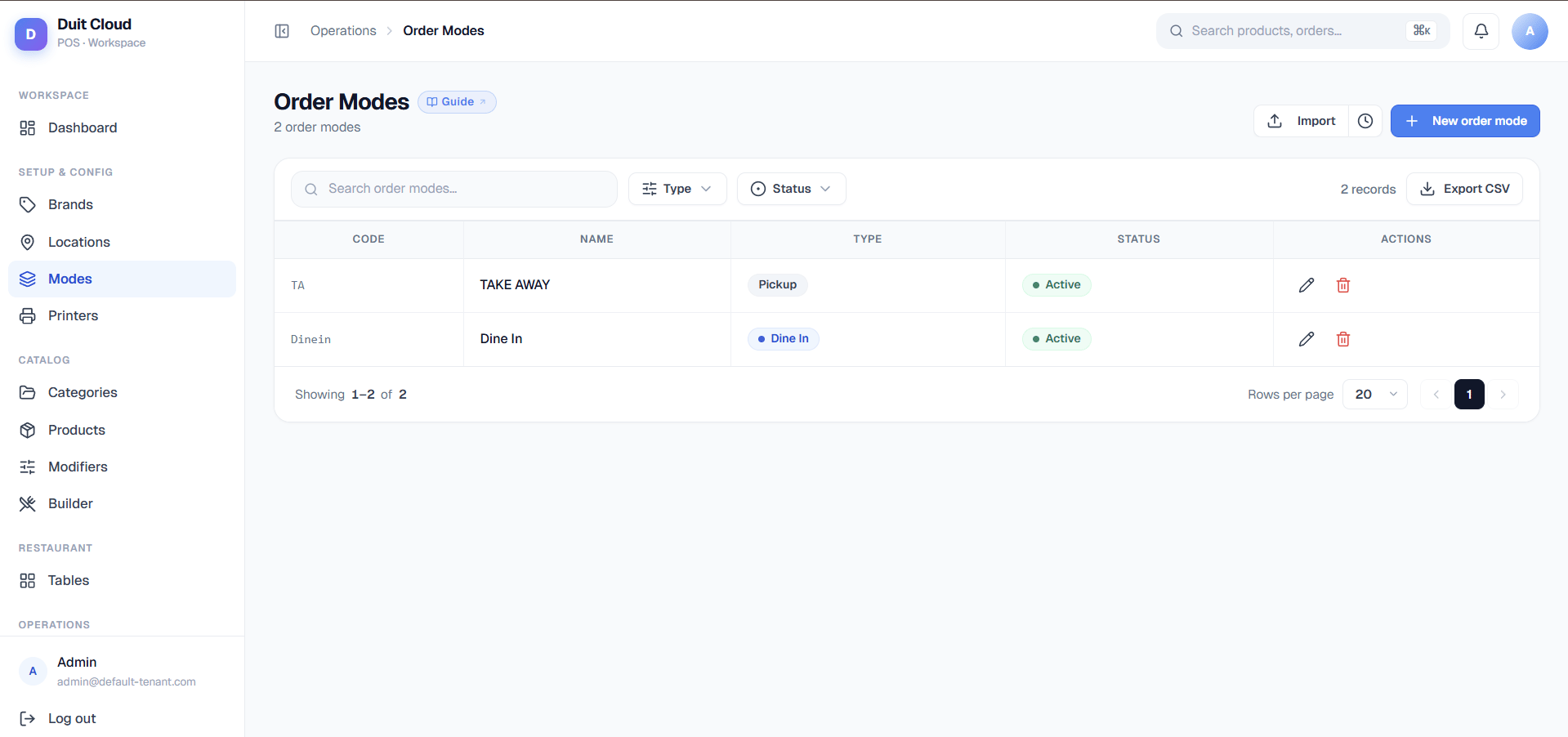
Order Mode Fields
Create an Order Mode
1
Go to Manage → Order Modes
Click Order Modes in the left sidebar under Manage.
2
Click New Order Mode
Fill in the Code, Name, and Active fields.
3
Save
Click Create. The mode is immediately available on the POS.
Reorder
Drag rows using the sort handle to change the order they appear in the POS selection screen. The topmost active mode is the default when a new ticket is opened.Using Order Modes in Printer Routing
Printer routing rules can filter by order mode — for example, you can send Delivery orders to a separate docket printer. See Printers for how to configure routing rules.Frequently Asked Questions
Can I add a Delivery order mode and use it for third-party delivery apps?
Can I add a Delivery order mode and use it for third-party delivery apps?
Yes. Create a Delivery order mode and use it when entering orders received from delivery platforms. You can also configure a separate printer routing rule for Delivery orders to print a distinct kitchen docket format.
What is the difference between Dine In and Takeaway for reporting?
What is the difference between Dine In and Takeaway for reporting?
Order modes appear as a filter dimension in Sales Reports, so you can compare revenue by service type. Dine In and Takeaway are tracked separately, letting you see which generates more revenue or which has a higher average order value.
Can I rename an order mode after it has been used in transactions?
Can I rename an order mode after it has been used in transactions?
Yes, you can edit the Name at any time. Historical tickets keep a snapshot of the mode name at the time of the transaction, so renaming only affects future orders.
The POS is not showing a mode I just created — what do I do?
The POS is not showing a mode I just created — what do I do?
Make sure the mode is set to Active. If it is active and still not showing, reload the POS app to pick up the latest configuration.
Related
Printers
Route print jobs by order mode
Tax
Apply different tax rules per order mode
Products
Restrict product availability by order mode
Reports
Filter sales reports by order mode