- Printer Devices — physical hardware (thermal receipt printers, kitchen display systems, label printers, etc.) identified by their network address and connection type. Each device connects to your POS system and outputs a specific media format.
- Routing Rules — the logic that decides which items or orders print on which device. A single order item can match multiple rules and print to multiple printers (e.g. a kitchen ticket and a receipt).
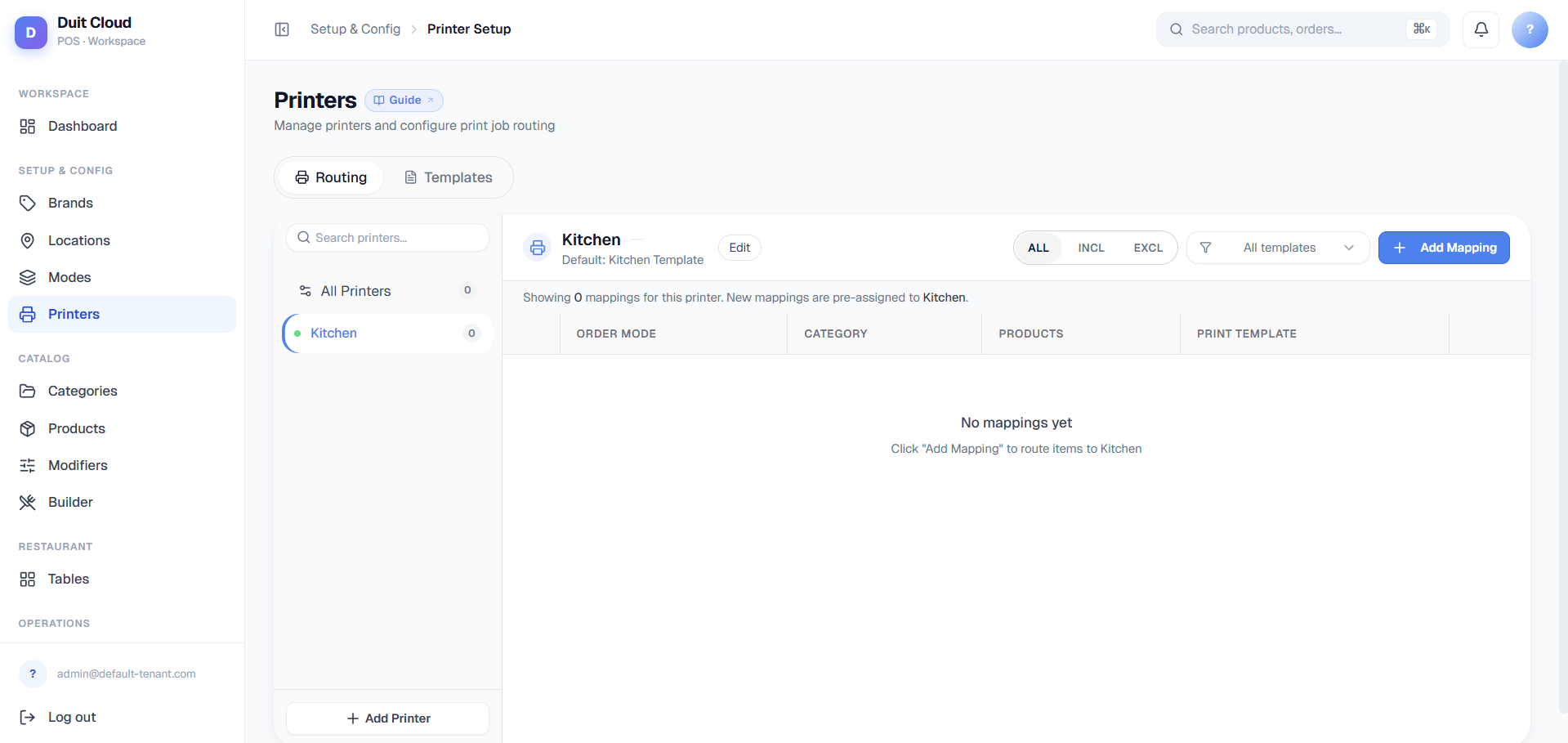
Printer Devices
A Printer Device is a physical printer on your network. Each device has a network address (IP or USB port), a connection type, and a role in your workflow (receipt printer, kitchen display, label printer, etc.).Printer Device Fields
Create a Printer Device
1
Go to Manage → Printers
Click Printers in the left sidebar.
2
Click New Printer
Fill in the Name, Device Type (POS/KDS/Kiosk), Printer Type (Ethernet/USB), No. of Characters, and Default Template.
3
Enter connection details
If Ethernet, enter the IP Address and Port. If USB, enter the port or device path.
4
Optionally set a Fallback Printer
Select another printer of the same device type as a backup if this one goes offline.
5
Test Print
Click Test Print to send a test page. Confirm the printer receives it before saving.
6
Save
Click Create.
Routing Rules
Routing Rules decide which items (or full orders) print on which printers, and optionally which template to use. The critical insight is: a single order item can match multiple rules and print on multiple printers. For example, a food item can route to both a kitchen display and a chit printer for the server.Why Multi-Printer Routing?
In a typical restaurant workflow:- An order comes in (say, a burger + a drink).
- The burger matches a rule “All food → Kitchen Station” → prints to KDS.
- The same burger also matches a rule “All items → Receipt Chit” → prints to a thermal chit printer.
- The drink matches a rule “Drinks only → Bar” → prints to bar display.
CRITICAL: Item-Level Routing Only Works for KDS Device Type
This is the most important restriction to understand:- KDS (Kitchen Display System): Item-level routing rules do function. You can filter by category, product, or order mode, and route different items to different displays within the kitchen. Example: “Appetizers → Appetizers Station”, “Mains → Mains Station”, “Drinks → Bar”.
- POS (Register/Receipt): Item-level routing rules do not function. A POS printer always uses its Device Default Template and prints the entire order/receipt as one unit. You cannot configure rules to “print only appetizers on this receipt printer” — the rule will be ignored. POS output is simpler by design (a receipt is a register document, not a kitchen station display).
- Kiosk (Self-Service Terminal): Same as POS — item-level routing is not supported. Kiosk output is also a full-order template.
Routing Rule Structure
Each rule specifies:Include vs. Exclude
- Include Mode: The rule fires if the item is in the named categories/products/order modes. Leave all lists blank to match everything (equivalent to catch-all for those dimensions). Combine lists with OR logic (if category or product matches, the rule fires).
- Exclude Mode: The rule fires if the item is not in the named categories/products/order modes. Useful for “send everything to the kitchen printer except drinks” (Exclude mode, Drinks category listed).
- Is Catch-All: Bypasses all include/exclude logic. Rule always fires. Typically given the lowest priority to act as a default route.
Example Routing Setup
Scenario: 3 printers, KDS device type.
Behavior:
- An appetizer item matches Priority 90 → prints to Appetizers Station only.
- A main course matches Priority 80 → prints to Mains Station only.
- A beverage matches Priority 70 → prints to Drinks Display only.
- An item from an unmapped category (e.g., Desserts) matches no specific rule, but catches Priority 10 (catch-all) → prints to Hold Station.
Behavior:
- A dine-in order (regardless of item type) prints on Counter Printer with the Dine-In Receipt template.
- A delivery order prints on Counter Printer with the Delivery Receipt template.
- Item-level category/product filtering is ignored because the device is POS, not KDS.
Simulate Routing
Before trusting a new or edited routing rule in production, use Simulate Routing on the Printers page to test it without creating a real order. Enter a sample order mode and a list of items (by category and/or product), and the system shows exactly which printer(s) and template(s) each item would be routed to — based on your current active rules, sorted by priority. This is the fastest way to verify a rule change before staff start taking real orders.Troubleshooting
See Printer Not Printing if a printer is not responding.Frequently Asked Questions
Can a single order item print to multiple printers?
Can a single order item print to multiple printers?
Yes. This is one of the most important features. If multiple routing rules match an item’s category/product/order mode, each rule fires independently and the item prints on all matching printers (in priority order). For example, a food item can print on both a kitchen display and a receipt chit printer. Use priority and filter mode to control which items go where.
Why can't I set up item-level routing for a POS printer?
Why can't I set up item-level routing for a POS printer?
POS printers are designed to output a complete register receipt or order ticket as a single unit. They do not support item-level routing (category/product filtering). If you need different layouts for different order types (dine-in vs. delivery), create separate POS printer devices, each with its own default template, and route entire orders by order mode. Only KDS devices support item-level routing because a KDS is a kitchen station display that needs to know which items go to which station.
Why is my printer not printing any orders?
Why is my printer not printing any orders?
Work through this checklist: (1) Is the printer powered on and ready? (2) Is it on the same network as your POS terminal? (3) Does the IP address in the dashboard match the printer’s self-test page (press Feed while powering on)? (4) Is there an active routing rule that targets this printer? (5) Use Simulate Routing to check if your rules would match a test item. See Printer Not Printing for a full diagnosis checklist.
What port should I use for an Ethernet printer?
What port should I use for an Ethernet printer?
Most Epson, Star, and generic receipt/KDS printers use port
9100 for RAW TCP/IP printing. Check your printer’s manual or web UI if 9100 doesn’t work — some models support 515 (LPR), 631 (CUPS), or proprietary ports.What is a Fallback Printer and when should I use it?
What is a Fallback Printer and when should I use it?
A Fallback Printer is a backup device that receives jobs if the primary printer goes offline or times out. It must be the same device type. Use fallback printers only if you have high-traffic locations and cannot afford print downtime — for example, a backup receipt printer at the counter, or a backup kitchen display. Fallback adds complexity (you must maintain two devices); leave it blank unless you truly need it.
Related
Print Templates
Design layouts and control codes for printer output
Printer Not Printing
Step-by-step diagnosis guide
Order Modes
Create and manage order types (dine-in, delivery, etc.)
Categories
Organize menu items for routing and display