Label Templates
Label Templates allow you to design barcode and price labels in Duit Cloud and print them for selected products.View Label Templates
Go to: Catalog → Label Templates Here you can view existing templates or click New Template to create one.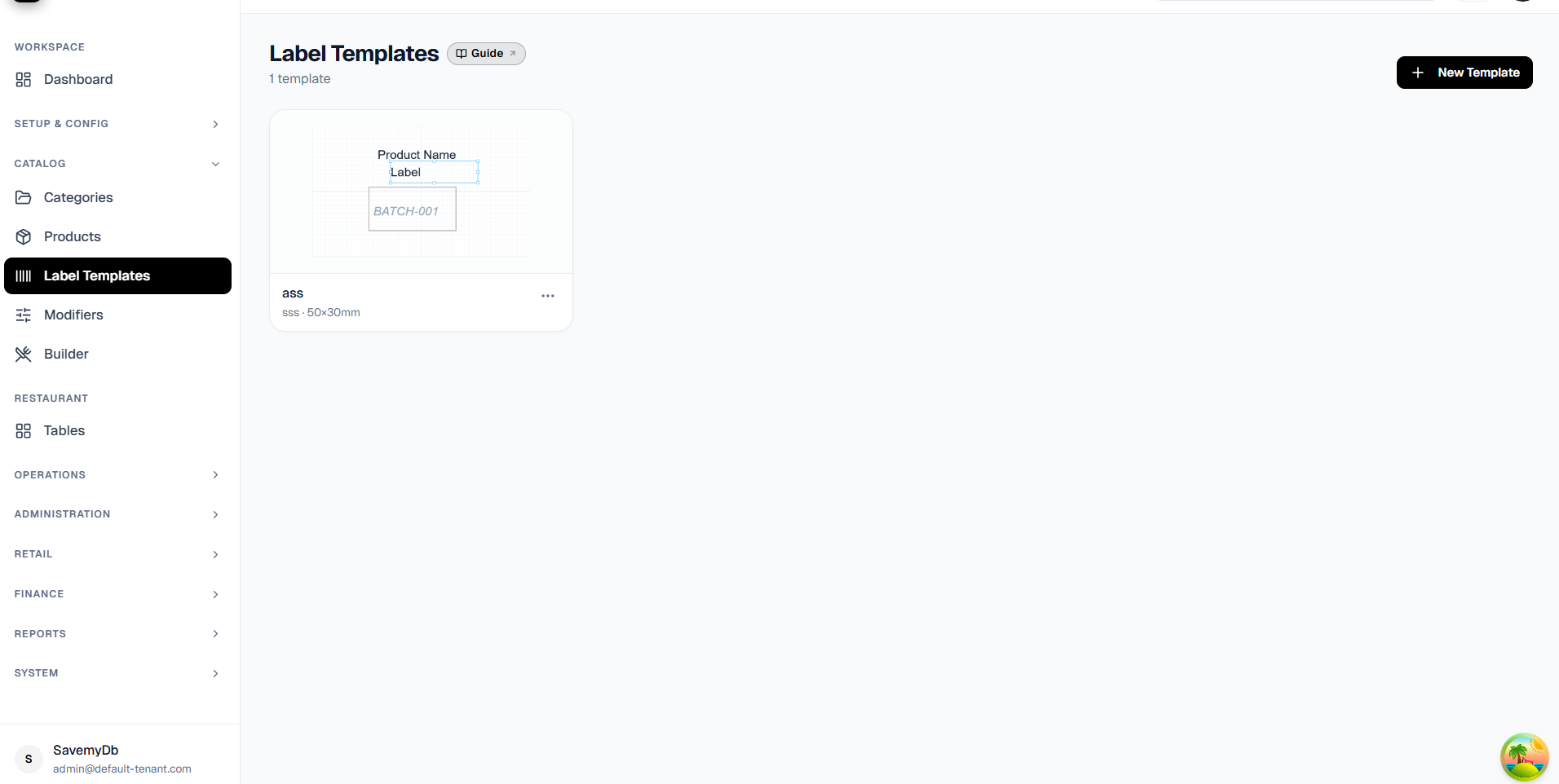
Create a Label Template
Go to: Catalog → Label Templates → New Template Enter the template Name and Code, then select the required label size. Duit Cloud supports predefined label sizes as well as custom label sizes.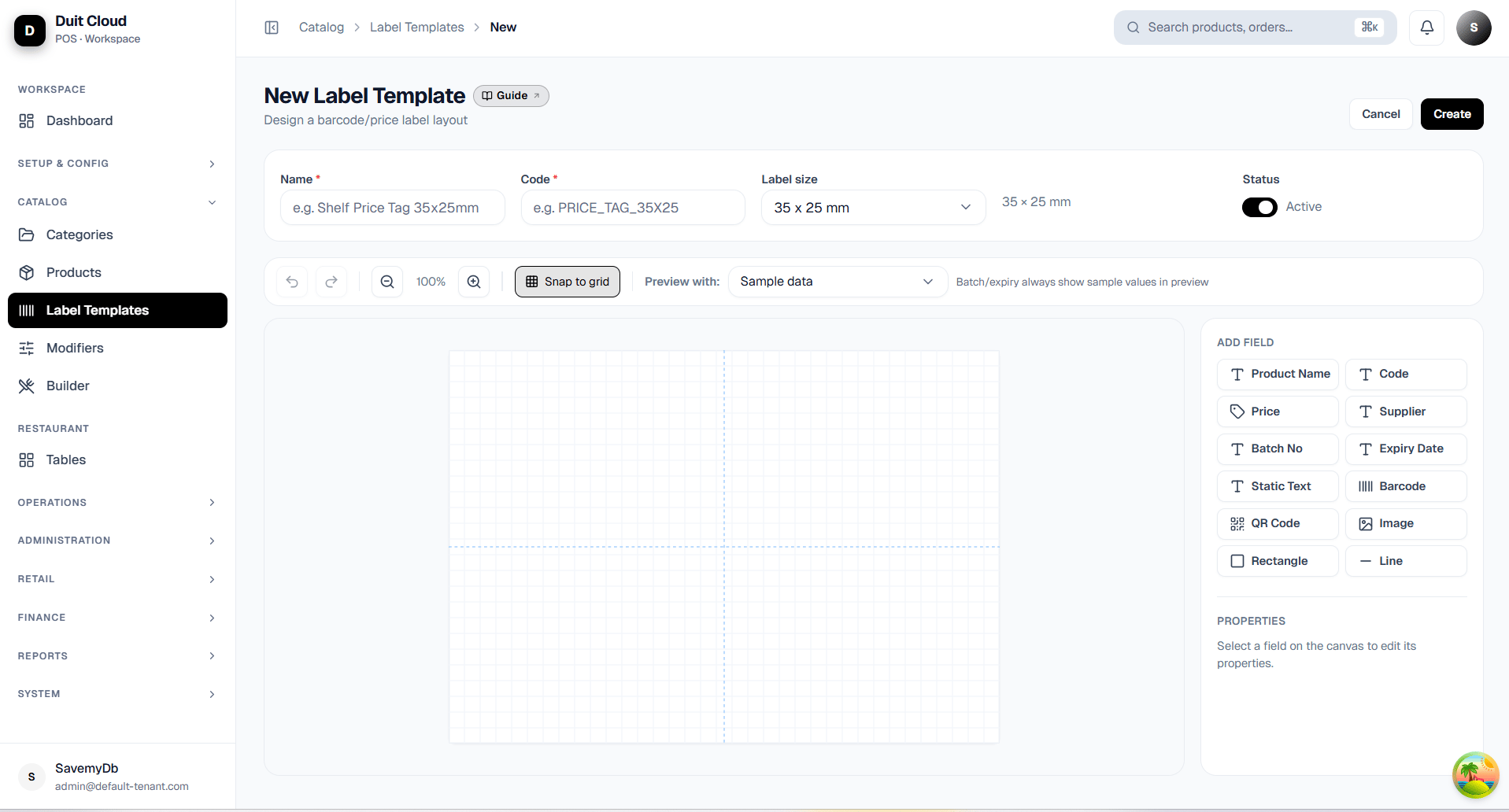
- Product Name
- Code
- Price
- Supplier
- Batch Number
- Expiry Date
- Static Text
- Barcode
- QR Code
- Image
- Rectangle
- Line
Important: Configure the Printer Paper Size
The paper size configured in the printer driver must match the label size designed in Duit Cloud. For example, if your template is: 50 × 30 mm configure the printer driver with: Width: 50 mmHeight: 30 mm If you create a custom label size in Duit Cloud, create or select the corresponding custom paper size in the printer driver.
Printer Orientation
The printer orientation must match the orientation used by the label design. For example: Cloud Template: 50 × 30 mm, LandscapePrinter Driver: 50 × 30 mm, Landscape If the printer driver is set to Portrait while the label is designed in Landscape, the label may print sideways, clipped, or incorrectly scaled. Also use 100% / Actual Size where available and avoid Fit to Page or Shrink to Fit if they change the label dimensions.
Print Product Labels
Go to: Catalog → Products Select the required product or products. The Print Labels action will appear.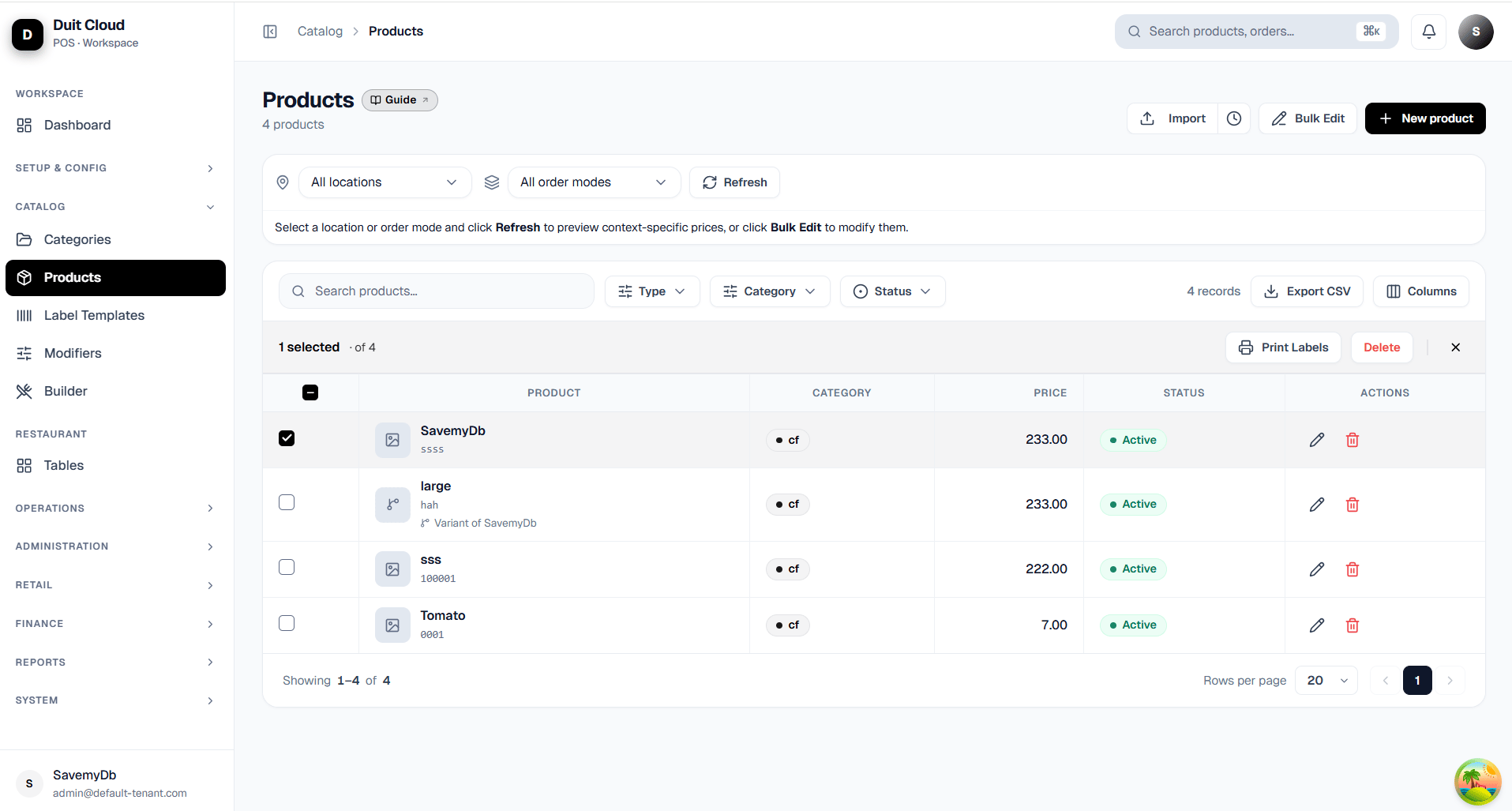
Configure the Print
The Print Labels window lets you choose:- Print method
- Label template
- Location, when required
- Label quantity for each product
- Rotate 90° when required
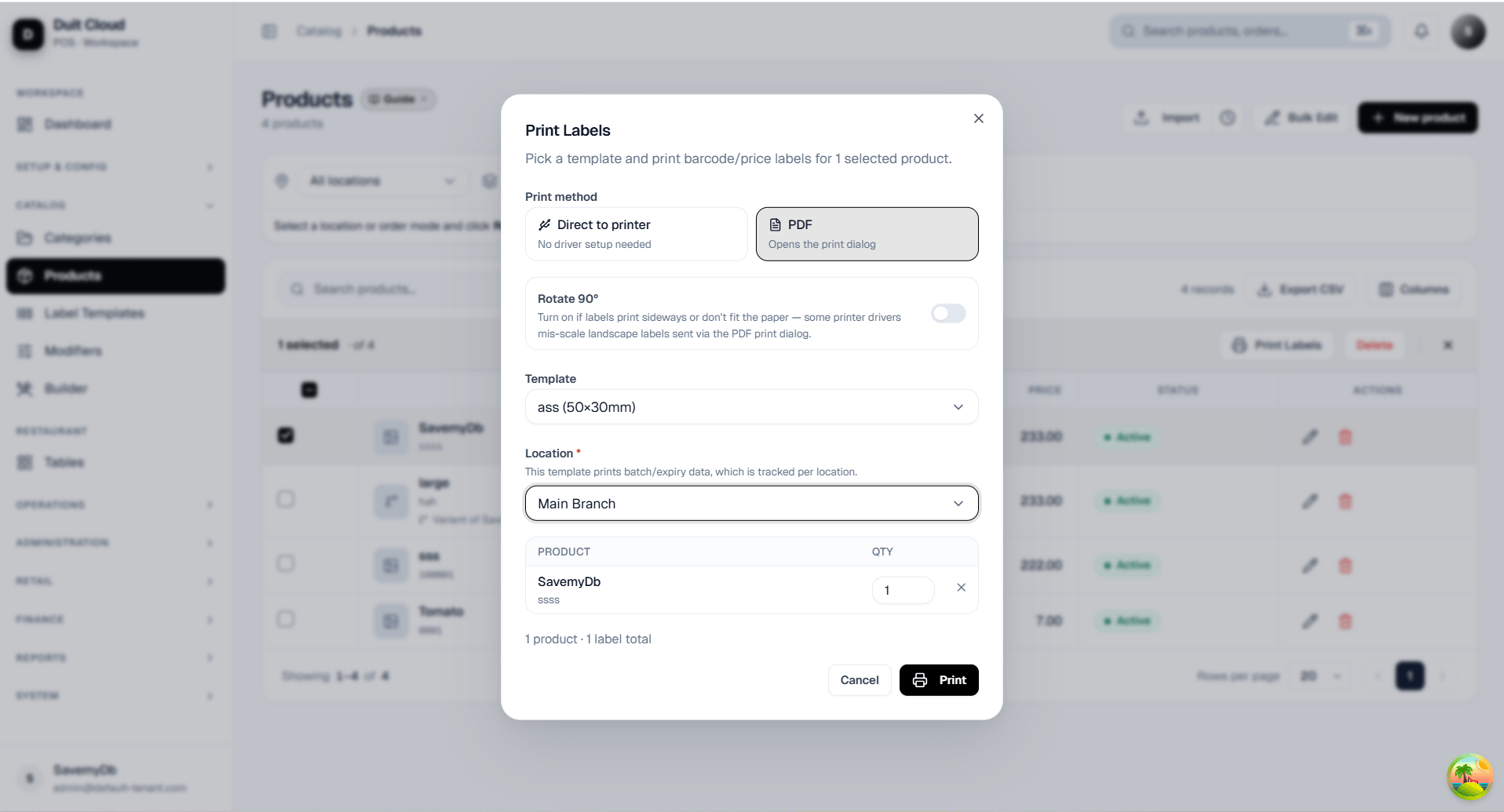
Direct to printer
Select Direct to printer when printing directly to the configured label printer. Make sure the printer driver’s paper size and orientation match the Duit Cloud template.Before Printing
Confirm that:- Physical label size matches the template.
- Printer driver paper size matches the template.
- Portrait/Landscape orientation matches the design.
- Scale is set to 100% / Actual Size where applicable.
- Fit-to-page options are disabled if they alter the label dimensions.
Example
For a label designed as: 50 × 30 mm — Landscape use:
Keeping the Cloud template, printer driver, and physical label dimensions consistent ensures the label prints correctly.